

Introduction
Welcome to the third part of our special feature on setting up a world-class LAN Party. In Part 1, I described how to organize a smooth-running LAN party and get it powered properly. In Part 2, I described selecting and setting up the LAN’s switching gear and provided some tips on selecting and making cables.
In this installment, you will learn a few of the techniques I use when troubleshooting problems that arise on a LAN Party network. Most of these techniques require use of managed Ethernet switches. While each managed switch has entirely different syntax and ways of accomplishing these tasks, most should be able to support these procedures. The examples are based on the HP Procurve switches that I use and recommend.
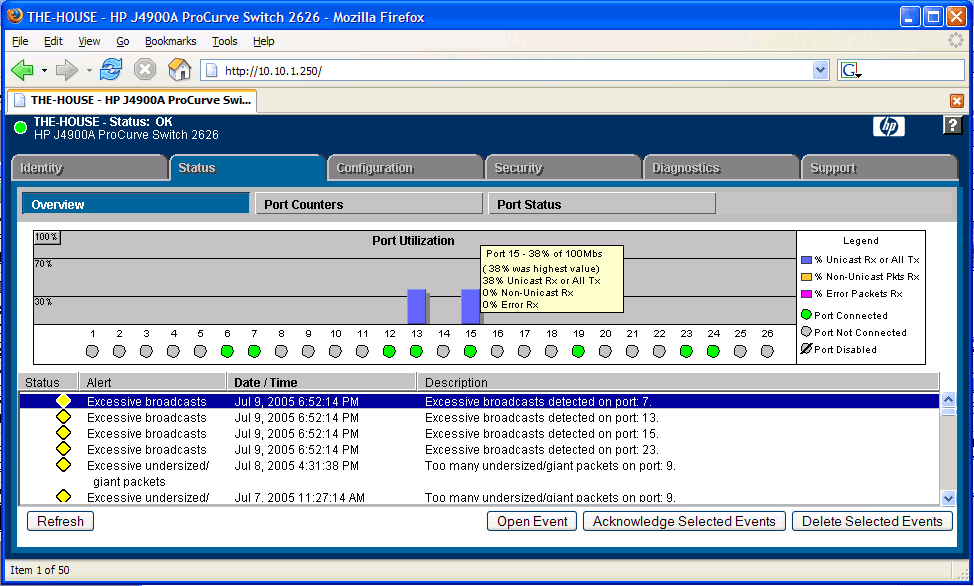
A managed switch at the core is a must
Core Switch Setup Tips
Before I get into troubleshooting, let me first offer some tips for setting up your core switch for the best LAN Party performance.
Disable Broadcast Storm Detection
This sounds like a devastating thing to do, but in a LAN Party environment, it’s essential. Windows-based PCs that implement File & Printer Sharing (on by default on most installations) build and maintain the Network Neighborhood computers and workgroups lists through broadcasts using NetBIOS.
Once the number of systems on the network passes a certain point, the number of NetBIOS broadcasts will appear to your core switch as uncontrolled bursts of traffic that must be stopped. So the switch will begin blocking broadcasts. Even if you don’t care about supporting Windows file sharing, blocking broadcasts will also stop game clients from locating game servers on the LAN because this mechanism also uses broadcasts.
On the HP Procurve 2824 switch, issuing the following command at a CLI prompt via Telnet or ssh will disable broadcast storm detection:
hp2824# config terminal
hp2824(config)# no fault-finder broadcast-storm
hp2824(config)# exit
Disable Flow Control for uplink ports
Flow Control or IEEE 802.3x is a standard protocol that switches and PCs can use to provide for consistent, steady speed at the expense of top-end performance. I recommend disabling flow control because an uplink port carries traffic for as many as 24 users in our configuration. One user’s packets shouldn’t be throttled or slowed down at the expense of other users on the same table switch.
If you decide against disabling flow control, or forget to make sure it’s disabled, users connected to that uplink might experience elevated ping times (increased latency or lag) as the load on the port increases and not just when it’s saturated! On our Procurve 2824 switch, flow control disabled is the default configuration for all ports, so we didn’t have to do anything. But in case you accidentally enable flow control, here’s how you would disable it again:
hp2824# config terminal
hp2824(config)# no interface 1 flow-control
hp2824(config)# no interface 2 flow-control
hp2824(config)# exit
Your table (if you’re using managed switches) and server row switches should have flow control enabled or set to Automatic for all ports. On the Procurve 2626, it’s enabled as follows:
hp2824# config terminal
hp2824(config)# interface 1 flow-control
hp2824(config)# interface 2 flow-control
hp2824(config)# exit
Label your ports
Managed switches maintain a “label” for each port of the switch. These labels are useful for SNMP management software such as traffic graphing and reporting. Once you have your LAN up and running, take the 5 or 6 minutes to label your ports. The HP Procurve 2824 switch uses the following command to label the various ports:
hp2824# config terminal
hp2824(config)# interface 1 name "Table 1"
hp2824(config)# interface 2 name "Table 2"
hp2824(config)# exit
Monitoring for common network problems
Occasionally during a party, I will check error counters to see if we are encountering any cabling issues. To do this, I establish a Telnet or ssh session with the core switch and issue the “show interfaces” command:
hp2824# show interfaces
Status and Counters - Port Counters Flow Bcast
Port Total Bytes Total Frames Errors Rx Drops Rx Ctrl Limit
------- ------------ ------------ ------------ ------------ ----- ------
1 27,564 297 0 0 off 0
2 0 0 0 0 off 0
3 0 0 0 0 off 0
[snip]
If you inspect the column marked Errors Rx, it will reflect a number of unrecoverable errors (in this case, none) – a number you want to pay attention to. The Drops Rx column doesn’t necessarily mean there’s a cabling problem as much as it could be a capacity problem. Switches will begin to drop packets if the queues become backlogged. This will happen when the cable has reached its capacity and a faster connection should be considered.
To determine the actual type of error, just query the switch for more details on the suspect port:
hp2824# show interface 1
Status and Counters - Port Counters for port 1
Name : Table 1
Link Status : Up
Bytes Rx : 15,812 Bytes Tx : 25,66
Unicast Rx : 0 Unicast Tx : 0
Bcast/Mcast Rx : 111 Bcast/Mcast Tx : 372
FCS Rx : 0 Drops Rx : 0
Alignment Rx : 0 Collisions Tx : 0
Runts Rx : 0 Late Colln Tx : 0
Giants Rx : 0 Excessive Colln : 0
Total Rx Errors : 0 Deferred Tx : 0
The bold values in the query result above provide details on the types of errors that might occur. For more details on any of these types of errors, you should consult the manual that came with your switch. But generally speaking, FCS and Alignment errors are more likely cabling issues, and Runts & Giants are caused by PCs or switches connected to the port. These devices can be either misconfigured, or have outdated drivers that are causing the errors.
To confirm that the cable is the cause of the errors, run a new cable between the core and table switch. Once you’re ready, inform the table that connectivity will drop briefly, remove the old cable and insert the new one at both ends simultaneously for the least amount of downtime. It’s useful to now “reset the counters” on the core so you can see if the errors return, i.e.:
hp2824# clear statistics 1
Network Loops / Bridging
With the release of Windows XP, Microsoft added the capability to “bridge” or effectively link one network to another through a PC. This is quite useful in a home environment if one wanted to set up a wireless network without buying a dedicated wireless access point. But it causes problems at a LAN Party because users aren’t aware of how bridging works and sometimes just bridge everything!
Or perhaps a user went through the wizard and picked the wrong settings, and never noticed a problem because he or she was never connected to both a wireless and wired network at the same time at home. But when the wired and wireless networks are bridged at a LAN Party, normal network “chatter” will be continuously looped. (The PC sends a broadcast, it hits the bridge, goes out again over the wireless and is linked back to the core via the wired network.)
Fortunately, bridges are relatively easy to detect by examining the core switch’s MAC Address Lookup tables, like so:
hp2824# show mac-address
Status and Counters - Port Address Table
MAC Address Located on Port
------------- ---------------
001111-46ccdc 1
001279-c6188b 2
001111-46ccdc 2
[snip]
In the example above, port 1 has a wireless access point connected and port 2 is connected to a floor switch. You can see the same MAC address appearing on both ports 1 and 2. This normally should not happen and indicates a probable bridge in use. Begin problem mitigation by making an announcement that all wireless users should disconnect from the wired network until they can verify that their system is not bridging.
Reacting to a network outage
When a user comes to the network staff with a complaint of a “massive” network outage, the first step is to stay calm. Most users are rarely aware of everything going on at their table and may be exaggerating the problem. Your next step is to get the basic information you’ll need for troubleshooting such as:
- Reason for the complaint – what behavior did they expect and what did they get
- Location of the seat / PC so that you can identify the table they’re connected to
- Name / handle and other contact info so you can call them later if you have more questions
Begin the troubleshooting with the easy stuff, followed by the obvious PC stuff, and finally the “Oh crap we have major problems” stuff:
Easy Stuff
First check the switch at their table to make sure it’s powered up and the uplink light is lit and showing activity (usually by blinking). Also ask others at the table if they are having trouble – the guy playing a 32-mac Battlefield game will usually give away that there’s not a core connectivity problem. But ask just in case he’s a looney and playing a bunch of bots.
Obvious PC Stuff
Check the user’s PC to make sure the link light is lit. Then make sure they have a valid IP address assigned via DHCP (or manually if your LAN isn’t using DHCP):
Ethernet adapter Local Area Connection:
Connection-specific DNS Suffix. : asylumlan.lan
IP Address............ : 10.90.1.140
Subnet Mask........... : 255.0.0.0
Default Gateway......... : 10.10.1.241
If your LAN is using DHCP, ask another user who is “known working” to release and renew their IP address. If that user can re-establish his IP address fine, the problem is isolated to the user’s PC. I’ll cover this shortly.
“Oh crap we have major problems…”
If DHCP leases are failing to renew, go to a different table and try from there. If you still get get a DHCP lease, chances are the problem is with your DHCP server. Try restarting the service and perform standard troubleshooting there.
Try pinging various machines to see if you can hit server row, the core switch and another player at a different table. If any of these fail, you might want to check for problems using the management tools on your core switch.
If you’re still stumped, try rebooting the table switch, but be sure to first inform users that connectivity will be lost for a few moments.
Acting in a coordinated and consistent manner will reassure users that you are not flying by the seat of your pants. Unannounced reboots of switches and critical servers are sure to result in unhappy players who may not return to your next party.
The Last Mile – Common PC Problems
Troubleshooting PC problems comes with the territory of hosting a LAN party. The following tips should help you locate problems more quickly.
-
Does the machine have an Ethernet card?
Once you’ve stopped laughing, send them up to the hardware vendor to buy one. Someone actually once said to me “You said wireless access would be available”, thinking that wireless meant he didn’t need a network card! -
Is the Ethernet cable connected?
If not, connect it and make sure you check the Link and Activity lights before walking away. -
Connected, but no link light?
First use a known, working test cable and see if that works. If that solves the problem, sell / give them a new cable, or have them see if they can borrow one from a buddy. I also suggest you get the player’s permission and then cut off one of the ends of the bad cable so they know not to try using it again. (Usually it gets thrown back in a box just to cause another network admin trouble later if you don’t.) -
Still no link?
Try a different port on the switch, again with the known good test cable. If this works, you probably have a bad port on your switch. Switch back to the original cable, but in a new port and they’re on their way. Make a note of the port and switch number of the bad port and put a piece of tape over the bad port to prevent others from encountering the same problem. -
Still no go?
At this point you’re looking beyond the simple stuff. Possible causes are corrupted drivers, network stacks or other software-related causes. It’s also possible that the NIC is just dead. The last possibility is chip-level compatibility between the NIC and switch that causes speed and mode (full / half duplex) autonegotiation to fail. You might be able to fix this if the NIC driver (or utility) allows you to set speed and mode. Otherwise the user is probably looking at having to get a different NIC.
Client DHCP Issues
Check with the appropriate utility for your operating system to determine whether a PC has a proper IP address. (ipconfig on Windows, System Preferences on Mac OS X, ifconfig for ‘nix and BSD distros)
Make sure the IP address doesn’t start with 169, which is Windows’ automatic local private addressing that it defaults to when DHCP fails. If you see a 169.X.X.X IP, try releasing and renewing the IP address of a known good system to make sure the problem isn’t with your DHCP server. I suggest you first try this from another table that has not reported prior problems, then from another PC at the problem table.
Firewalls
Firewalls can sometimes also cause problems with DHCP. They usually do not block DHCP traffic itself, but have been known to cause other problems that interfere with obtaining a proper PC lease. You can try shutting off the firewall, but you’ll be more certain to remove any firewall effects by uninstalling it entirely – with the user’s permission, of course.
Gamers reporting trouble seeing game servers on the network should first check the version of their game to make sure it’s the latest version. If that checks out ok, then 90% of the time a misconfigured or too-securely configured firewall is probably blocking server response packets from returning to the game’s server query broadcast.
Test the game without the firewall enabled, tweak the firewall as necessary, or just run without it. If you shut off the firewall, I suggest you disable File & Printer Sharing on the NIC as a precaution if the user doesn’t need it. This will prevent problems from nasties that spread via this mechanism.
WINSOCK and other TCP/IP stack problems
Spyware – I hate it. It kills PCs. It also kills Winsocks. If a person is getting an IP address fine, but nothing much else seems to work, it’s probably because the Winsock has been compromised by spyware. To resolve these problems, keep a USB key or CD-ROM handy with Spybot Search & Destroy and Ad-Aware SE. Be sure to update each of these with the latest definitions from the same key or CD if possible, or an Internet connection if available.
If after running both of these spyware removal apps, you’re still having problems, there are a few more things you can try. A System File Check (SFC) can be run on an XP machine by Start > Run and then entering “sfc /scannow” (note the space before the /scannow) into the Run box and putting an XP CD into the drive when prompted. You can also try reinstalling the Winsock per the directions in Microsoft Knowledgebase article KB817571 or resetting the TCP/IP stack as described in MS KB299357.
If you have a Linux machine that can’t see game servers on the network, it’s probably because there isn’t a default gateway assigned to the NIC card. This one eluded us for an event or two until we were able to do some testing ourselves. Neither Windows nor Mac OS exhibited this behavior.
Assigning a nonexistent gateway on your network is detrimental to its performance, so if there’s no Internet connection at your LAN Party, then you can advise Linux users to manually add a gateway to their systems and this problem will go away. If they are unsure how to add a default gateway, they can do so from a shell prompt by executing the “route add” command like this:
Linuxhost# route add default gw 10.10.1.241
Closing Thoughts
Security is very important when it comes to the management of any network, but a LAN Party is the “Wild Wild West” of networks. Many different types of hardware and OSes and just as wide a range of personalities that own them will be attending your event. Not everyone has the best intentions when they start scanning IP addresses on your LAN for open SNMP Management Agents or attempt to exploit vulnerabilities on critical servers.
Since it’s impractical to set up a dedicated management network on a LAN Party budget, you should state a zero tolerance policy on network hacking in your sign-up / liability release forms and then enforce it!
In the next article, I will explain what you can do to detect the above flavors of hacking activities by utilizing a SYSLOG daemon on a UNIX or Windows host. For now, however, be sure to turn off any management features on your switches that you don’t need, like writeable, private SNMP Agents. Also make sure to monitor event logs on your servers to look for unusual activity.
In this installment, I’ve covered what you need to know to build the network itself – from selecting the hardware and setting it up, to troubleshooting problems that you might encounter during a typical event. If you’ve never set up a party-sized network before, hopefully you now have a better understanding of the responsibilities of those who host large LAN parties.
In the fourth and final part of this series, I’ll be covering the core network services for a LAN party. I’ll show you how to set up a basic DHCP server as well as an advanced DHCP configuration ideally suited to running larger parties. I’ll also cover setting up an Internet firewall that keeps packets flowing smoothly while allowing users of Steam-based games to update and access online play.
Christopher (AlexKidd) Dickens and his partner Dave Wilson own and operate LANrental.com, a LAN rental business serving the Kentucky, Indiana, Ohio, Southern Illinois, Eastern Missouri, Northern Alabama and Northern Georgia area.