

Introduction
What is Wake On LAN? Wake on LAN, or WOL, is the ability to send a signal over a local area network (LAN) to power up a PC. Wake on WAN is the ability to send that same signal over a wide area network (WAN), such as the Internet, to trigger power-up of a PC on a private LAN.
Perhaps you have a PC at home that you don’t want to leave powered on, yet may need to access while at work. Maybe you saw Al Gore’s video, and you want to conserve energy and leave your PC off except when you need it. Certainly, your PC is more secure from hackers when it is off.
In order to take advantage of Wake On LAN/WAN technology, there are multiple steps to perform. This guide lists those steps, covering BIOS configurations, software, testing, routing, and security. The goal here isn’t to cover every aspect of Wake On LAN/WAN technology, but to provide understanding and tools to make it work on your network.
You’ll notice that testing comprises multiple steps in this guide. I can’t emphasize enough the importance of making one change at a time, and then testing the effectiveness. Trust me, you’ll thank yourself later for your patience and attention to detail now. I have been involved in far too many network changes that had to be completely re-done due to poor testing and methodology. If you check your work at each step, you can avoid doing it all over again later.
To find your way through all the options, it’s helpful to reference the OSI model for computer networking. As you can see in Figure 1, the OSI model specifies seven layers. WOL plays primarily in Layers 1-4.
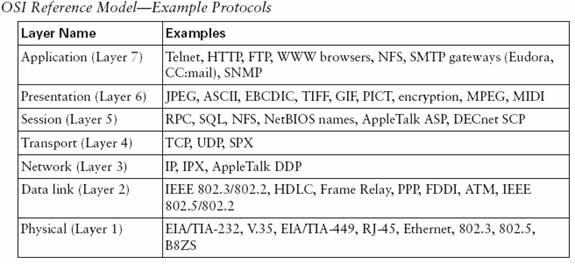
Figure 1: A chart showing the OSI model
(CCNA Intro Exam Certification Guide, Cisco Press, 2004, Wendell Odom, p34)
At Layer 1, (the Physical layer) both the PC to be turned on and the PC sending the WOL signal need to use wired Ethernet connections.
At Layer 2, (the Data Link layer) WOL uses MAC (Media Access Control) addresses to turn on a specific PC. The MAC address is critical, as a PC in the off condition doesn’t have an IP address. IP addresses are loaded in memory, whereas MAC addresses are burned into the card.
The frame sent to the target PC carries a special datagram, called a “magic packet”, which triggers an Ethernet card (NIC) to power up a PC. A WOL packet sent over the Internet will hit your router first. Your router will take the packet, strip the WAN IP, and send the packet to the Layer 2 MAC address on your LAN.
It’s important to note that WOL doesn’t work over wireless networks. Although both wired and wireless networks use MAC addressing, the format of a wireless frame is different than the format of a wired frame. Specifically, there is additional information carried in the header of a wireless frame that interferes with the magic packet frame, preventing the target machine from detecting the wakeup signal.
At Layer 3, (the Network layer) WOL works best when directed at a broadcast address. The broadcast address in most home and small business LANs ends in.255. For example, a gateway router with an IP address of 192.168.1.1 will typically have a broadcast address of 192.168.1.255.
This guide assumes your LAN uses a private IP address space, such as 10.x.x.x, 172.16.x.x, or 192.168.x.x. Typically, you’ll have a gateway router providing NAT (Network Address Translation) through the public IP address provided by your ISP.
The challenge at Layer 3 (which handles IP addresses) is transmitting a Layer 2 frame, destined for a private IP broadcast address, across the Internet. Private IP addresses are not transmitted across the Internet, and broadcasts are often blocked.
The solution lies in Layer 4, the Transport layer. This layer specifies transport type (TCP or UDP) and port numbers. Communication across an IP network, the Internet included, uses both IP addresses and ports. Successfully transmitting a WOL signal over the Internet requires knowing the UDP port used by your WOL utility, and forwarding that port through your firewall.
Below are eight steps to follow to enable Wake On LAN/WAN technology on your network. Before you start, it will be helpful to have a solid understanding of your LAN and its elements. Taking the time to map and document the details of your network will come in handy. Even a small LAN of a half-dozen nodes has numerous key details, including subnet information, DHCP settings, MAC addresses, installed OS’s, router configurations, etc.
Step 1 – Enable Wake on LAN
Most motherboards today have a built in NIC and support Wake on LAN functionality. You’ll have to go into the BIOS Power Options to enable it. The process is different in each motherboard, but pretty straightforward.
On an Intel CPU ASUS P4C800 board, the option is called Power On By PCI Devices in the APM (Advanced Power Management) menu. On an AMD CPU MSI K8N board, the option is called Resume by MAC LAN.
Figure 2 below is screenshot from a laptop BIOS. You can see the option is called Power Management and there is a selection for Wake on LAN.
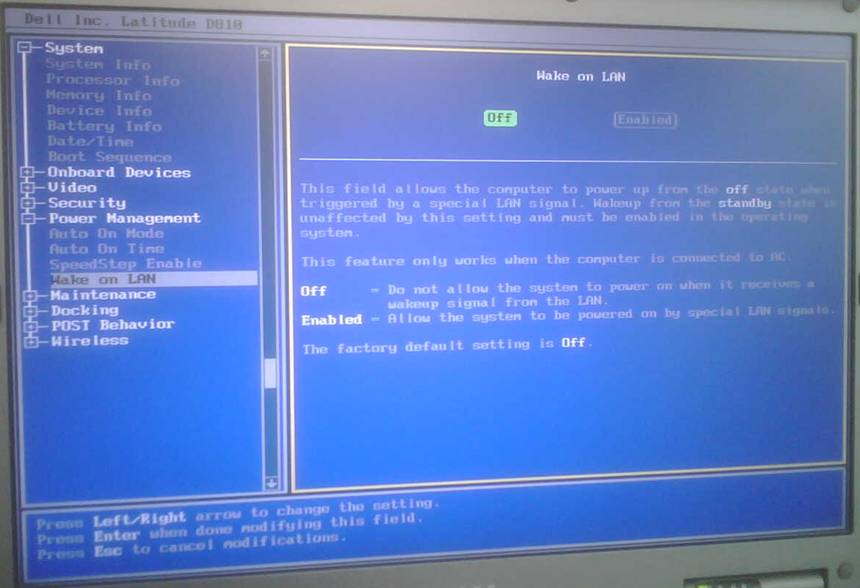
Figure 2: A view of a laptop BIOS
If you’re using a separate PCI LAN card, you’ll have to enable WOL functionality for PCI devices in your BIOS. Note that if you’re using an older motherboard with a PCI 2.1 or older bus, you’ll likely need to connect a 3-pin WOL cable from the NIC to the motherboard. This cable is typically not needed in newer computers using a PCI 2.2 or newer bus.
Finally, check the Advanced Properties of your network card. In Windows, go to Start-Settings-Network Connections to ensure Wake functionality is enabled. An example is shown below in Figure 3.
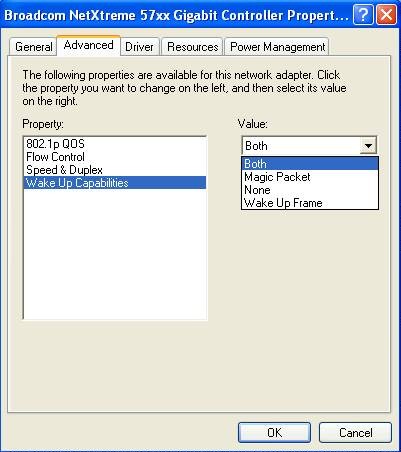
Figure 3: The Advanced Properties tab of the NIC properties
Step 2 – Collect your MAC address
From the PC on which you want WOL functionality, go to the command line (Start-Run-cmd) and type ipconfig /all. This will tell you the IP and MAC of the NIC you want to receive the WOL signal.
It’s handy to store this information in a file you can access from the PC you’ll be using to power up the target PC. The MAC address will be the Physical Address in the form XX-XX-XX-XX-XX-XX. In the below example in Figure 4, the Physical Address is shown as 00-12. I deleted the rest of it; normally, you’d see the full six sets of characters. A sample MAC looks like this: 00-01-02-55-77-B3.
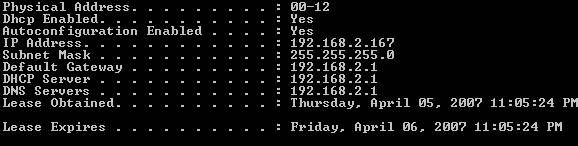
Figure 4: The results of the “ipconfig /all” command
Step 3 – Download and install software
There are a lot of useful utilities for WOL. The intent of this guide isn’t to review or recommend software, but to show you how to make it work.
I use two WOL utilities, mc-wol.exe, and AMD’s Magic Packet Utility. I like the AMD Utility (www.amd.com/us-en/assets/content_type/utilities/magic_pkt.exe) as it allows for creating and saving a file of target PC MAC addresses. This comes in handy, allowing you to fire up the application, open your file, grab the MAC, and power up.
The other tool I find invaluable for network troubleshooting is Ethereal, now known as Wireshark (www.wireshark.org). These three tools are freeware and easy to use.
Step 4 – Test your configurations!
When making changes to your network, you can’t be too thorough. Make one change at a time, and test each one from controlled scenarios as much as possible. Turn off your PC while at home and test WOL to watch the PC turn on!
mc-wol.exe is a simple DOS based utility and works well over the LAN. Using another PC on the same LAN as the target PC, start up the command line and go to the directory where you saved the mc-wol.exe utility. From the command line, execute the application with the MAC as its argument. For example: MC-WOL 00:01:02:55:77:B3 Note that the command and MAC address aren’t case-sensitive, so you can skip the shift key.
You should observe the target PC powering up almost instantly upon hitting enter. If not, stop here and go back to Step 1. WOL won’t work over the WAN if it doesn’t work on the LAN. Measure, in seconds, the amount of time from power-up to boot completion. Knowing this will make the wait when you’ve sent a WOL signal easier.
Step 5 – Configure your router
There are two parts to WOL router configuration: optional and required changes. We’ll discuss the optional configurations here.
To send a WOL signal over the Internet to your LAN, you need to know your Public IP. Unless you’re paying extra for a static public IP, your ISP can change your public IP address whenever it wants, often when you reboot your router.
Dynamic DNS is a free and useful way to keep track of your Public IP address. If you have a Linksys or D-Link router, odds are that it has Dynamic DNS (DDNS) functionality. Both work with a free public website, www.dyndns.org. Set yourself up with a free account and you’ll have a fully qualified domain name that won’t change, even when your ISP changes your IP.
Enable DDNS and enter your account information into your router, and your router will keep your IP tied to your new domain name. There are other Dynamic DNS services that also work.
If your router doesn’t support Dynamic DNS, you can download a PC-based client from Dynamic DNS to allow a PC on your LAN to keep your public IP associated with your domain. However, your domain can’t be updated if your IP changes while your computer is turned off.
Static DHCP is a useful router configuration for a PC that you want to work with remotely. I like this better than setting a static private IP. Static DHCP lets your PC synch with the router and get the correct DNS information, saving the hassle of configuring it on the PC. Most routers allow you to specify a MAC address and assign it an IP address. When properly configured, your PC will now always have the same IP, but get the current and correct DNS IPs. Further, your router will have the MAC address of the target PC stored in its config.
Set up your router to allow for remote login. This is a security concern, but it comes in handy while troubleshooting your home LAN remotely.
Ping is a very powerful tool that is very useful for troubleshooting. The default setting on router and PC firewalls is to disable ping or echo replies. Having this functionality enabled helps verify the reachability of your LAN and PC.
Many routers have the ability to perform simple diagnostics, including a ping test, similar to what’s shown in Figure 5. If your PC firewall allows pings, it will come in handy when you’re trying to see if your PC is on or off. Familiarize yourself with this aspect of your router. It is useful to be able to log into your home router remotely and ping your target PC.
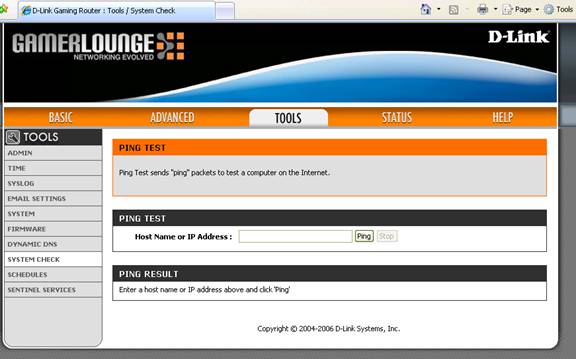
Figure 5: A router ping test
Last, if your router has a logging capability, you can use it to see if your WOL packets are hitting your router and being forwarded to your LAN. It’s definitely a feature that you’ll find useful if there are issues.
Step 6 – Configure port forwarding
Configuring port forwarding on your router is a required change; WOL won’t work without it.
WOL uses UDP as its Layer 4 transport, but the port varies based on the utility. The mc-wol.exe utility uses UDP port 65535. AMD’s Magic Packet Utility uses UDP port 2304. There is a Linux tool, aptly named wakeonlan, that uses UDP port 9.
An easy way to find the port is to use a packet sniffer utility to see which port is used. Ethereal (now Wireshark) is probably the best known, and a very powerful free download. If you’re into networking, it is an invaluable troubleshooting tool. You may find this tool comes in handy if you’re using a different WOL utility and need to find the port number.
Figure 6 below is the Wireshark capture of a WOL packet. The areas titled MAC ADDRESS and IP Address are blanked out in the example, because you’ll see your own MAC and IP addresses when you run it. The key is the Dst Port (Destination Port). This is what you’re looking for.

Figure 6: Wireshark’s packet capture showing the destination port
Once you have the port number, you have what you need. You’ll need to go into your router’s port forwarding menu and set up a rule to forward UDP packets sent to the WOL port to the broadcast IP address of your LAN.
Some routers don’t allow broadcast IPs to be used as a target IP. This is where having Static DHCP comes in handy. If you have configured Static DHCP, and your router has the MAC of your target PC, you can configure your router to forward the WOL packet directly to the IP address of the target PC.
Figure 7 below is a screenshot from a Linksys RV042 router. Port forwarding is configured in the Setup menu under the Forwarding tab.
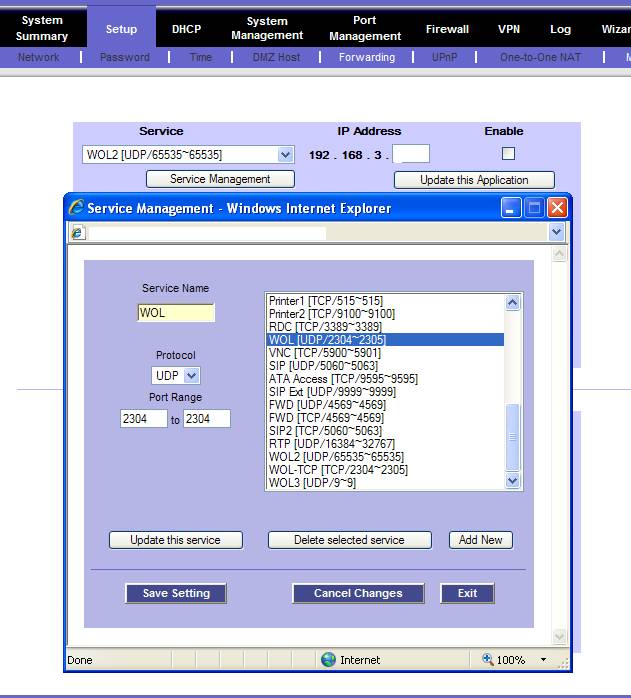
Figure 7: Setting up port forwarding on a Linksys RV042 router
Figure 8 below is a screenshot from a Zyxel P-334WT router with several port forwarding rules configured. Port forwarding is configured in the Network menu under the NAT-Port Forwarding tab.
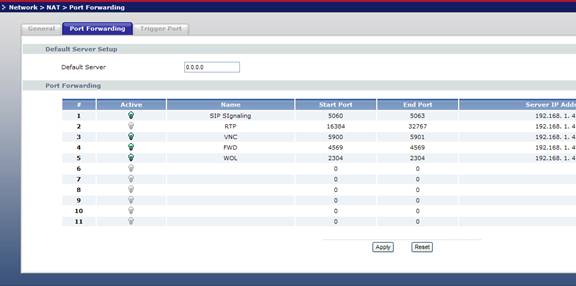
Figure 8: Setting up port forwarding on a Zyxel P-334WT router
Step 7 – Test again!
Now that you think you’ve configured everything, test it. Start with ensuring you can access the target PC. If you can ping from your router, double-check and ping your target PC.
Now you’ve reached the moment of truth. Turn the target PC off. You can remotely turn off a Windows PC via Remote Desktop Connection by right-clicking the menu bar and selecting Task Manager. You’ll see a Shut Down option similar to Figure 9.
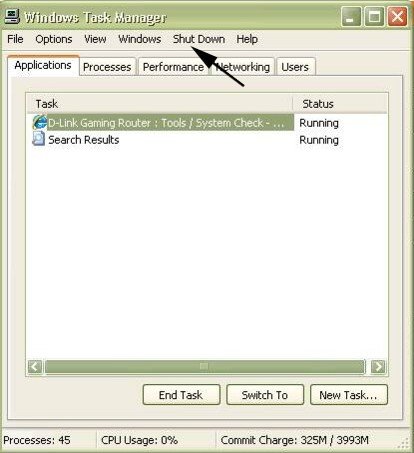
Figure 9: The Shut Down option on the Task Manager
Other OSes have similar options. Many Linux distributions have a power button at the top right, similar to Figure 10.

Figure 10: The power button on a Linux distribution
Okay, the PC is off. You can double-check that by sending a ping from your router to the target PC.
Now send the WOL signal to the target PC. If using the AMD Utility, you’ll enter your Dynamic DNS domain, or Public IP, and the MAC address of the target PC, as in Figure 11 below. Note the time in seconds and reference the measured time—from power-up to fully booted—you previously recorded. You’ll be glad you collected this as you wait the endless seconds before you can remotely login.
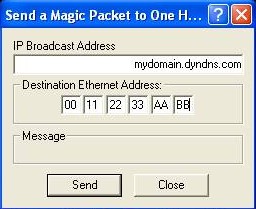
Figure 11: Sending the WOL signal
If you can log in, congratulations! You’ve remotely powered up a PC. If not, now is the time to start utilizing the tools discussed previously.
Leveraging the tools in your router, especially ping and log functionality, will help you find a problem. Start by looking at the log of your router. See if it received a packet from your remote PC and forwarded it per the rule you configured.
Step 8 – Security is important
Powering up a PC remotely, opening ports on your firewall, enabling remote login, and enabling ping capabilities all expose your PCs and network to the world. It’s up to you how you manage that risk. For example, you can turn off ping capability on your router and disable your port forwarding rules. If you have enabled remote login to your router, you can then turn on the ping and forwarding rules when you need to power up a PC, and turn them off when you don’t.
Regardless of OS, you need to set up the PC you subject to WOL to require a username and password for remote login. Windows Remote Desktop Connection is a useful way to remotely access a PC, and should be set up with a username and password. VNC software should always be configured to require a password on remote login.
Use secure passwords. Change the passwords on your router and PCs to unique, 8 or more character mixtures of uppercase and lowercase alphanumeric characters.
Test it at home before you leave your house with your PC off, hoping to turn it on remotely. Then, test it remotely with someone else at home to turn on your PC if WOL isn’t working.
When all is said and done, you’ll have a pretty cool solution: the ability to remotely fire up your PC with a keyboard from anywhere on the Internet. Plus, you’ll save money and electricity by leaving your PC off when you don’t need it.