

Introduction
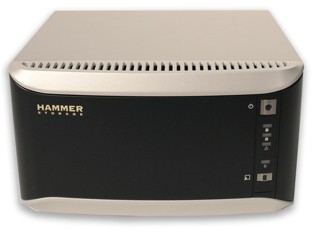
| At a Glance | |
|---|---|
| Product | Hammer Storage myshare (HN1200-1000) |
| Summary | Inexpensive SATA RAID 1 NAS with FTP and USB print servers. |
| Pros | • Inexpensive • RAID 0,1 • Gigabit Ethernet w/ jumbo frames • Decent Performance |
| Cons |
• No backup software • Some bugs • No media servers |
I’ve reviewed a lot of Network Attached Storage (NAS) products over the last few years. Typically they are either single-disk units marketed toward home users, or RAID 5 capable, four-disk units geared more toward business use. Recently, there seem to be more dual-drive units coming on the market. These units take a middle-ground approach, supporting the lower RAID levels while keeping the cost down.
In this review, I’ll check out a dual-drive NAS box from Hammer Storage. The gigabit-capable myshare HN1200 supports RAID levels 0 and 1, has dual USB ports for print serving or storage expansion, and is fairly inexpensive. A one Terabyte HN1200 can be picked up for less than $500.
Setup
Figure 1 shows the back of the HN1200. In the image you can see two USB ports, a 10/100/1000 Ethernet port and a fan vent. The Ethernet port supports jumbo frames—and you can enter the frame size directly, instead of being limited to choosing from preset values.
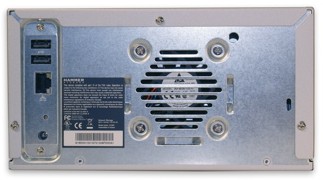
Figure 1: HN1200 back panel
When the unit is powered up, the sound of the fan is noticeable, but it’s not as bad as other units I’ve reviewed. In-use, my review unit drew about 23 – 28 Watts of power. The unit can be placed either horizontally as shown above, or vertically.
One thing I noticed as I was setting up the HN1200 was a lack of an installation CD. Typically, NAS boxes require installing a local program that is only used for locating the box on the LAN and then spawning off a web browser to connect and configure. Hammer decided to forgo this intermediate step, and take a bit of a unique approach to initial configuration.
Instead of installing a new program, a clear installation guide is provided for both Windows and Apple users. This guide directs the user to mount a configuration network share using the default NetBIOS
name of HN1200. The user is then directed to load an HTML page from this share that starts the configuration. I appreciated this approach, as I get tired of installing setup programs that will never be used again once setup is complete. Figure 2 shows the main configuration menu of the HN1200 that is displayed once the administrator is logged in.
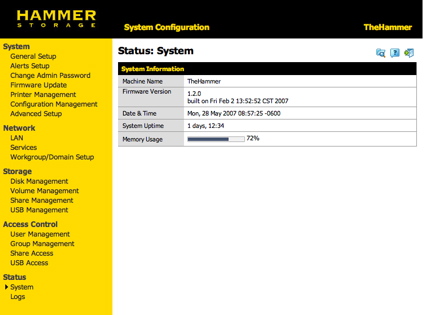
Figure 2: Main HN1200 configuration menu
This status display shows a few statistics such as firmware version, time, how long the unit has been running, etc. One curious entry was the “Memory Usage” display. Every time I saw this graph, my first reaction was to wonder how I’d used up so much disk space, but this graph is not referring to how much disk space has been used; instead, it’s telling you how much RAM has been used internally. Since the user has no control over how much RAM is used, I’m not sure what this display accomplishes.
Next, I explored the configuration items under the “System” heading. Figure 3 shows the “General Setup” screen where the machine name can be defined, the machine description set, the time set either manually or through an NTP server, etc.
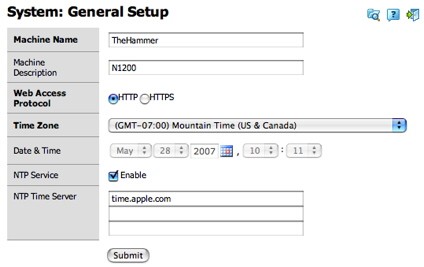
Figure 3: General Setup
Setup – more
Note the support for changing the configuration access to a secure HTTPS instead of the default HTTP. However, also note that there is no way to change the HTTP/HTTPS ports used. The HN1200 has a couple of ways to send alerts to the administrator when problems occur. Figure 4 shows the alert setup menu where the HN1200 can be configured to send email and/or Windows “Pop-Up Notifications.”
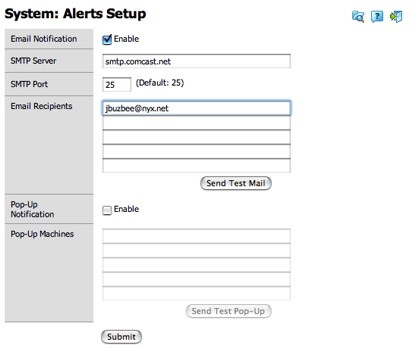
Figure 4: Alert setup
Note in the SMTP setup that there is no way to enter a username and a password for outbound mail. If your SMTP server requires logging in, you’ll be out of luck. In my testing, I got neither the email nor the pop-up functionality to work.
The Pop-Up notification required activating the standard Windows service. I did this and entered the IP address of my machine; however, every time I tested it, I got an error indicating that the pop-up failed. On my Windows machine, I saw no indication that anything had happened. For email alerts, I entered my info, but every time I hit the test button, I would get the pop-shown in Figure 5 (more on this later).
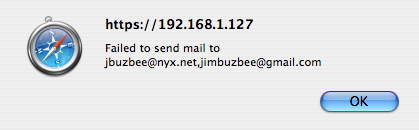
Figure 5: Email failure
Other items found in the “System” configuration section include the ability to change the administrator password, update the firmware, show the status of a printer attached to the USB port, and save and restore the current configuration. Under the “Advanced” setup (Figure 6), there were a couple of interesting features.
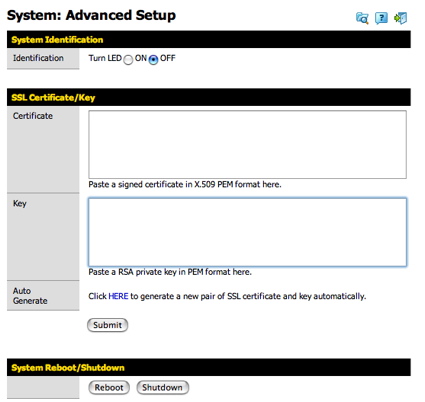
Figure 6: Advanced setup
The “Identification” option illuminates a bright blue LED on the front panel. Therefore, if you have multiple HN1200s on your network, you can tell to which one you are currently logged in. The Certificate form is one I haven’t seen on any NAS before. This form lets you specify your own cryptographic info for SSL communications
when you’re using the HTTPS server.
If you don’t already have your own certificate and key, another form (Figure 7) generates them for you.
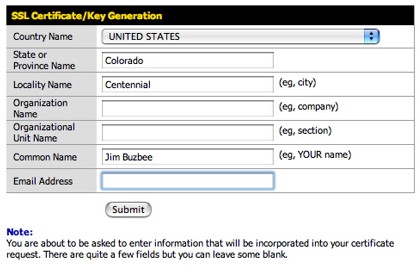
Figure 7: Certificate and Key generation
Network Setup
As you’d expect, under the Network menu, standard options are available for setting the IP address manually, acquiring it via DHCP, changing the SMB workgroup name, etc. If you’d like to join an existing Active Directory
domain for share authentication, you can do that as well (Figure 8).
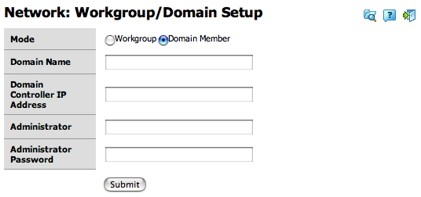
Figure 8: Domain Setup
In addition, for mixed environments, there’s an option for turning on NFS
(Figure 9), which is an appreciated feature for Linux and Apple users.
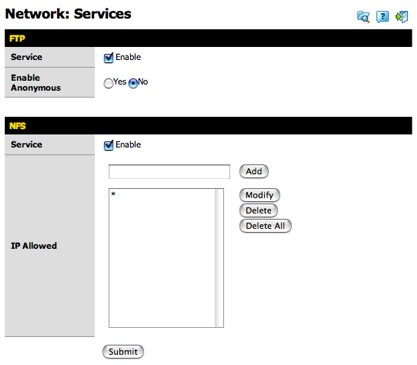
Figure 9: Network Service Setup
Although I appreciate the NFS support, it has an issue. When mounting an NFS share, the client needs to know the full path of the shared directory on the server. Just knowing the logical name, e.g. “Public,” isn’t enough. I couldn’t find this path documented anywhere, so the NFS server was unusable (more on this later).
For management of the disks, the HN1200 has a number of options. Basic status of the disks is shown under the “Disk Management” menu (Figure 11).
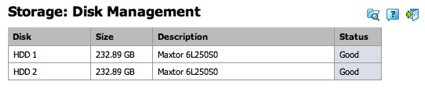
Figure 11: Disk Status
The RAID settings of the disk are changed under the Volume management menu. The HN1200 supports three different modes, as shown in figure 12.
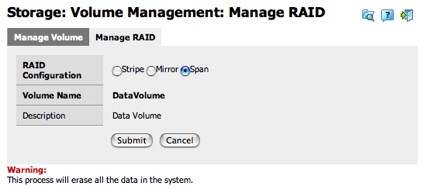
Figure 12: RAID Management
Stripe mode (RAID 0) spreads data across both internal disks for better performance, but with no fault tolerance. Mirror mode (RAID 1)
duplicates data on both disks; if one fails, nothing is lost. In this mode, the total capacity is cut in half. Span mode (JBOD)
combines the two disks into one logical drive, providing no data protection or increased performance.
To check out the recovery possibilities of the HN1200, I put the device in Mirror mode, added some files, opened the case, and pulled one drive out. From a user perspective, nothing happened. My network shares were still available, readable and writable. I assume that if I had alerts working, I would have gotten an alert at this point, but since I didn’t, the only indication that something was amiss was a blinking blue LED on the front panel. Plus, when I logged back into the administrator’s console, a warning was posted (Figure 13).

Figure 13: Disk Failure Warning
Next, I shut the system down, replaced the drive, and booted back up. Still from a user perspective, there was no change. However, behind the scenes, the drive was being recovered and a check of the system log (described later) showed periodic status messages as the drive was rebuilt. The rebuilding process took around an hour and a half.
I should also note that opening up the case and moving the drive in and out was simple. The SATA drives had small plastic guides mounted on their sides that allowed them to easily slide in and out. The only annoyance of this procedure was the need to break a “void your warranty” warning sticker when opening the case.
Share Creation
For creating network shares, the HN1200 has a number of options. Figure 14 shows the basic network share creation menu where the share can be set up and the access methods defined.
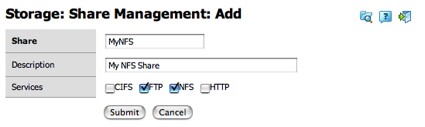
Figure 14: Share Creation
As you can see, shares can be accessed via a number of methods. Along with
CIFS
(or SMB), FTP, NFS and HTTP(S) access methods are supported. I first thought that HTTP access meant WebDav, but in reality, the HN1200 just allows viewing the disk via a simple web browser interface. The HN1200 also supports disks plugged into the USB ports. Hammer documents support for NTFS and FAT formatted disks on the USB ports. I didn’t have an NTFS disk to test with, but normally on these devices NTFS support is read-only. There are two USB ports on the box, and the lower port can be used for backup purposes. When the “backup” button on the front panel of the device is pressed, specified shares are backed up to the USB disk plugged into the first USB port.
If the HN1200 is going to be used in a small businesses setting, user accounts are an important feature. Figure 15 shows the basic user creation menu.
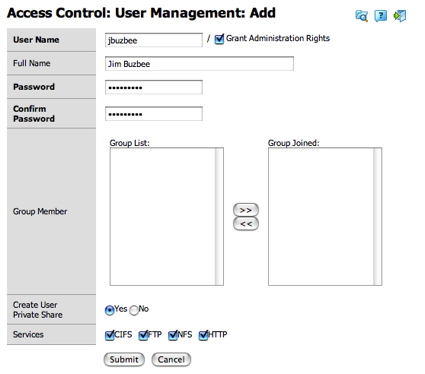
Figure 15: User Creation
As you can see from this creation, users can be created, assigned administrator privileges, and be given access to the various share-access services. Users can also be assigned to groups for easier management of rights. Figure 16 shows the group creation screen.
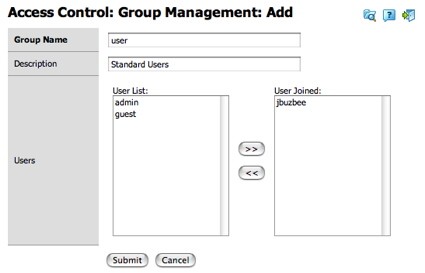
Figure 16: Group Creation
Once users and groups are created, the network shares can be restricted based on these users and groups. Figure 17 shows the menu that allows the administrator to change access privileges.
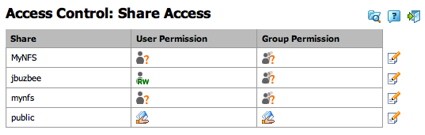
Figure 17: Share Access Control
It’s also important in a small business setting to have complete logging capabilites so that problems can be stopped in their tracks. The HN1200 has a nice set of logging capabilities, with events segregated into various categories. Figure 18 shows the log entries for FTP events.
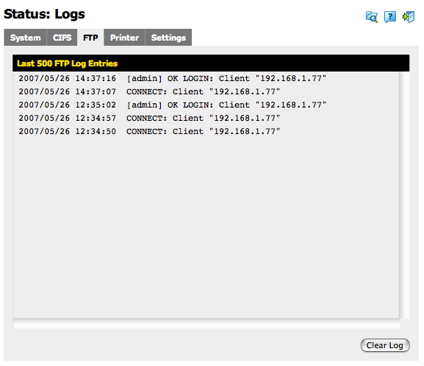
Figure 18: ftp logging
As I finished reviewing the HN1200’s options, I noticed a few missing features. I usually like to see a way to specify disk spin-down time. Most of the time my NAS devices are idle, so it’s nice to be able to tell them to spin down, reducing power usage and noise. I also didn’t find any specific backup capabilities except for the manual backup to the attached USB drive, so users will be on their own as far as backing up their data to the HN1200.
In addition, many NAS devices are starting to come with media-serving capabilities. Hammer documents that a new firmware release will add an iTunes server and support for the UPnP Audio/Video protocol, but my review unit didn’t have this release, so I couldn’t check these features.
Performance
The HN1200 was tested in JBOD and RAID 1 (Mirror) modes with 100 Mbps and 1000 Mbps LAN connections using our
iozone-based test procedure. A summary of average read and write throughput with a gigabit LAN connection can be found in Table 1.
| Test | Hammer Storage MyShare HN1200 (MB/s) |
|---|---|
| Write | 12.6 |
| Read | 16.0 |
| 4K Jumbo Write | 14.13 |
| 4K Jumbo Read | 15.83 |
Table 1, HN1200 Average Transfer Rates
For comparison purposes, the charts below, generated with our NAS Chart Performance vs. Filesize tool, show performance from similar dual-drive NAS boxes. The blue line represents performance for the D-Link 323. The green line shows the Synology DS-207, the black line shows the HN1200 and the purple shows the
Maxtor Shared Storage II.
As you can see in the following charts, the HN1200 performs pretty well, ending up in the middle of the pack in most cases.
NOTES:
- Firmware version tested was 1.2.0
- Tests were performed with two
Maxtor DiamondMax 10 6L250S0 drives
included with the unit. - The full testing setup and methodology are described on this page
- To ensure connection at the intended speeds, the iozone test machine and NAS under test were manually moved between a NETGEAR GS108 10/100/1000Mbps switch for gigabit-speed testing and a 10/100 switch for 100 Mbps testing.
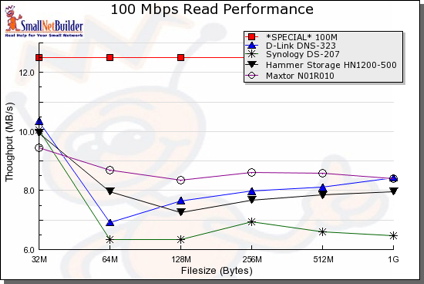
Figure 19: 100Mbit Read performance
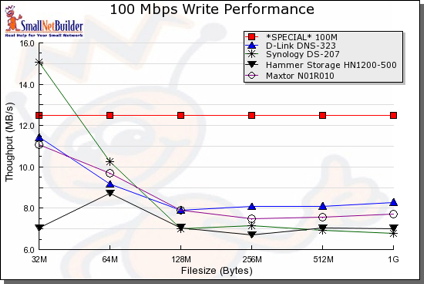
Figure 20: 100Mbit Write performance
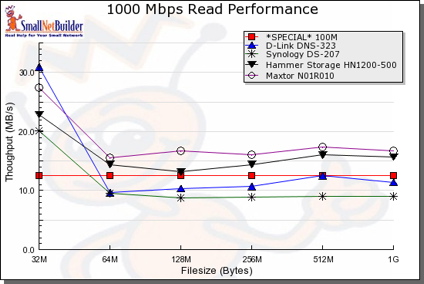
Figure 21: 1000Mbit Read performance
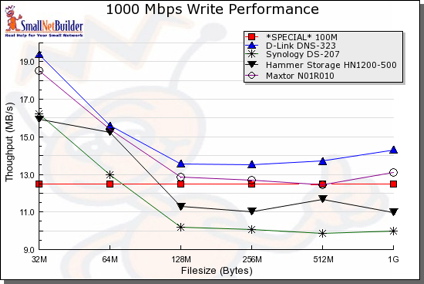
Figure 22: 1000Mbit Write performance
For some real-world perspective, I did a drag-and-drop test, moving files back and forth to the HN1200 with the box in Mirror mode. For this test, I used my MacBook Pro, 2 GHz Intel Core Duo with 1.5 GB of RAM running Windows XP SP2 natively. The directory tree I copied contained 4,100 files, using just over a gigabyte.
The results are shown in Table 2 and are somewhat slower than measured with the iozone-based test. This is expected, however, due to the additional overhead incurred by Windows’ file copying.
| 1000 Mbps LAN | 100 Mbps LAN | |
|---|---|---|
| Write to HN1200 | ~ 160 sec (6.3 MB/s) | ~ 215 sec (4.7 MB/s) |
| Read from HN1200 | ~ 170 sec (5.9 MB/s) | ~ 220 sec (4.5 MB/s) |
Table 2: HN1200 Windows XP Drag-and-Drop Filecopy times
Under the Covers
Figure 23 shows the main board of the HN1200.
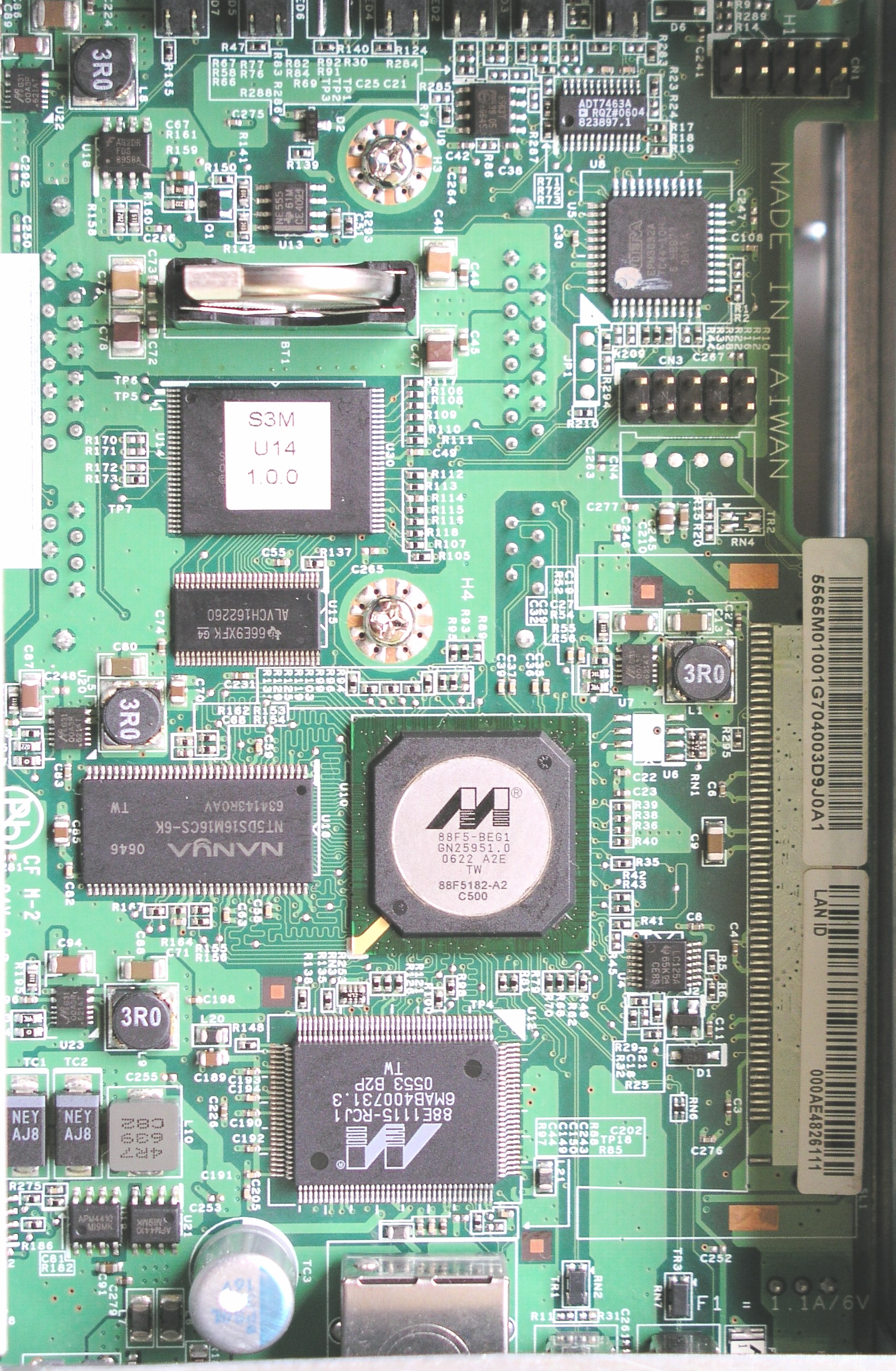
Figure 23: Main Board
The processor used is a
Marvell Orion 88F5182.
Hammer documents that the unit has 64 MB of RAM installed. The Ethernet is provided by a
Marvell 88E1111 chip.
Internally, it’s clear that the HN1200 runs Linux. To see if I could get into the box for some more details, I started my usual poking around. First, I did a port-scan, which turned up nothing much of interest. Next, I looked deeper into the configuration menus to see I could find a way to get inside.
One promising menu was the alert setup screen. Typically, a programmer will take the email address typed in and pass it off to a script that sends out email. However, like other boxes I’ve looked at, the programmer who wrote this functionality made a fatal flaw. The flaw was assuming that the JavaScript front-end would validate the input before use, in order to strip out “dangerous” characters. This is never the right approach. It was all too easy to bypass this validation and enter whatever data I wanted.
To accomplish this, I used a simple HTTP proxy
that allowed me to change the parameters after the validation had already occurred. My first test was to embed a
command into the email address field, so I ended up with an “email address” that looked something like:
JimBuzbee`reboot`@home.net
Syntactically this tells the underlying shell in the HN1200 to execute the command enclosed in the back quotes before executing the rest of the command. When I used this address, I got an email error, but then the lights flashed and the box rebooted. Bingo, I had a hole. In addition, since reboot is a privileged command, this also told me that the command was executed with root privileges. This was a good start, but to get further into the box I needed to do more than just execute a single command.
What I wanted was a way to execute a whole script of commands. To do this, I could place a script on a network share, and then put a reference to the script in the email address field. However, I had a problem. As mentioned earlier, I didn’t know the full path of the mounted disks and that is what I’d have to use for execution purposes. I could now execute commands on the box that would tell me the path, but I also had no way to get the output of the commands. Time to look deeper. The logging features of the HN1200 appeared to have been a dump of the system log common on Linux systems. If I could get my commands to send their output to the system log, I could then use the HN1200’s logging menu to see what I needed.
To try this out, I took a guess that the “logger” command would be present on the box. logger is a command used to send arbitrary messages to the system log, and if it was present, I’d have what I needed. To check it out, I formed an “email address” like so:
JimBuzbee`mount|logger`@home.net
As before, when I hit the “Send Test Mail” button, I got an error, but when I went to check the HN1200 log, I saw the result of the “mount” command which told me the physical location of the mounted drives. Now I was getting somewhere. With this info in-hand I wrote my script, placed it on the drive, referenced it from the email form and began to dig even deeper. In short order, I had the password file edited to give my standard user root privileges and a valid home directory.
Next, I found that a telnet daemon was present on the box, but not configured or running. To fix this, I added a telnet configuration line to the inetd server, rebooted, fired up a telnet client and presto, I was in with root privileges. Game over. Note that in order to perform these steps, I already had to have the administrator password, so this is not a security hole that just anyone could take advantage of.
Once I was in, I could debug the earlier issues I had with NFS and with sending the alert email. NFS was pretty easy to fix since I now knew the physical location of the mounted shares (accessible under /nfs/). The only hiccup was with OSX’s finder. It attempts to mount NFS shares using a high port, which most NFS servers don’t like. The solution is to modify the NFS configuration file on the HN1200 or to just do the mount from the OSX command-line with the proper options. Once I had made my adjustments, I found NFS worked fine.
The other problem I wanted to check out was the alert email error I had gotten during testing. I quickly found the PHP script that was sending the email and determined that the problem was occurring during the conversation with my ISP’s SMTP server. Normally SMTP servers are pretty lax about accepting email from unknown sources, but with the explosion of SPAM occurring, some are tightening up. In this case, my ISP was rejecting email from the box due to the “From” address used, giving an error about a “valid sender domain.” I couldn’t fix this problem, so I moved on.
More poking around revealed a fairly standard set of utilities. The Linux kernel was version 2.6.12, the filesystem was ext3, Samba was being used for CIFS support, busybox was used for most utilities, and
mini-httpd was the web server. One interesting non-standard feature I saw in-use was Trustees. Trustees is an advanced permission capability that evidently Hammer needed to use in order to maintain proper user access-control. With all of the GPL’ed software in-use, Hammer should be providing source code in order to comply with the terms of the GPL license, but my review of their web site found nothing. I hope that this is just an oversight that will be corrected soon.
Conclusion
In general, I found the HN1200 to be a well-implemented NAS. Setup was easy, performance was decent, and the administration menus were clear and easy to use. I turned up a couple of bugs, but these should be easy to squash with an update.
As far as price, Hammer offers several alternatives, but you can pick up a one Terabyte version for under $500, which is a pretty good price and comparable to another dual-drive box
I reviewed last year, the Maxtor Shared Storage II. Feature-wise, except for media serving and backup, the box supported more functionality than the Shared Storage II and had many capabilities that a small business or power home user would want. Whereas the Shared Storage II didn’t allow user disk replacement, the HN1200 does (although I had to break the “void your warranty” sticker).
I would have liked to have seen backup software included with the HN1200 and have the ability to spin-down idle drives, but these are not show-stopping omissions. Hammer may not have the name-recognition of Maxtor (now Seagate), but if you’re in the market for an inexpensive, two-disk NAS that’s easy to set up and use, Hammer’s HN1200 deserves a look.