

Introduction
Updated 2/10/2010: Added MetaGeek inSSIDer
Updated 6/25/2009: Added MetaGeek Wi-Spy 2.4i
In Part 1 of this series,
I provided an explanation of WLAN basics and described common wireless problem symptoms and their probable causes. In this installment, I’ll
show you how to use equipment that you probably already have to perform some simple tests that can help point you to the correct problem(s) to solve.
To uncover potential issues or causes of problems when troubleshooting Wireless LANs and for an overall better Wi-Fi networking experience, you should scan the airwaves, i.e. perform a site survey.
For small residential or small-office wireless networks, a site survey can serve three purposes:
- To check for nearby wireless networks
- To verify desired wireless coverage
- Look for non-WiFi RF (Radio Frequency) sources
Site surveys for Enterprises can be quite involved and often include RF spectrum scans, which can detect non Wi-Fi RF interference. RF spectrum analyzers such those from Cognio and Airmagnet [reviewed] can cost up to $4,000. But there are lower-cost alternatives, such as the Wi-Spy [reviewed] and AirSleuth, for personal use.
But since we’re the targeting home and small-office users, I’ll be discussing slimmed-down site surveys that can be done quickly and easily.
Surveying Tools
If you already have a notebook with either a built-in or add-on wireless card, you might already have what you need to do a simple site survey. The software utilities included with many wireless adapters have a survey or scan function, such as shown in Figure 1. Note that what are listed are Access Points (APs), or wireless routers. (When I use "AP", please think access point or wireless router.) The information we’re interested are the SSID or network name, signal strength and channel number.
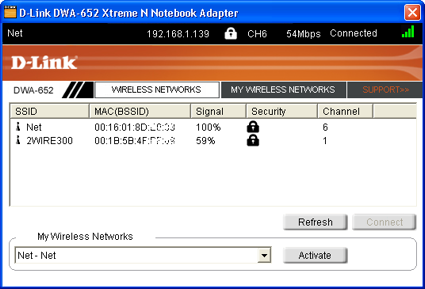
Figure 1: Example of a wireless adapter utility.
Your wireless adapter’s utility might be found on your Windows Start > Programs menu, or there might be an icon in the system tray that can be clicked to bring it up.
If it’s not already installed, you might be able to download the utility from the manufacturer’s website. Note that the utility might be bundled with the adapter’s driver download. But keep in mind not all manufacturers release utilities for all their adapters.
Tools – Windows Wireless Zero Configuration
But what if your adapter or notebook didn’t come with a utility? If you’re running Windows XP or Vista, you’re probably familiar with the results you get from clicking the "View Wireless Networks" button in the wireless adapter network properties window (Figure 2).
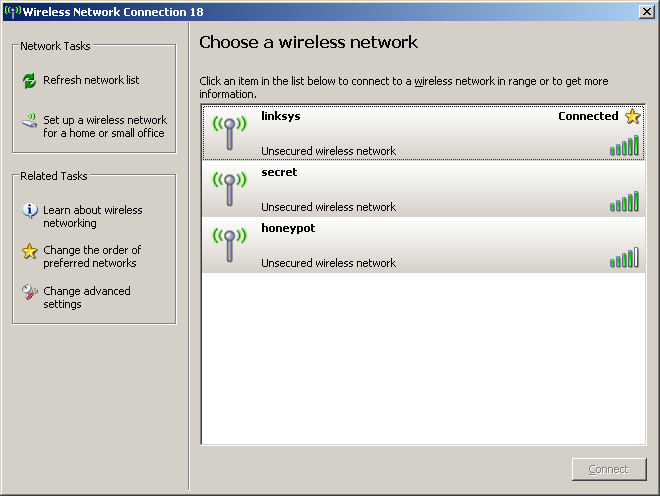
Figure 2: Windows XP Wireless Network Scan
Unfortunately, the Windows "Wireless Zero Configuration" (WZC) utility doesn’t provide much actionable information for wireless problem debug. First, it doesn’t provide channel information, which, you’ll later see is essential. And the simple 5-bar signal strength display doesn’t provide enough resolution for serious troubleshooting.
But the biggest problem with WZC is that it doesn’t show multiple instances of the same SSID/network name. So if you have three neighbors with Linksys wireless routers who haven’t changed the factory defaults, you’ll see only one "linksys" in the "Choose a Wireless Network" window. Definitely not helpful for wireless problem solving.
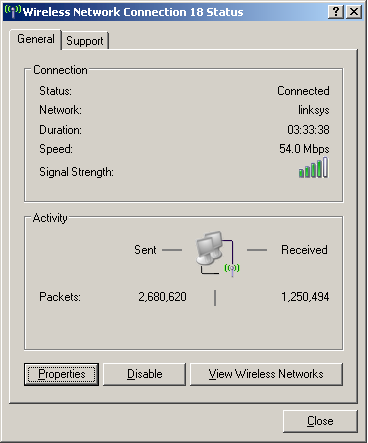
Figure 3: Windows XP Wireless Status
One last issue with the information provided by Windows is worth mentioning. Figure 3 shows the Wireless Network Connection status window for an active wireless adapter, with a Speed value of 54 Mbps. This is not the actual throughput that the adapter is getting! The more appropriate titles for this value would be the data, operational, or link rate. This number is the equivalent of the 100 or 1000 Mbps you see for your computer’s Ethernet adapter, i.e. the negotiated maximum possible data rate.
Many people wonder why their wireless adapter Speed reads 54 Mbps, yet their file transfer takes forever, or their video is constantly breaking up. The reason is that the Speed value is only vaguely related to the actual data throughput that you are getting. In fact, the drivers for some wireless adapters never update this value, showing only the maximum possible rate. So the Speed number isn’t very reliable for wireless troubleshooting.
NetStumbler
Fortunately, there are other tools available if you don’t have a decent wireless client utility. In fact, even if you have a client utility that shows channel, signal strength, all the in-range networks and even actual data throughput, there are other tools worth considering.
NetStumbler is the grand-daddy of network survey tools and used in countless wardrives, flies, trains and walks. Created by Marinus Milner back in 2002, it’s still the tool of choice by many today, despite the fact that active development stopped on it back in 2005.
NetStumbler is free (although donations are appreciated) and comes in versions for Windows 2000 and XP and PocketPC 3.0, PocketPC 2002 and Windows Mobile 2003. It has not been tested on Vista.
Tip: The other most popular wireless network detector is Kismet. It uses a command-line interface and non-graphic display, so isn’t recommended for those who are lost without a GUI. Although it is available in a form that will run on Windows, it’s best run in Linux.
If you’re game, the easiest way to go is to use the BackTrack live CD, which contains Kismet and a host of other network tools. But since ease-of-use is the watchword here, we’ll be doing our site surveying with NetStumbler.
Note that Kismet can detect both APs and wireless clients (also referred to as Stations or STAs). This is helpful for some wireless surveys, but not required for our simple needs.
The NetStumbler readme file says, "The requirements for NetStumbler
are somewhat complex and depend on hardware, firmware versions, driver versions
and operating system. The best way to see if it works on your system is to try it."
It turns out that this is pretty good advice. But you can first save yourself some time by checking this list of cards that have been reported to work with NetStumbler 0.4 (the latest and last version) on Windows XP. The list is pretty inclusive and includes cards using Atheros, Broadcom and Intel chipsets. Chances are that if you have a wireless card supporting 802.11b or g, NetStumbler will work with it.
Updated 2/10/2010: Added MetaGeek inSSIDer
You may find MetaGeek’s free inSSIDer a better option than NetStumbler, which is now very long in the tooth and hasn’t been updated in a very long time. While you’re downloading it, you might as well buy a Wi-Spy 2.4i for $99 to complete your wireless troubleshooting kit.
So download and install NetStumbler (or inSSIDer) and launch it. It should automatically select your wireless adapter and go into capture mode. If for some reason it doesn’t start, choose Device from the menu bar and select another adapter or another driver. Make sure the green "Play" button (next to the Disk "Save" icon) is depressed, or click on it anyway!
Assuming that you have an active access point nearby, you should see it appear in NetStumbler’s right-hand-pane. Figure 4 shows a display with four APs found. Let’s see what we can find out about this wireless environment.
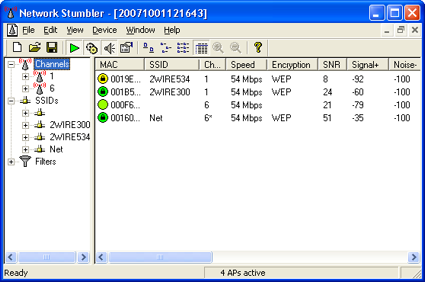
Figure 4: Example of NetStumbler displaying info on nearby wireless networks.
- The four APs are using only two channels (1 and 6).
This isn’t necessarily a bad thing as we’ll see shortly. - One of the APs is not broadcasting an SSID (third one down).
See why blocking SSID broadcast doesn’t really hide you from the bad guys? - All of the APs are 802.11g
This is indicated by the 54 Mbps speed. 11b APs would show 11 Mbps. - The closest (strongest) AP is "Net"
"Net" has a -35 dBm signal level, the highest value recorded. (Smaller numeric values represent higher signal levels since the values are negative.) The farthest AP is 2WIRE534, since it has the lowest signal level.
Although NetStumbler sometimes displays Noise and SNR (Signal-to-Noise) values, you’re better off using the Signal value in most cases to determine AP signal strength. The reason is that Wi-Fi adapters can’t really measure non-802.11 signal levels. So we really don’t know what is being reported here. For an accurate assessment of signal levels from microwave ovens, cordless phones, Bluetooth headsets and other devices that use the 2.4 GHz band and can interfere with your wireless network, you need to use a spectrum analyzer, as noted earlier.
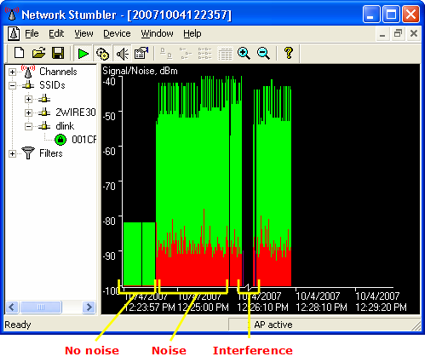
Figure 5: Example of graph view of AP signal and noise levels.
Performing the Survey
As noted earlier, ther are three types of surveys you can do:
- Neighboring networks
- Coverage
- RF Interference
Neighboring Networks
You can perform this survey with either a good wireless client utility or NetStumbler. Since we’re looking for neighboring networks, you must shut off your AP or wireless router before starting the survey. If you have noticed wireless problems at certain times of the day or days of the week, be sure to do the scan during those times.
Now open NetStumbler or launch your wireless utility and set it to scan for wireless networks. If you’re using a wireless utility, you will probably have to refresh the screen manually;NetStumbler will automatically refresh.
While scanning start in the room where your AP is located, then walk slowly through the area where you desire wireless coverage. Pay special attention to the areas where you most frequently use wireless connections and spend a minute or so there. Refresh the wireless client utility a few times to be sure that it captures any nearby networks.
Even though the antennas built into your notebook or client card are omni-directional, they are still somewhat directional, especially since you’re holding the notebook, which blocks some of the signal. So try turning the notebook in different directions while NetStumbler is scanning or trigger a manual scan in each orientation.
Do a screen capture and/or record the SSID, channel number and signal level of any networks you see. Once you’ve walked the complete area you’re done.
When this scan is complete, there are two things that you might want to do right away, depending on the data you’ve gathered:
- Change your SSID – If for some reason you haven’t followed good security practice and changed your AP’s SSID from its default, you should do it now. Check the list of neighboring networks you’ve found and make sure your new SSID is different.
- Change your Channel – If you’ve found neighboring networks that are using the same channel as your AP, change it to a different channel, sticking with the choices of Channels 1, 6 or 11. Use whichever channel isn’t already in use. If all channels are in use, set your AP’s channel to the same one as the weakest network that you found, i.e. the one closer to – 100 dBm. This will give you the best shot at trouble-free operation.
Wireless Coverage
In a wireless coverage scan, you’re looking to assess the signal level of your AP, so first make sure that it is on. Start with your notebook in the same room as your AP, fire up Netstumbler and expand either the Channel or SSID tree in the left-hand pane until you get the signal vs. time plot.
Do the same walk as before, making sure to visit the areas where you have particular trouble either getting or keeping a wireless connection. At each location, record the signal level of your AP, making special note of locations where the level disappears, indicated by the green dot in the left-hand pane turning grey and gaps in the plot (Figure 6).
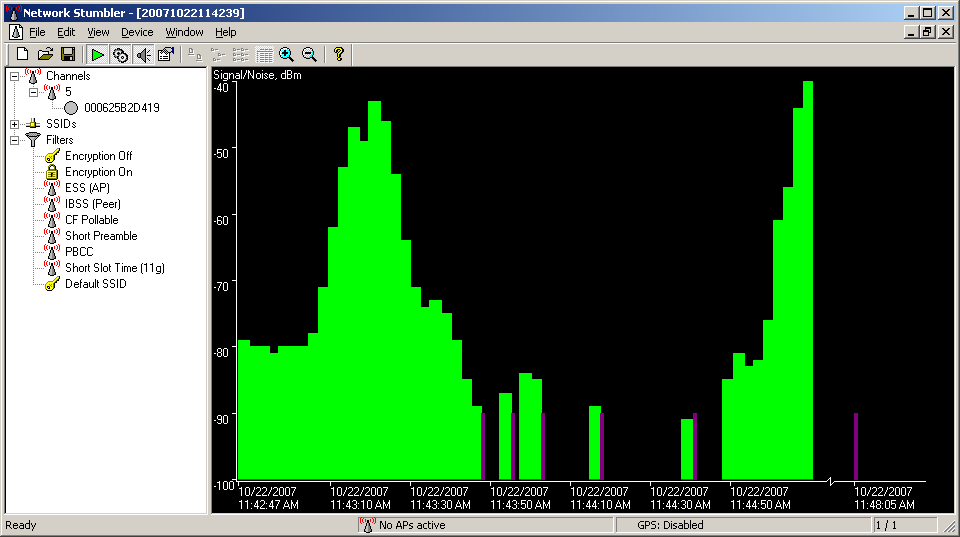
Figure 6: NetStumbler Example Scan 1
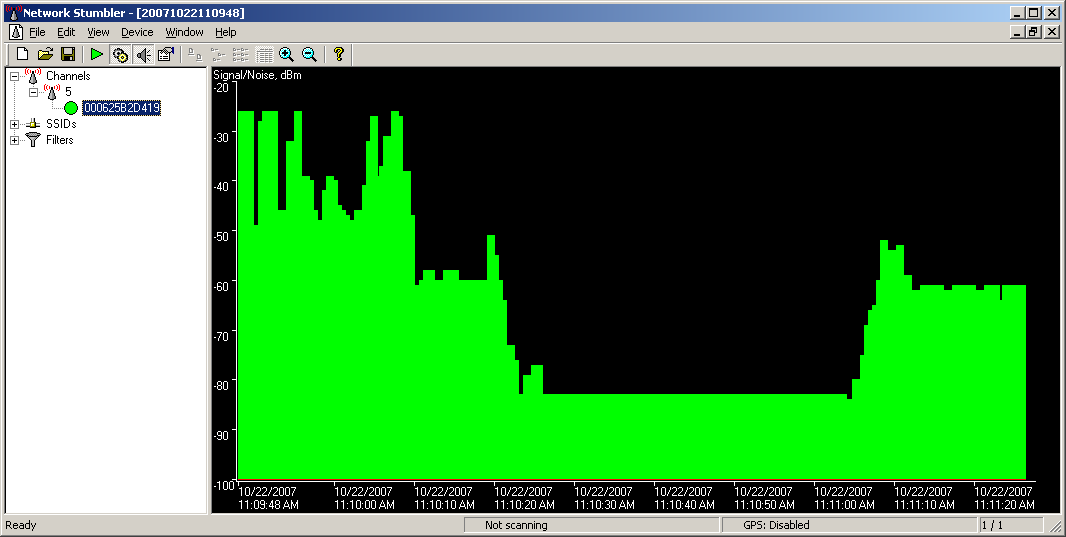
In other cases, NetStumbler might not show a disconnect from your AP. Figure 7 shows an adapter that didn’t disconnect, but instead showed a constant low signal level when it actually had lost connection.
Figure 7: NetStumbler Example Scan 2
If you’re using a wireless client utilty, record the signal, signal quality or whatever signal value the utility provides and where your network disappears from the wireless client utility list of networks.
If your scan found that you lost connection with your AP in places where you need to be connected, the only simple thing you can do at this point is to try to move your AP. Sometimes even just moving if from one side of the room to another, or placing it as high as possible in the room (on top of a bookcase, for example) might make the difference. Solving wireless coverage problems is a pretty broad subject and will be the subject of a future How To.
RF Interference Survey
As mentioned earlier, you really need a spectrum analyzer to actually measure the RF energy from non Wi-Fi sources. Even though you can buy the AirSleuth-Lite for under $100, that might still be more than you’re willing to spend. But you can do a simple RF Interference survey by simply taking an inventory of devices that can cause Wi-Fi interference.
Updated 6/25/2009
MetaGeek has brought back a $99 2.4 GHz spectrum analyzer. The Wi-Spy 2.4i is essentially the same as the original Wi-Spy, but with newer Chanalyzer Lite software. It’s a great bargain!
Take a look around your home for the following devices:
- Microwave ovens
- 2.4 or 5.8 GHz cordless phones
- Baby monitors
- Bluetooth headsets, keyboards, mice, etc.
If you have any of these devices, you can do a simple experiment to see if they are causing problems. Place your wireless notebook in the location where you usually have problems, or go to a troublesome wireless-connected desktop computer. Now, turn each device on—one at a time— and see if you have the problem that you tend to have in that location. (Make sure you put a cup of water or something else in the microwave before running it so that you won’t damage it.)
You can also try running a long continuous ping, transfer a large file or watch a video while turning on the devices. If you experience problems, then you may have found a source of your wireless woes. Unfortunately, the most effective fix for RF interference is to eliminate the interference itself, which may be costly, inconvenient or not possible.
Conclusion
Site surveys are an important step to solving wireless networking problems because they provide important information to guide you in solving the right problems. Some of the fixes can be simple, which I hope is the case for you. In our next installment, we’ll begin to describe how to improve wireless coverage.