

Introduction

A while back, I looked at a network monitoring product from Belkin called the Pulse, a stand alone hardware device for monitoring network components. Belkin discontinued the Pulse, but the product remains available in both hardware and virtual machine versions from the creator of the technology, Jumpnode.
Here, I’m going to look at a software based network monitoring product called Servers Alive from a company called Woodstone. I’m going to focus on the free version of Servers Alive, which is a limited 10 device version of their full blown products that can monitor up to 1000 devices (Standard Version = $279) or 5000 devices (Enterprise Version=$419).
I’ve been using Servers Alive on my network to monitor various different components, and have found it handy for detecting and notifying me of issues on my network. I’m using it to monitor the status of various devices, as well as some more advanced monitoring, including logging into the web utility of several devices and receiving SNMP traps.
To start, I downloaded and ran the 16.3MB salive.exe (v6.1) file on a Windows XP Pro PC, a process that took just a couple minutes. With the software installed, putting it to work is a matter of adding devices to the Start screen, shown in Figure 1 below, and choosing how they will be monitored.
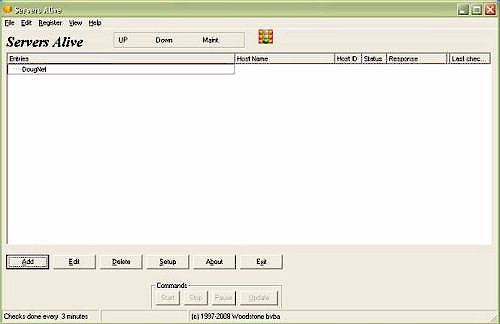
Figure 1: Servers Alive Start Screen
Monitoring choices I use include running ping tests, checking disk space on network drives, logging into device web utilities, as well as receiving SNMP traps. There are additional tools for Protocol, NT Server and Database checks that can also be used.
Ping
The most basic network test is to ping the IP address of a device. Getting a response indicates the target device is powered on and running its basic network functionality.
To monitor my Asterisk PBX, I selected Add, entered the IP address of the device in the General Tab, then selected Ping under the Check Tab, as shown in Figure 2. Servers Alive now pings my VoIP PBX 5 times every 3 minutes and will generate an alert if the device fails to respond 2 or more times per 5 pings.

Figure 2: Checking via ping
In addition to my ATA, I monitor my VoIP ATA and a WIFI Access Point with ping checks. Since the WIFI Access Point I’m pinging is only reachable through a VPN connection, I’m effectively monitoring the status of the VPN link with this same test.
NAS Free Space
With several NAS devices on my network, Servers Alive provides a useful means of checking their up/down status and their disk utilization. By entering the network path to the file share, Servers Alive can report the amount of remaining disk space on a share, as well as alarm if the amount of disk space falls below a specified threshold.
In Figure 3, I’ve configured Servers Alive to monitor a NAS device on my LAN at \\192.168.3.170\share. Notice how it is set to alarm if remaining disk space drops to less than 10 GB.
Figure 3: Monitoring NAS free space
Admin Login
Another useful test is to configure Servers Alive to log into the web utility of a device. This not only verifies the device is on line, it also verifies the device’s software is running.
In Figure 4, I’ve configured Servers Alive to log into my WIFI router’s web page, by selecting URL as my network Check, entering the IP address of the device, clicking Password protected page, and entering the user name and password to allow Servers Alive to log in.
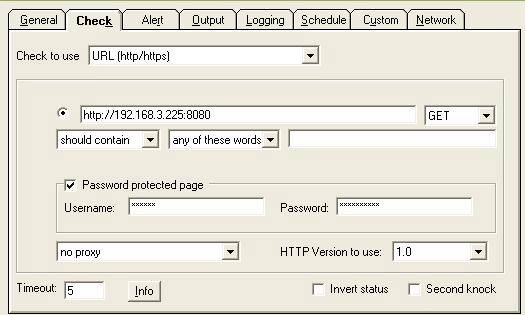
Figure 4: Checking a router’s login
Servers Alive can monitor web servers via public IP addresses or URLs. In addition to logging in to my WIFI router on my LAN, I was able to input a Dynamic DNS domain name in the server name and Check field to have Servers Alive monitor a network device external to my LAN.
SNMP
Servers Alive supports SNMP (Simple Network Management Protocol) GETs, SETs, and Traps. An SNMP GET is where a network management system, such as Servers Alive, polls a device and collects specific information. An SNMP SET is where a network management system sends instructions and/or updates to a network device. An SNMP Trap is an alarm or other notification sent be a device to a network management system. GETs and SETs are a bit more complex, so for this example, I’m going to cover using Servers Alive to receive SNMP Traps from a network device.
To start, I’ve enabled SNMP functionality on a Sonicwall router on my network with the IP address of the XP Pro machine where I’m running Servers Alive. As shown in Figure 5, I’ve configured the Sonicwall router to send SNMP updates to 192.168.3.156, the LAN IP of my XP Pro machine running Servers Alive.
Notice the Get and Trap Community Name of “public.”. This is the key, or password, used for authenticating between network management systems and devices, which has to match on both the Trap device and in the Servers Alive configuration. The key “public” is a common default for SNMP Trap configurations.
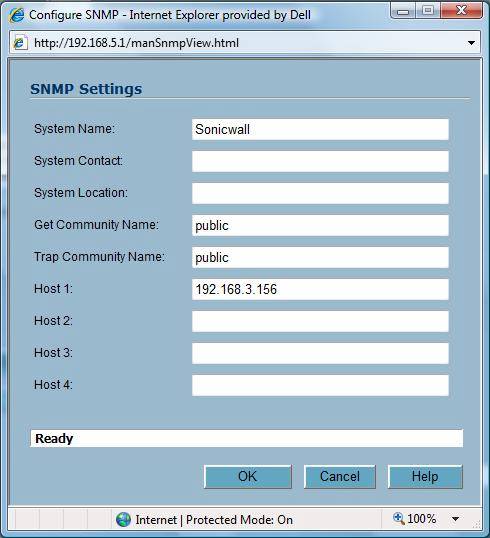
Figure 5: Enabling Sonicwall router SNMP
Next, I configured Servers Alive to receive SNMP traps. Clicking the Setup button shown earlier in Figure 1, there is a menu to configure various Built-in servers in the Servers Alive software. In Figure 6, I’ve enabled the SNMP trap receiver by clicking the check box and leaving the default values.
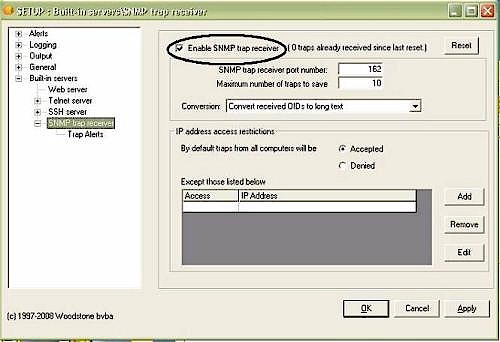
Figure 6: Enabling SNMP trap receiver
Further, I’ve selected the Trap Alerts setting from the left hand side of the above screen, then Add from the Trap Alerts menu, and input an email address to send the alerts, as shown in Figure 7.
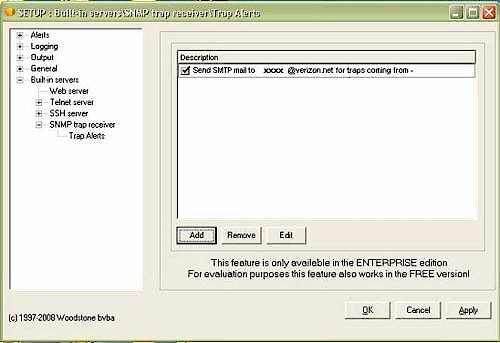
Figure 7: SNMP Trap alert email
Servers Alive can be configured to send network alarm notifications via email, paging, SMS, even instant messaging. I chose email for its simplicity, thus I also needed to configure SMTP settings so Servers Alive can send emails in the event an alarm occurs on my network.
Verizon is my ISP, so I set up an email account via my user page on Verizon.net for Servers Alive, and entered my SMTP settings in the Setup > Alerts menu as displayed in Figure 8, below. Notice on the left, under Primary, there is a choice called Advanced. This is where a user name and password for email authentication is entered.
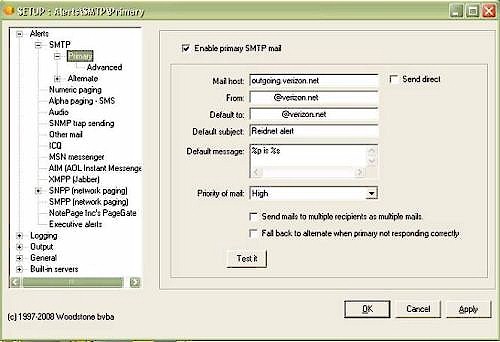
Figure 8: SMTP email settings
As long as my XP Pro server has access to the Internet, Servers Alive is now able to send an email when there is a failure of any of the configured Checks I have described, or if there is a received SNMP Trap.
The message in Figure 9 is from an email sent by Servers Alive, triggered by an SNMP Trap from my Sonicwall router, which I configured back in Figure 5. Although the output is a bit cryptic, reading through to the end turns up the informative statement “Administrator login denied…”. Obviously, a failed login to my router triggered this Trap, which I did intentionally for this example. In a production environment, this could mean a possible security violation.

Figure 9: SNMP Trap message
I’ve now configured Servers Alive to ping, check disk space, login, and collect SNMP traps from various network devices, as well as to send emails in the event of a network issue. Servers Alive places a small oval icon in the bottom right tray of my XP Pro machine, which changes to a Red Stop Sign in the even of a network alarm.
Clicking on that icon produces a nice live summary of all my network devices as shown in Figure 10 below. Notice the pinged devices show a 100% Response, the NAS devices report their remaining disk space in GB, and the network devices Servers Alive is logging into show an “OK” Response.
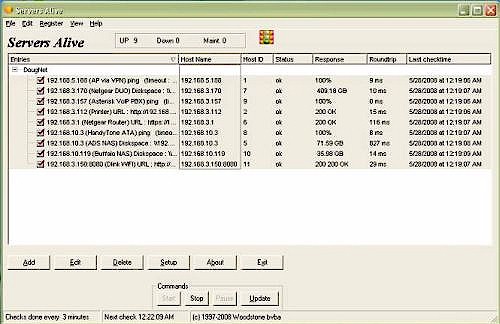
Figure 10: Network device summary
I’ve just scratched the surface of a powerful (and free) tool that will run 24×7 and let me know instantly if there are issues in my network. Even in its Free version, Servers Alive has a lot more capability than I’ve demonstrated here, but this is a good start.
Follow these steps, and you’ll see that network monitoring isn’t just for large networks with 24×7 staffed NOCs (Network Operations Centers). It is something even a small network can implement!