

Introduction
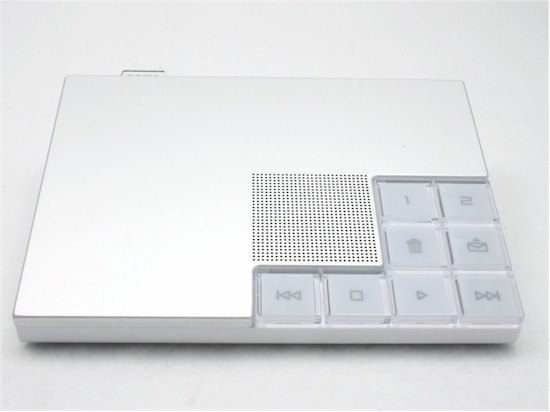
| At a Glance | |
|---|---|
| Product | ooma |
| Summary | Internet telephony service based on peer-to-peer networking and distributed termination |
| Pros | • Simple Setup • Instant second line • Broadband answering machine • No monthly bill or contract • Stand alone or landline versions available |
| Cons | • High initial “up-front” cost for Hub • New company with no track record • Lacks call logging features found on traditional VoIP services |
It seems like barely a day passes where I don’t receive a solicitation from someone who wants to sell me inexpensive, Internet-based phone services. Whether it’s the saturation level of TV ads for Optimum Online’s triple play, the regular calls I get from Comcast telemarketers, TV ads for Vonage, or letters from Verizon imploring me to “come back,” I certainly have a plethora of choices for flat rate, “all you can call” plans.
With the exception of Verizon, each of these services depends on using your Internet or cable connection to connect your call to a back-end service provider such as Level 3 or Global Crossing who ultimately “terminates” your call to the number you dialed. Each of these services also shares something else in common—a monthly bill that ranges from about $20–$40/month.
Having covered the VoIP market for some time, my interest was piqued by a new Internet telephone service offered by ooma (www.ooma.com). For a one-time purchase price of $399 (introductory price reduced from the $599 MSRP), the company guarantees that you won’t pay a monthly charge for long distance charges anywhere in the US for at least three years. The “legalese” from their web site reads as follows:
Your one-time purchase of the ooma Hub device means you won’t owe monthly charges to ooma for unlimited calling in the US using the ooma system for at least three years.
ooma’s web site markets the product as “owning your own dial tone.” In addition to unlimited local, regional, and long distance calls, ooma’s offering includes a “free” second line (after you purchase the required hardware) as well as a broadband answering machine.
How It Works
The underlying architecture of ooma’s product and network is based on a completely different approach to Internet telephony than the model used by the current crop of VoIP providers. This ingeniously-designed architecture takes advantage of peer-to-peer networking technology and what ooma calls “distributed termination” to avoid termination charges by traditional back-end service providers. ooma offers two different configurations: Landline and Standalone. Since the landline version is the crucial element of ooma’s peer-to-peer network, I’ll focus on that first.
If you select the landline version of ooma’s service, you’re signing up to be part of their peer-to-peer network. One of the key ingredients behind ooma’s design is that virtually every landline-based phone service has a local calling area where you can place calls for free. Here’s how it works:
When you first sign up for the landline ooma service, ooma will contact your local phone company and re-provision your local phone service. The re-provisioning removes call waiting, voice mail and three way calling. With ooma, those services are provided for free, so you’ll actually be saving money by dropping those features that many phone companies charge as premium features. The re-provisioning also adds call-forward-on-busy—a service that’s necessary to enable ooma’s second line feature.
What’s important here is that you are keeping your existing phone number and you are maintaining your relationship with your local phone company. Unlike traditional VoIP providers who offer phone number portability and transfer your phone number from your phone company to their service, your local phone company maintains control of your phone number.
This wasn’t particularly clear to me when I originally attempted to sign up for their service, but ultimately representatives from ooma explained how it works. For those skeptical of Internet phone providers, this is a plus. As many readers will attest, when SunRocket folded in the middle of the night, their service went down and wresting back control of their phone numbers took some effort for the disenfranchised customers.
When you dial a number, ooma first checks to see if the call is a local call. If so, your call is routed through your traditional phone line. If the call is not a local call, the call is routed through the ooma peer-to-peer network. ooma determines if there is an available landline provisioned ooma Hub within local calling distance of the number you are calling. If so, your call is routed to that ooma Hub, and the call is made using the landline attached to that Hub.
So, for example, if I wanted to call my brother in California, ooma would look for an available Hub within his local calling area. My call would be routed over the Internet to that hub, and the local landline in his local calling area would terminate the call. This is what ooma means by “distributed termination.” If there aren’t any available ooma Hubs to service a call, ooma passes the call off to one of the traditional back-end VoIP provider for termination and absorbs the cost.
Note that ooma blocks caller ID by default (but can be enabled if you like), so the call would show as “unavailable,” or whatever nomenclature is used by your Caller ID device. In this example, my brother wouldn’t see either my number or the number of the line that completed the call. There wouldn’t be an impact on the subscriber whose phone line was being used to terminate my call. He or she would merely pick up the phone, hear the musical ooma dial tone, and call as normal.
The landline configuration clearly helps ooma build out its peer-to-peer network, but there are advantages for the consumer as well. First, as explained above, you’re not giving up control of your phone number. Second, in the case of a power or Internet outage, the ooma hub reverts back to your traditional phone service. Instead of ooma’s musical dial tone, you’ll hear the traditional phone company’s dial tone indicating that all calls are being routed through the phone company and that long distance charges will apply. Finally, 911 calls are routed through your local phone company, not through an e-911 service.
How It Works – more
ooma recognizes that a number of potential customers have already “cut the cord” and no longer have traditional phone service. They may rely solely on a cell phone, or may want to use the ooma service to replace their traditional phone service. For these customers, ooma offers a stand-alone version. You merely sign up for the service, choose an area code, and set up the device when it arrives from ooma. It will have the same features as the landline version—i.e., an Internet answering machine and an instant second line.
In addition, like the landline version, ooma will attempt to terminate your calls using distributed termination. The main difference, beyond the reliability and 911 features of your traditional landline, is that you won’t be participating in ooma’s peer-to-peer network. Since you don’t have a phone line, you won’t be terminating any calls or sharing your bandwidth with ooma.
The key to ooma’s success is having subscribers participate in their peer-to-peer network and be willing to terminate calls for other ooma subscribers. Currently, ooma has a single pricing structure for both the landline and the standalone version. However, that may change in the future, according to Dennis Peng, ooma Co-Founder. ooma may use differential pricing to encourage people to choose the landline configuration. Still, according to Peng, ooma’s mathematical models show that the ooma peer-to-peer network could reach 95% of the US population with as few as 2000 landline subscribers.
Setup
There’s really not a lot of setup involved with connecting the ooma Hub to your home network. ooma provides a well-illustrated quick start guide to help you get connected. It provides directions for three possible Internet connection configurations (computer connected directly to cable/DSL modem, modem connected to an existing router, or integrated router/modem) as well as directions for three possible phone configurations (cable Internet, DSL/phone on separate lines, and DSL/phone on the same line).
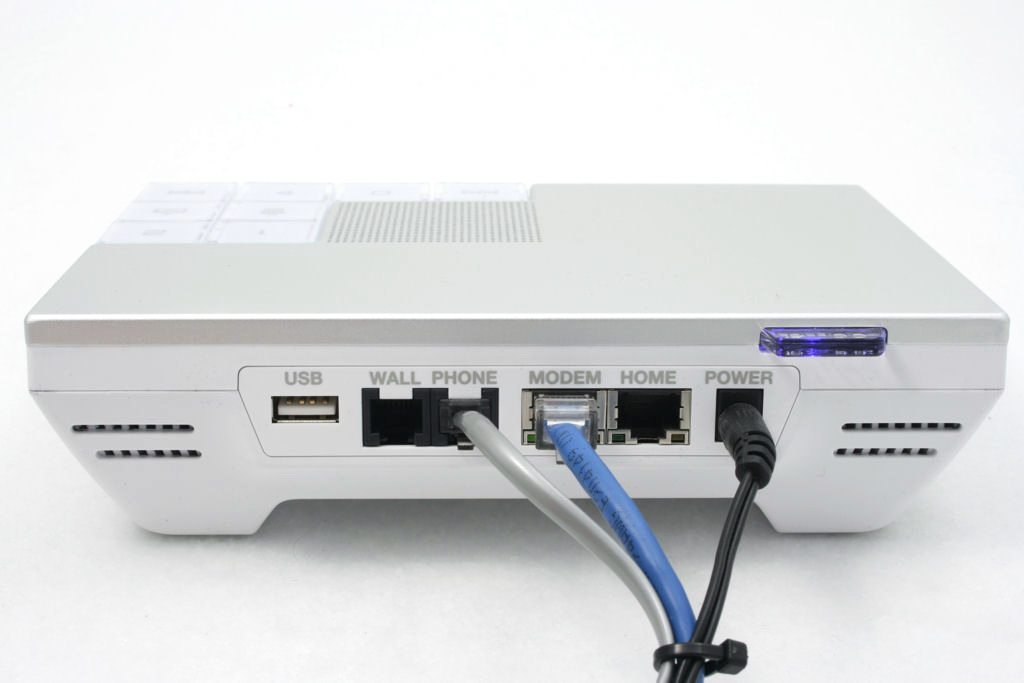
Figure 1: ooma Hub rear view
The ooma Hub is actually a simple Linux-based Internet router, with one WAN (marked “Modem”) and one LAN (marked “Home”) port. The Hub has buttons for two lines as well as playback controls for the Internet message machine. There is also a special “do not disturb” button that automatically forwards incoming calls to voice mail.
By default, the Hub will attempt to auto configure and connect to the Internet. Once connected to the Internet and working with ooma, the clear plastic tab at the rear of the Hub will glow blue, indicating that everything is working.
ooma recommends that, if possible, the Hub should be connected directly to your cable/DSL modem. However, if you have an existing network, you can simply connect the “Modem” jack to an Ethernet port on your existing LAN and not use the routing features of the Hub. This is the configuration I used, and it worked fine.
If you don’t have an existing LAN, and your computer connects directly to the Internet, you should use the Hub’s router. Although it provides only simple NAT “firewalling”, it will provide more protection than having your computer directly connected to the Internet. If you have more than one computer, just connect a switch to the “Home” port, plug the computers (set to obtain their IP addresses automatically) into the switch, and the Hub’s DHCP server will hand out IP info.
Though the Hub has limited configuration options, you can use its web portal for configuration. To do so, you connect your computer to the “Home” port and type in setup.ooma.com (or the IP Address of the Hub). By default, the Hub passes out IP addresses in the 172.27.35.0/24 network. The firmware automatically updates itself, so you don’t have to worry about that.
 This slideshow walks you through all of the configuration options of the ooma Hub.
Second Line options
If you want to extend all of the features of ooma to other rooms in your house, you need to purchase the $40 Scout for each location where you want to connect another phone. Of course, you can also use the Scout—or Hub for that matter—to connect a cordless phone.
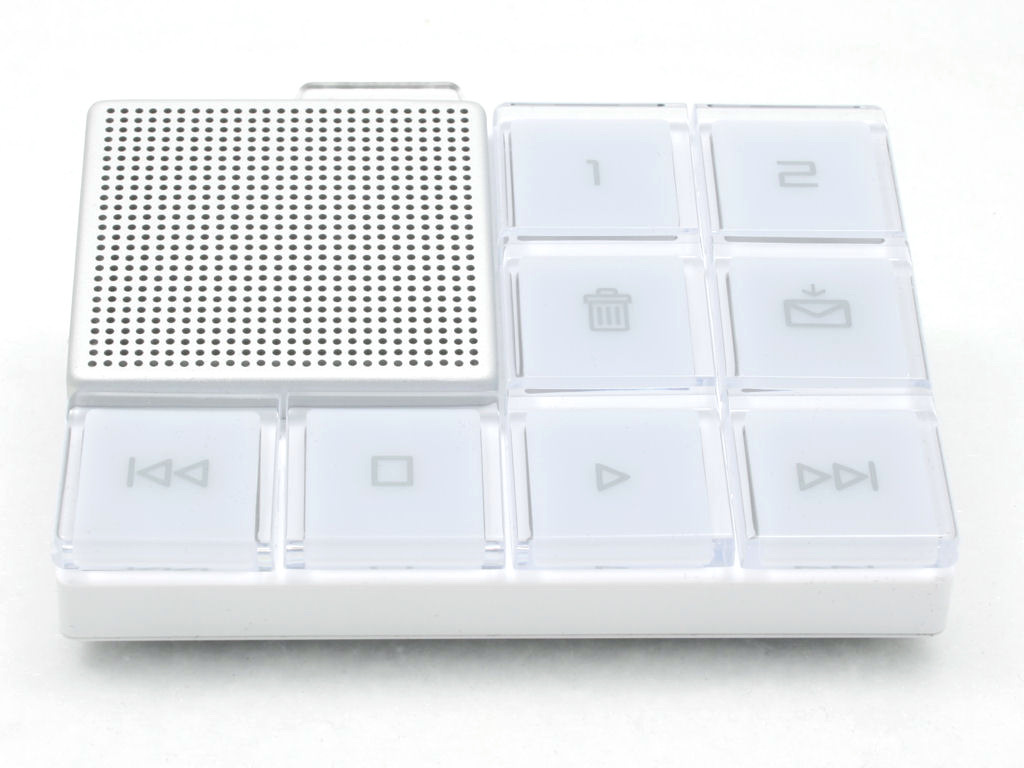
Figure 2: The ooma Scout extends ooma services to other rooms of your house
As you can see from the figure above, the Scout has virtually all of the same buttons as the Hub.
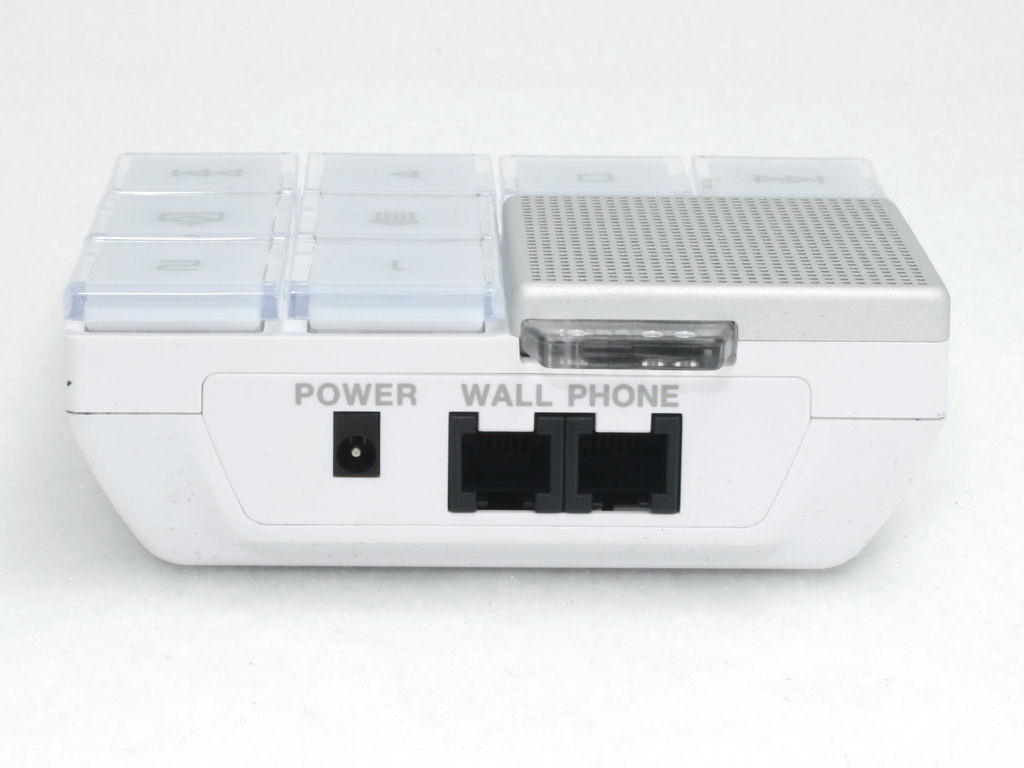
Figure 3: Rear panel of the ooma Scout
To connect the Scout, you merely plug it into a wall jack and connect another analog phone. The Scout makes its digital connection to the Hub using HPNA (Home Phoneline Networking Alliance) technology, which uses your home’s phone wiring as an Ethernet substitute. However, when I attempted to connect the Scout to the Hub using my home wiring, I could not get a connection.
This is not that surprising, considering that I live less than a mile from a 50 KW AM radio station’s transmitter and, in the days of analog modems, there were only two products that could cope with the high levels of RF in my home. However, since the Scout and Hub would not connect through the wiring, I had to connect them directly to complete my testing. Once connected, the Scout worked exactly the same way as the Hub.
Hands On
My ooma evaluation unit was configured as a standalone unit, so my existing landline with Verizon was not re-provisioned. Connecting the ooma Hub to my home network took only a matter of a few minutes and in less than a minute after plugging it in, the “ooma” tab glowed a solid blue indicating that ooma was working properly.
When you pick up the phone with oooma active, you’ll hear a musical ooma dial tone rather than your phone company’s dial tone. You dial long distance calls as though you were on a cell phone—i.e., you don’t need to prefix the number with a “1.”
Comparing ooma with the two other VoIP services I have running in my office, there didn’t appear to be any noticeable difference in call connection time. Calls to the phone number that ooma assigned to me rang on the phone connected to the hub, and, if not answered by the fourth ring, automatically were forwarded to voice mail.
The broadband answering machine lets you monitor the voice mail as it’s being received. If there are voice messages waiting for you, the “Play” button flashes red. You can play back your messages using the built-in speaker in the Hub (or Scout) by pressing the play button, or you can pick up the phone and listen via the handset.
You can also pick up your messages remotely by either logging into your ooma account at the ooma “lounge” (Figure 4), or by dialing your number and pressing “*” while the greeting is being played. After entering your PIN, you can retrieve your messages. Your voice mail is stored on ooma’s servers, not on the local Hub, so you can retrieve your messages from anywhere. Through the ooma lounge, you can also set up email notification of received voice mail, configure how many seconds to wait before voice mail picks up, and whether or not to block outgoing caller ID.
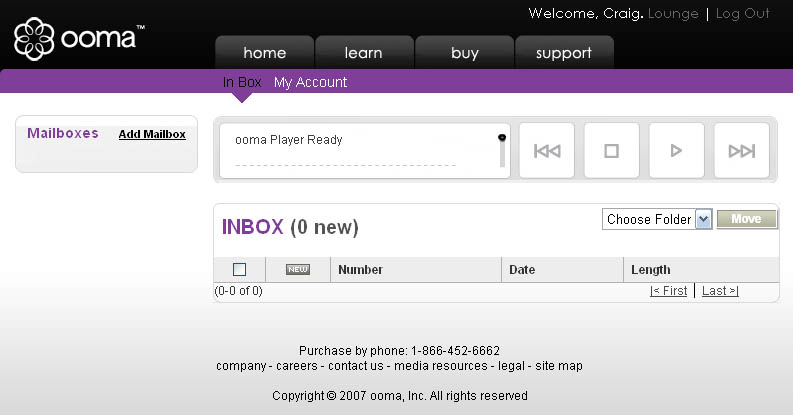
Figure 4: ooma Lounge Voicemail player
ooma supports three way calling as well as call waiting. If you’re on a call on line one when a second call comes in, you’ll hear a “call waiting” beep in the headset. You can either press the flash key or hit the flashing second line button. Line one is put on hold and you are connected to the “instant second line.” You can alternate between the calls, or, by pressing both line buttons simultaneously, connect them in a three-way call.
I made numerous calls during the review process. I called some people and didn’t tell them that I was using a different service and no one noticed the difference. I also called some of my tech friends both on Vonage as well as on ooma, and asked them to listen critically for any differences. When listening critically, they could tell a difference, but it wasn’t very significant. Though Vonage sounded slightly better, ooma provided perfectly acceptable voice quality on my cable Internet connection.
ooma uses the Internet low-bandwidth codec (iLBC) which uses higher compression than Vonage’s default G.711. iLBC is the same codec used by Skype, Yahoo Messenger, and others. ooma consumes only about 32 Kbps of bandwidth as compared to the approximately 90 Kbps used by Vonage.
According to ooma, the higher compression/lower bandwidth is crucial since there’s a possibility of three simultaneous audio streams (two lines plus the answering machine). While my cable Internet connection is currently giving me around 10 Mbps down and 1.5 Mbps up, many DSL services still provide only around 300 Kbps of upstream traffic. So ooma’s use of a low-bandwidth codec is a wise move.
I’ve been using ooma for about two weeks, and in that time, the service has been fairly reliable. I have had to reboot the device twice, and had one configuration issue that was resolved quickly by a knowledgeable tech support agent who picked up my call with no waiting time. The issue related to the Hub not having properly initialized after a reboot. I had unplugged it and only waited a few seconds before plugging it in again. After unplugging and waiting for around 30 seconds before powering it up again, the configuration issue was resolved.
Final Thoughts
ooma takes a revolutionary approach to providing Internet telephony services. Many Internet users, already familiar and comfortable with the advantages of peer-to-peer networking, may well see ooma’s distributed termination technology as the next logical extension. It offers virtually free and unlimited domestic long distance calling after an initial investment in the hardware.
However, it’s not an insignificant investment. The hub sells for $599, but is available for a “limited time” for $399. Having paid $199 for a year’s service on SunRocket, only to see them vanish, has caused me to be skeptical about coughing up a lot of up-front money again for Internet phone service, particularly from a start-up.
In fact, I asked ooma’s co-founder, Dennis Peng, this question directly. How, if SunRocket charged $199/year and went out of business, can ooma offer virtually unlimited domestic calling for $399 and stay in business? Dennis explained that SunRocket, like Vonage, had a completely different cost structure because a significant amount of their revenue went to their termination partners.
Dennis said, “ooma has a different operational cost structure and a peer-to-peer network that allows us to bypass or avoid much of the operational costs associated with traditional VOIP termination. We have a much leaner operational cost structure and differentiator features such as second line and the broadband answering machine.”
Dennis’ comments aside, ooma is still a crapshoot at this point in time. It’s essentially a start-up with an unproven track record that requires a significant up-front investment in a field where the competition is either essentially giving it away (Skype) or being sued by competitors (Vonage). ooma may be a great deal today, but you could also own an elegant (but expensive) doorstop tomorrow.
However, if ooma’s approach appeals to you, now is the time to buy in before the price goes up. ooma offers a 30-day money-back guarantee, so if it doesn’t work out for you, you won’t get burned… at least not in the near term.