

Introduction
Updated 4/28/2009: MAC Address filtering supported.
Updated 4/2/2009: Added component info.
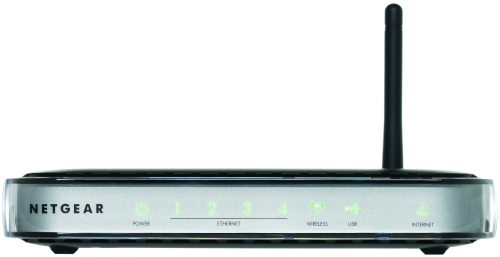
| At a Glance | |
|---|---|
| Product | NETGEAR 3G Broadband Wireless Router (MBR624GU) |
| Summary | Compact 3G Router with 802.11g Wi-Fi and 4 10/100 LAN ports |
| Pros | • Uses USB vs. PC Card 3G adapters • Easy Setup • Very portable • Downlink QoS |
| Cons | • Broken Static Routing • No Uplink QoS |
The NETGEAR MBR624GU is a compact 802.11g wireless router with a USB WAN port that accepts a handful of 3G USB adapters from Verizon, Sprint and AT&T. The MBR provides a shared wired and wireless Internet connection anywhere you can get AC (or DC) power and a decent 3G signal.
When I first read about this device, I expected to find a router with a normal DSL or cable Internet port plus a USB port for the 3G card, perhaps along the lines of the Zyxel USG100 I tested awhile back. This expectation was set by NETGEAR’s product page that indicates that the MBR provides “a nice backup for DSL or Cable services,”. However, the MBR has only a single USB WAN port, 4 10/100 switched LAN ports and no Ethernet WAN port.
The MBR is small, measuring just under 7” long by 4.7” deep and 1.1” high and lightweight at only 0.7 lbs. The MBR has the same styling as many other NETGEAR consumer routers, with rounded corners and a simple rectangular shape. I found it easy to slip into my backpack along with a laptop as I carried it around and tested it at various locations.
The front panel is comprised of indicator lights for power, LAN port link/activity, wireless activity and 3G Internet connectivity. NETGEAR also includes a pair of plastic stands for those who prefer their routers vertically oriented.
The back (Figure 2) contains 4 10/100 LAN ports, the 3G adapter USB connector and a power button. Kudos to NETGEAR for the power button. Whether a power button is necessary or not, it just feels better to me to click something off before pulling the power cord out.
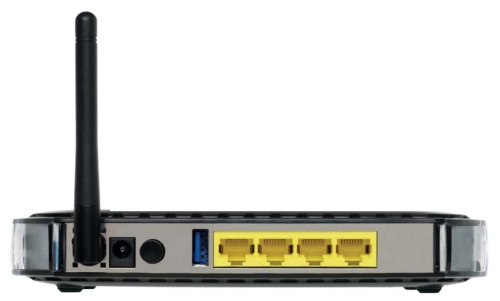
Figure 2: Rear view
Under the Covers
Updated 4/2/2009: Added component info.
The inside of the MBR shown in Figure 3 reveals a Conexant CX94610, which integrates an ARM processor and 802.11b/g MAC / Baseband. On the bottom of the board are a pair of Samsung SDRAM chips for a total of 256 MB of RAM.
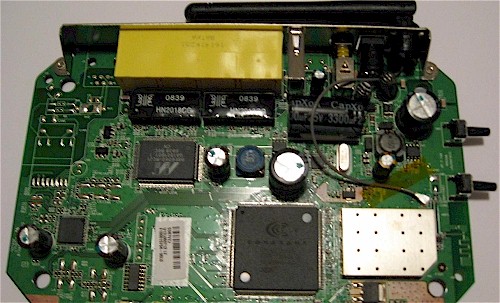
Figure 2: Main board
The 802.11g radio under the shield is a Conexant 50221, which feeds a single antenna that isn’t user-upgradable. A Marvell 88E6060 10/100 switch rounds out the design.
Setup
NETGEAR loaned us a Verizon Wireless USB727 Modem (a rebranded Novatel Ovation MC727) that was already activated. If it wasn’t activated, I would have had to run through Verizon’s activation steps with the card connected to a laptop first, since that function isn’t built into the MBR.
The Verizon USB card is pretty small, about the size of a larger flash drive with a little plastic square that flips up to act as antenna (Figure 3). Many other 3G cards are also supported by the MBR624GU and NETGEAR provides a compatibility chart on their website.
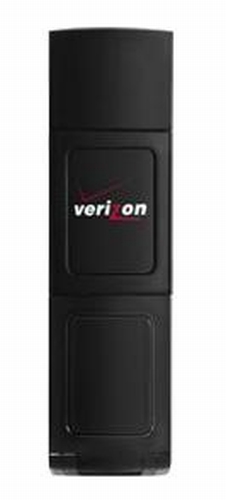
Figure 3: Verizon USB 3G modem
Connecting the 3G card to the MBR was a no-brainer. Like any other highly-trained technical professional, I ignored the instruction manual and plugged in the 3G USB card, an Ethernet cable from one of the MBR’s LAN ports to my laptop, connected the power cable, and turned it on to see if it worked.
One of the things I like about NETGEAR products is they put a label on the bottom of their devices with the device’s management IP address as well as the administrator user name and password. All I had to was browse to http://192.168.0.1 and I was connected to the configuration pages of the device.
I clicked on the Setup Wizard and let it do its magic. The router automatically tested a detected 3G service as shown in Figure 4, and after another status screen, presented options for configuring the router’s 802.11g wireless network.
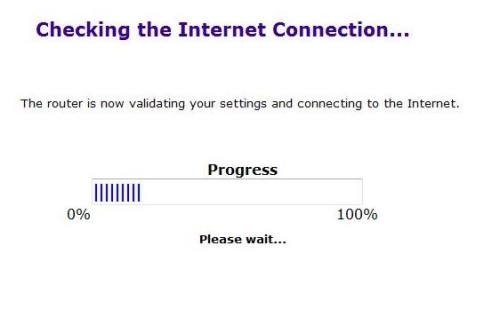
Figure 4: Internet connection check
After entering my SSID name and creating a wireless key, I had completed all the necessary configuration for basic service and was presented with the status screen in Figure 5 showing that I had successfully configured the device and was in business!
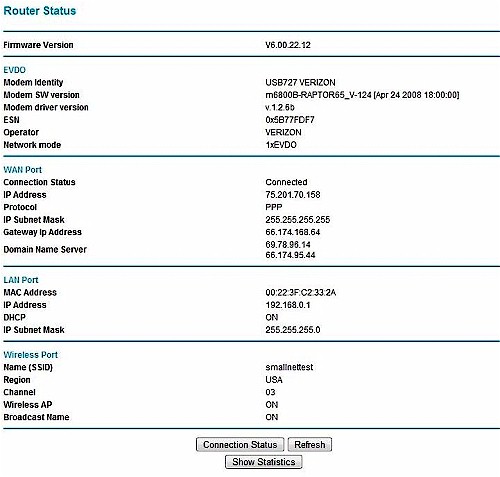
Figure 5: Router Status
I’ll note that NETGEAR includes a handy three-foot USB extension cable that allows for positioning the 3G USB card vertically, and away from the router as shown in Figure 6. The 3G card will plug directly into the back of the MBR. But using the extension cable improves signal strength and thus overall Internet performance—a nice touch on NETGEAR’s part.
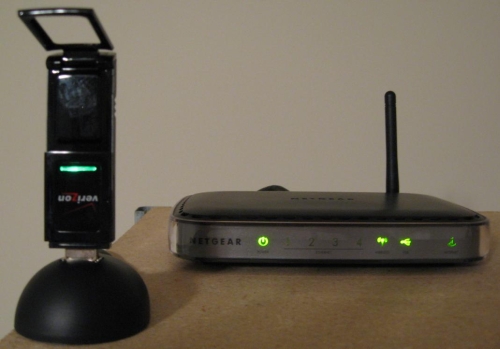
Figure 6: Modem and router
In Use
The MBR does not have leading-edge or wireless or routing features. The wireless AP is only 802.11b/g and the LAN ports are 10/100 Mbps. The configuration menus offer the standard set of NETGEAR routing features as listed in Table 1.
| Initial Setup | Setup Wizard | Add WPS Client | ||||||
|---|---|---|---|---|---|---|---|---|
| Manual Setup | Broad-band Account Settings | Wireless Settings | ||||||
| Content Filtering | Logs | Block Sites | Firewall Rules | Services | Schedule | |||
| Maint. | Router Status | Attached Devices | Backup Settings | Set Passwd | Diagnostic | Router Upgrade | ||
| Advnced | WAN Setup | Dyn DNS | LAN IP Setup | Wireless Settings | QoS Setup | Remote Mgt | Static Routes | UPnP |
| Web Support | Knowledge Base | Documentation |
Table 1: Administration Screens
The Manual Setup offers two choices, Broadband Settings and Wireless Settings. The Broadband Settings menu allows for entering a User Name and Password if required by your carrier, as well as a check box to enable the device to reconnect if a signal loss occurs.
The Wireless Settings menu offers the usual array of wireless options, including setting the SSID and security options (including WEP, WPA-PSK, WPA2-PSK, WPA-802.1x, and WPA2-802.1x).
I used WEP for its flexibility with all my home wireless devices and had no problem connecting a Windows Vista laptop, Linux laptop and a MacBook to the MBR’s wireless AP. All clients were able to simultaneously surf the ‘net over the same 3G Internet service.
Missing from the Wireless Settings menu is the option to apply MAC address filtering. I like to limit wireless access to only devices whose MAC addresses I’ve entered in the router even though I realize that MAC-based security can also be defeated. But it serves as another layer of defense to slow down a hacker.
Updated 4/28/2009
NETGEAR pointed out that the MBR has the ability to control wireless access by device MAC address in the (Wireless Settings, Wireless Station Access List section, Setup Access List button).
The Content Filtering menu seems a bit disorganized. It really should be called the Security menu as it combines three different functions including content filtering by keyword or domain, a scheduling tool for controlling Internet access by time of day or week, firewall rule and service configurations and a log function with email options for sending out logs and alerts.
The actual Content Filtering options are basic and I thought they weren’t working properly at first. But after consulting the manual I found that the entered keywords apply to site domain names and not site content, which I don’t find that useful. But if your website filtering needs are simple, it may be fine for you. Attempts to visit blocked sites result in the screen shown in Figure 7.
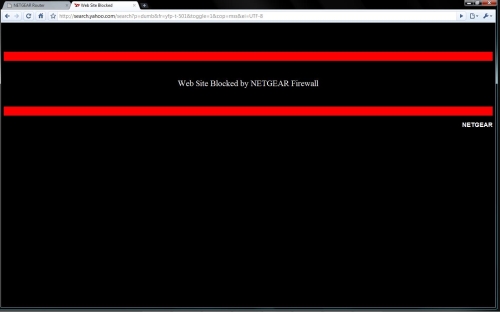
Figure 7: Blocked site screen
Firewall rule configurations in the Content Filtering Menu allow for opening or closing ports for inbound and outbound traffic flows. By default, the MBR permits all outbound traffic and blocks all inbound traffic. Port Forwarding rules can be created to direct specific traffic such as FTP or HTTP to a specific device on the LAN.
I ran a port scan on the firewall of the MBR to see if there were any open ports on the device while in default configurations. I used the graphical version of Nmap, called Zenmap, to check out the MBR’s firewall, and found the only open port on the WAN side was TCP port 8080, which I had intentionally opened for remote access.
The log function can be configured to send out an email if a Content Filtering rule is violated, or if the router detects a Denial of Service attack. Emails of log entries can also be sent by the router on hourly, daily, or weekly intervals.
I received several emails indicating my MBR detected a DoS attack. An example of the emails I received read as follows:
[DOS Attack] : 1 [FIN Scan] packets detected in last 20 seconds, source ip [147.136.250.100] Tuesday, 24 Mar 2009 23:40:59.
The Status menu shown in Figure 5 above has a button at the bottom labeled Show Statistics, which is important for tracking Internet utilization, which can get expensive if you’re not careful.
The MBR’s Maintenance menu includes the standard set of tools for managing a small network router, including backing up configurations and updating firmware, changing the router’s password, a ping tool, and status displays.
The Advanced menu offers some handy tools, although their organization could be better. For example, the WAN menu in the Advanced section has options for configuring a DMZ and enabling/disabling Port Scan and DoS protection, options that would have made more sense if they were in the same section as the other security features in the Content Filtering menu discussed previously.
Also in the Advanced menu are configurations for Dynamic DNS, WPS, QoS options for controlling upstream bandwidth utilization, plus menus for Remote Management, Static Routing and UPnP.
QoS configuration makes sense for a router using 3G access, since bandwidth is limited. So assigning certain traffic types higher priority may be necessary. The MBR comes with pre-built options to prioritize download throughput only for Applications like Skype or Yahoo Messenger, online games such as Quake or Unreal Tournament, or by device MAC address as shown in Figure 8.
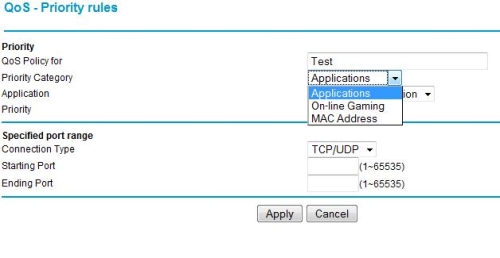
Figure 8: QoS settings
Additional QoS rules can be added as needed and assigned four priority settings (Highest, High, Normal, Low).
The MBR could be useful as a backup WAN connection on a network with a DSL or Cable Internet connection. Although it could serve as a backup Internet connection in a standalone manner, it would be more useful as a backup if the MBR was connected to a dual-WAN router with auto-failover capability. With a static route configured from the MBR to a downstream router, the MBR and 3G service could be used as a backup Internet connection to a router with WAN failover capability. (See this guide on using two routers with static routes.)
I tested static routing functionality in the MBR and was disappointed to find that I couldn’t enter a static route. No matter which IP addresses I entered in the static route menu, I kept getting an Invalid IP Address error as shown in Figure 9. This is unfortunate, but hopefully NETGEAR will work this issue out in a future software release.
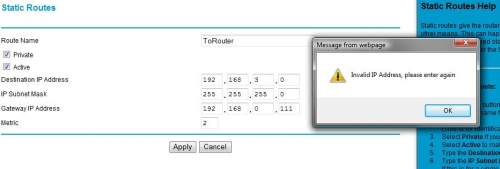
Figure 9: Static Route error
Performance
Measuring throughput on a router that has only a USB connection for the WAN port requires a different approch from our standard LAN-based tests. Normally, I’d run data flows from WAN-LAN and LAN-WAN ports using the Ethernet connection on the WAN side to push as much data through the router as possible.
But the MBR’s performance is tightly coupled with its 3G service, which is generally slower than wire (or fiber) based services. So I had to rely on web-based upload and download speed tests to measure the MBR’s throughput. Keep in mind that the measurement includes both router and Internet connection performance.
I used the Broadband Speed Tests at DSLreports.com and Speedtest.net to measure the MBR’s throughput. Table 2 shows the average download, upload and latency measured over three separate tests to multiple test sites with an overall average in the far right column.
| City/State | Toronto | NJ | NY | LA | SF | NC | Averages |
|---|---|---|---|---|---|---|---|
| ISP | Teksavvy |
NetAccss |
Speak easy |
LinkLine |
Mega-path |
Speedtest.net |
|
| Download (kbps) | 586 | 881 | 979 | 860 | 693 | 1407 | 901 |
| Upload (kbps) | 250 | 313 | 277 | 292 | 356 | 337 | 304 |
| Latency (ms) | 403 | 127 | 138 | 251 | 224 | 315 | 243 |
Table 2: Speed test summary
I ran my speed tests over both a wired and wireless connection to the MBR and was pleased to see that the numbers were essentially the same, indicating no penalty in throughput over the MBR’s 802.11 radio.
Compared to my wired DSL Internet service which runs up to 8000 kbps downstream and 800 kbps upstream, the MBR with its 3G Internet service is certainly slower. This is probably more a function of the 3G service and not the router. In fact, Verizon rates the 3G card I used at only up to 1400 kbps downstream, which you can see I hit on my test to Speedtest.net.
For common web surfing and emailing, the slower speed wasn’t all that noticeable. But I did detect the lower bandwidth for file downloads and higher-bandwidth media streams such as video. Video clips were a bit choppy over the MBR, but audio wasn’t a problem. I was able to surf and check email with one laptop while another laptop was streaming audio from NHL.com seamlessly.
Closing Thoughts
NETGEAR lists the MBR at $109.99 which includes a 1 year warranty. I found the MBR on Pricegrabber.com for as little as $93, which is very competitive compared to other 3G WAN wireless routers. D-Link’s 3G based router is the DIR-450, which comes in at $155.11, while Cisco offers the Linksys WRT54G3G with versions for AT&T, Verizon and Sprint for a low of $123.84.
Verizon’s Mobile Broadband site shows plans for 3G Internet services running $39.99 for the 50 MB service or $59.99 for the 5 GB service (both are monthly). With the MBR costing only the equivalent of a few months’ service, it’s really not the main cost factor in getting your Internet from a 3G connection.
The main negatives are the broken static routing feature, lack of uplink QoS and missing Universal car power adapter mentioned on the product web page. Since a key advantage of a 3G router is its ability to work anywhere you can get a 3G signal, running it from a car power socket will be more common than not. But this isn’t a deal-killer since I would imagine you could use a 12V 1.0A adapter that you can pick up at Radio Shack. But NETGEAR should either make its adapter available or remove the reference to it.
Overall, however, I liked the MBR. It small size and ability to work with USB modems (that can be placed on the supplied cable) give it an edge over the D-Link and Linksys routers, both of which use PC card 3G adapters. It is inexpensive, easy to set up and provides a basic set of routing features that should serve most users well.