

I used to have a FAQ that explained how to re-purpose a wireless router as an access point (AP). But it occurred to me that some folks might be able to use a little more of a step-by-step, so here it is. I’m going to use the virtually ubiquitous Linksys WRT54G as the object of our conversion.
Step 1: Connect a computer that is set to obtain its IP address information automatically to a LAN port on the wireless router that you want to convert to an AP. If you don’t know how to do this, Figure 1 shows the applicable Windows XP screens. (Get to the Network Connections window by Start > Settings > Network Connections.)
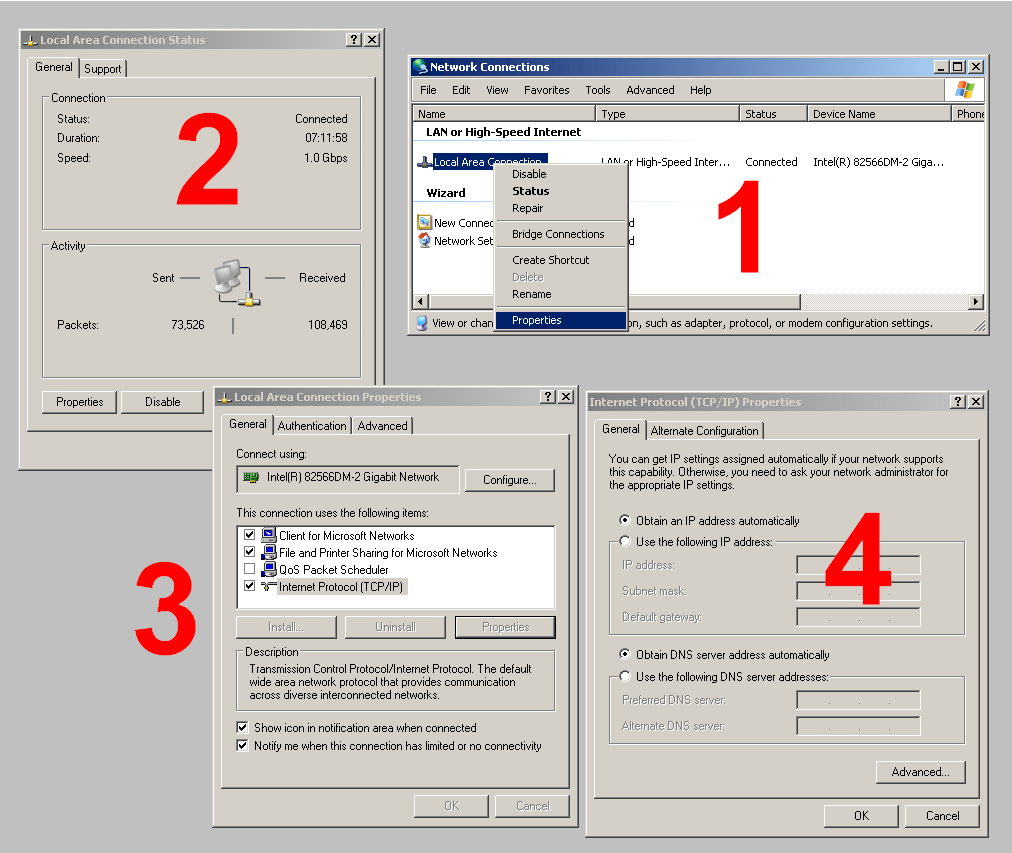
Figure 1: Checking for "Obtain an IP address automatically"
Log into the admin page of the wireless router that you want to convert to an access point. From here on, I’ll call this the "AP".
Step 2: For simple, one segment LANs, there must be only one DHCP server. Your LAN’s router has a DHCP server and you don’t want the two to conflict. So turn off the DHCP server on the AP. In Figure 2, you can see that the DHCP server in the WRT54G AP has been disabled.
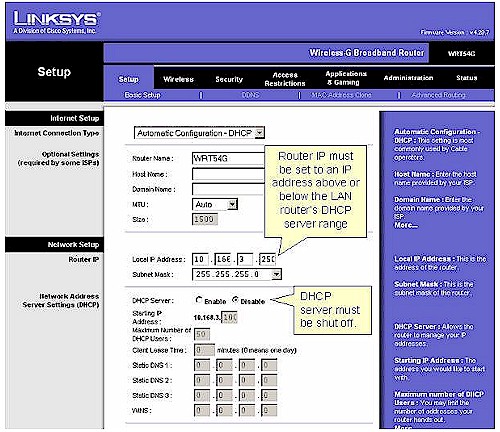
Figure 2: Shut off the DHCP server; change the IP
Step 3: Find your LAN Router’s DHCP server range. Figure 3 shows the Basic Network Settings page of the D-Link DGL-4300 that is my LAN’s router. This is where the DHCP server controls happen to be. Different routers might have the DHCP server controls on a separate page, so you may have to poke around a little.
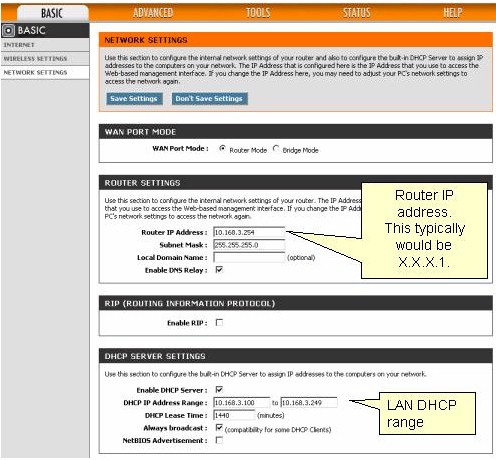
Figure 3: LAN router settings
The 4300 normally has its Router IP Address set to 192.168.0.1 by default. But you can see in Figure 3, I changed it to 10.168.3.254. This shifted the DHCP server to the 10.168.3.X subnet instead of the 192.168.0.X. I also could have used 10.168.3.1 or any address as long as it wasn’t between 10.168.3.100 and 10.168.3.249, which is the DHCP server’s range.
The bottom line is that the my LAN router’s DHCP server range is 10.168.3.100 to 10.168.3.249.
Step 4: Change the address of the AP to an unused LAN IP address. This will ensure that you can reach the admin pages of the AP to change settings when needed. Referring back to Figure 2, you can see that I set the AP to 10.168.3.250. Again, this could be any IP from 10.168.3.1 to 10.168.3.99 or 10.168.3.250 to 10.168.3.254, which are all outside the LAN DHCP server range.
Step 5: Connect the AP to the LAN. Unplug the computer you used to configure the AP and plug it back into one of your LAN router’s switch ports. Now take an Ethernet cable, plug one end into another unused router switch port and the other end into one of the AP’s LAN ports. Be sure to use a LAN port and not the WAN port. Figure 4 shows the proper connection for the WRT54G.
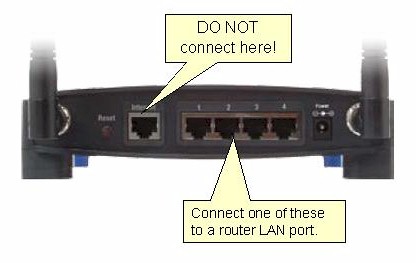
Figure 4: AP connection detail
Step 6: Check the AP LAN connection. You should now be able to use any of your LAN’s computers to reach the AP. So open a browser, enter the address that you set for the AP in Step 4 (which is at 10.168.3.250 in this example) and you should get the login prompt.
If you don’t get the prompt, recheck that you have the Ethernet cable running from LAN port to LAN port on your router’s switch and the AP. The respective port lights on the router and AP should be lit.
Step 7: Check the AP wireless connection. Fire up a wireless notebook or other client and check that it properly associates and pulls an IP address from your LAN router’s DHCP server. Congratulations! You now have a new AP!
Now use this article if you want to use your new AP to extend your current wireless network.