

Introduction
It seems like consumer networking companies are as determined to promote 2.4 GHz wireless products as the solution for in-home video streaming as Hollywood is to prevent its precious bits from escaping into the wild. But since DRM so far hasn’t put much of a crimp into getting networkable video onto hard drives, it seems like all a geek needs to do is buy some gear and be watching wireless video in no time.
For some time, I’ve been critical of networking manufacturers’ claims about 2.4 GHz wireless products as a solution for streaming video. Since the 2.4 GHz band is also used by microwave ovens, cordless phones and other products that don’t speak Wi-Fi, the chances of interference are pretty good. And if non Wi-Fi devices aren’t enough of a problem, just add in the problem of too many wireless LANs competing for too little bandwidth in too small an area. The result is that many folks who took the WLAN plunge can hardly get data tasks like web, email, chat and gaming to work reliably, let alone a high bit rate real-time application such as video to work.
But I have to admit that I haven’t had any first-hand experience on how hard it is to get wireless video to work in high interference environments. So I set out to get some hard data that would really blow apart the vision of using the 2.4 GHz band for video streaming that manufacturers have been trying to get to dance in consumers’ heads. What I found, however, is that manufacturers might not be as full of it as I had thought. But I get ahead of myself… Let’s start by looking as why an overcrowded wireless band is not a good thing.
Overcrowded Spectrum Effects
If you’re fortunate enough to have a clean 2.4 GHz spectrum, you only need to worry about whether your wireless gear can provide enough bandwidth at the locations where you want to watch streaming video. Fortunately, this is the problem that most of the industry has been focused on, i.e. throughput vs. range.
The latest step in the battle to extend the throughput vs. rate curve is 802.11n, the high speed extension to the 802.11 standards, which raises raw throughput claims to over 200 Mbps and in some cases closer to 300 Mbps. So even if you cut the claimed data rates in half to start getting closer to what WLAN products deliver in usable throughput, the resulting 100 Mbps or so should be plenty for wireless streaming, right?
But a large percentage of those who want to use WLAN gear don’t have an uncluttered spectrum. Certainly apartment and dorm dwellers run the highest risk of WLAN disappointment. But even suburbanites in developments with homes that snuggle up closely to their neighbors’ can also feel the no-clear-channel pain. And even if you don’t have other wireless LANs in range, the abundance of 2.4 GHz spewing gear that most homes unknowingly have often cause would-be WLAN owners to give up and ship their purchase back from whence it came.
So the 2.4 GHz band used by 802.11b/g is too crowded for successful video streaming. But what does “too crowded” mean and how is it different from the problems caused by wireless gear that just doesn’t have the required throughput at the desired range?
The three main effects of spectrum overcrowding are:
- Bandwidth Loss
Simply put, there are too many WLANs competing for too little spectrum. This causes not only a drop in available bandwidth, but usually also high bandwidth variation as neighboring WLANs compete for bandwidth. - High Packet Loss
High RF noise levels from adjacent channel and non Wi-Fi interference sources (microwaves, cordless phones, etc.) cause bandwidth loss as lost or damaged packets are re-sent. In the worst case, non-correctable errors occur. - Unreliable Connection
Wi-Fi users in crowded locations are very familiar with the problem of the client that keeps trying to connect to a neighbor’s WLAN. This is usually due to the neighboring WLAN’s access point (AP) or wireless router transmitting a stronger signal than your own AP. This coupled with the promiscuous default settings of Windows’ built-in wireless utility usually results in a client that won’t stay put.
It’s obvious that if you run out of bandwidth or keep dropping a connection that any application won’t work. But how much packet loss can streaming video withstand before it disturbs your viewing pleasure?
Error Emulation
As luck would have it, Apposite Technologies was kind enough to loan a Linktropy 4500 WAN Emulator (Figure 1) to help me answer this question. The 4500 is a hardware-based emulator that allows adjustment of upstream and downstream bandwidth, delay and loss. It has a web GUI that can be accessed via a dedicated Ethernet management port, or by in-band clients. If command line interfaces are more to your taste, there’s also a serial console port where you can plug in and have at it.
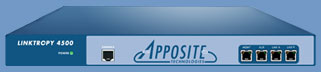
Figure 1: Apposite Technologies Linktropy 4500 WAN Emulator
The 4500 is simply connected between any two Ethernet LAN segments via its 10/100/1000 LAN A and B ports. By default, it acts as a transparent learning bridge so will work with any protocol. It can also be switched into routing mode for IP frames only, and can’t be used for multicast applications while routing.
Once connected, the desired network characteristics are entered into the management interface (Figure 2). Emulation can be turned on and off without having to change any of the settings by simply clicking on the virtual Emulation On/Off switch in the management interface screen.
As mentioned previously, you can control bandwidth, delay and loss for traffic passing in both directions through the 4500. The delay parameter is the only one that can vary with either a normal or uniform statistical distribution in addition to the static setting. I would have liked to see at least the loss and perhaps the bandwidth settings also be similarly variable, since that would have more accurately emulated a wireless connection. But I was able to get a good feel for loss effects with just the static setting.
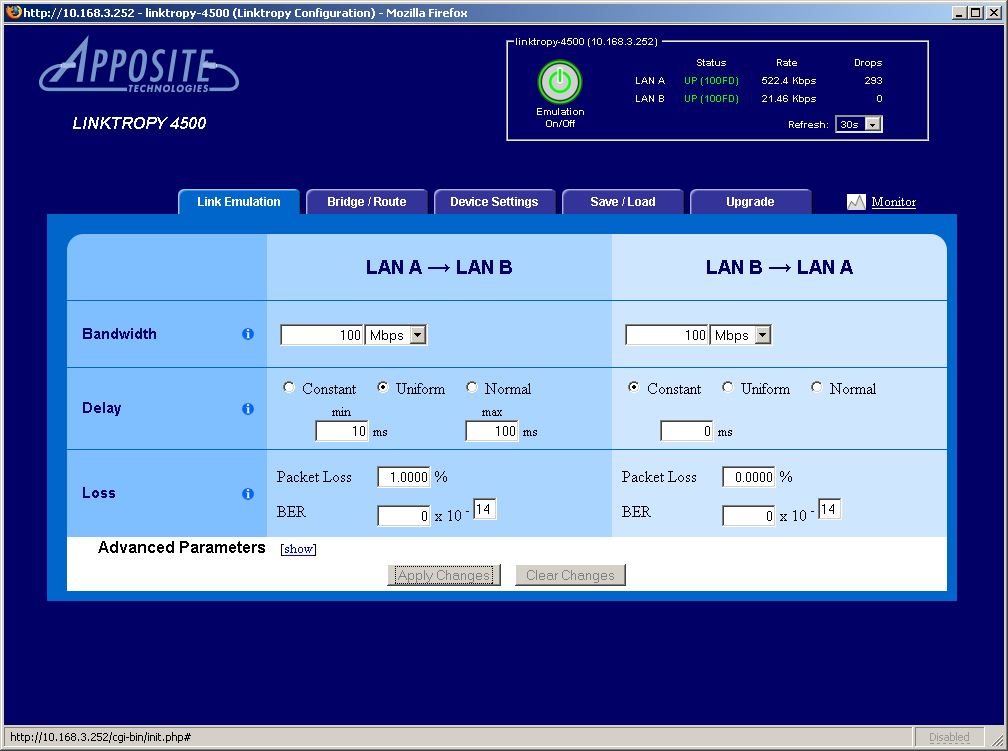
Figure 2: Link Emulation screen
The 4500 can also display statistics in both directions (but only when emulation is enabled) along with a running plot of transmission rate (Figure 3).
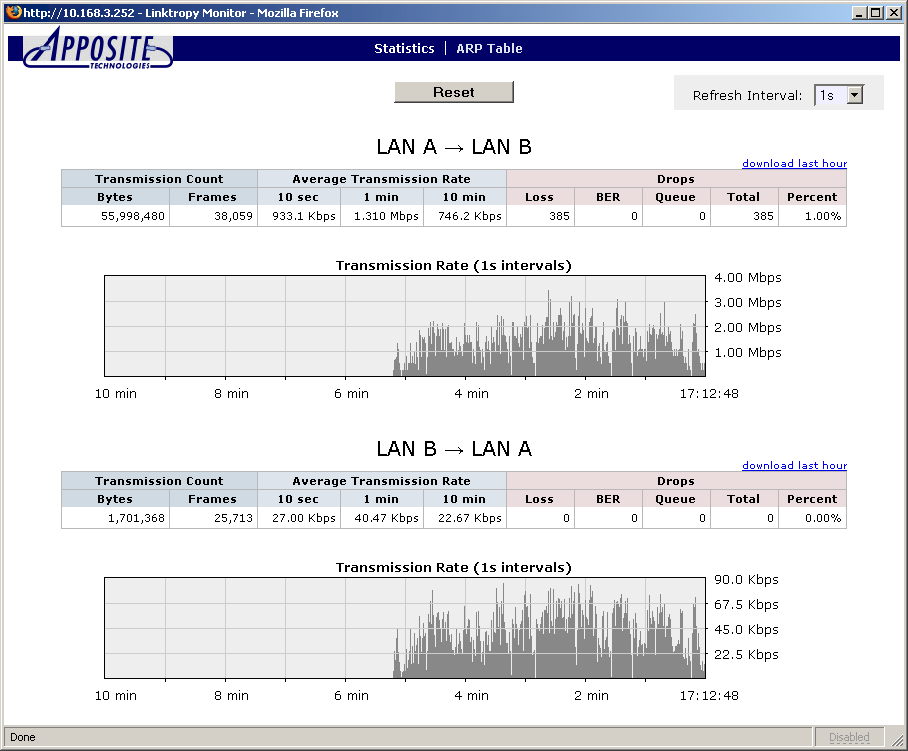
Figure 3: Link Statistics screen
Setup consisted simply of connecting the 4500’s LAN A port to one of my LAN switch’s ports and its LAN B port to one of my computers. My learning curve with the 4500 was virtually nil and I was able to crap up my network performance in various ways in virtually no time. The longest thing that it took me to learn was finding the software switch that allowed me to change from using the dedicated Ethernet Management port over to accessing the web GUI via a computer connected to a LAN segment that was connected to the 4500.
Bit Rates And Encoding
There are actually two ways to play remotely located multimedia files. If you’re using a PC or other device that is capable of navigating local and networked file systems, you can simply navigate to the folder / directory where the desired file is stored using your media player application. When you open the file, it will then be played using whatever networked file system protocol is used by your operating system. For most popular operating systems, this would be some form of SMB (Server Message Block), run on top of TCP/IP.
The other way to play remote multimedia content is to run a media server that uses a streaming protocol to deliver content from server to player. These servers use protocols such as RTP and RTCP that are built on the UDP protocol.
The conventional wisdom on these two protocols is that TCP/IP is more robust than UDP because TCP incorporates mechanisms to ensure that data arrives in order and error free. But TCP is supposed to be ill-suited for multimedia distribution due to its larger overhead and focus on getting data to where it is going without errors, at the expense of timely delivery.
UDP on the other hand has much less overhead than TCP, so it is better suited for real-time applications like streaming where on-time delivery of data is more important than reliability. It’s up to the data receiver to fill in the gaps when data doesn’t arrive or gets corrupted in transit.
My first step was to test the “conventional wisdom” by viewing three different video test files using the file play and streaming methods. The files used both different codecs and bit rates, so that I could see if those factors affected their susceptibility to data transmission errors.
- High bit rate: Ripped DVD VOB file, MPEG 2 codec
- Medium bit rate: DivX movie trailer file using DX50 codec, 640×300 resolution and 24 fps frame rate
- Low bit rate: PSP movie promotion feature using avc1 (MPEG 4) codec, 368×208 resolution and 30 fps frame rate
I used the VideoLAN VLC Media player 0.8.5 to both play and stream the files. I chose VLC because it could handle all of the above file types and either open the file directly for playing or receive it streamed from another VLC player acting as a streaming server. Streaming was done using the VLC UDP stream option defaults and no transcoding.
As anyone who has experimented with multimedia codecs knows, file bit rates have a significant effect on playback quality and are also a key factor in determining your success in networked video viewing. But a file’s bit rate can be difficult to get a handle on simply because the information isn’t often part of the file’s metadata or properties. And even when it is included, the single value shown isn’t that helpful because bit rate constantly changes.
To see the actual bit rates of a file being played you need a tool that measures the speed of the bits actually flowing through your network adapter. After trying a few, I ended up using Hoo Technologies’ Net Meter. It does just about everything you’d want from a bandwidth meter (except I’d really like a button to clear the plot without having to restart the program). It runs on Win 98, ME, NT, 2000 and XP and is free to try for 30 days and $20 to buy.
Bitrate plots
Figures 4 and 5 show plots of the bit rates of the first four minutes of the VOB test file when played and streamed respectively.
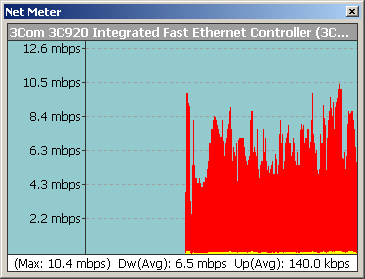
Figure 4 : VOB (MPEG 2) file play bitrate plot
The VOB file maximum and average stream rates were about 20% lower than the file play rates. Peak to average rate ratios for both stream and file play were about 1.6.
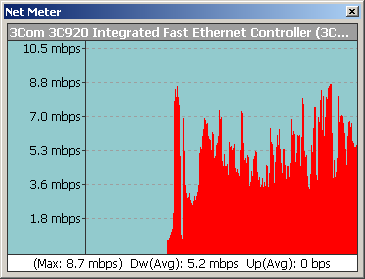
Figure 5: VOB (MPEG 2) file stream bitrate plot
Figures 6 and 7 show plots of the bit rates of the entire DivX test file when played and streamed respectively.
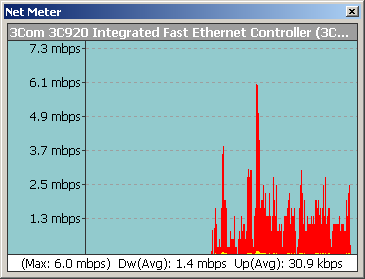
Figure 6 : DivX file play bitrate plot
This time, the DivX maximum play rate was about 20% lower than the stream rate, while the average rates were probably within the limits of calculation error. The peak to average rate ratio for file play was 4.3 and 4.8 for streaming, the highest of the three files tested.
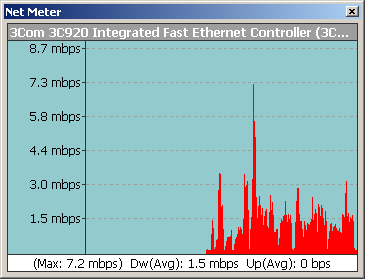
Figure 7 : DivX file stream bitrate plot
Finally, Figures 8 and 9 show the results for the PSP/MPEG4 file.
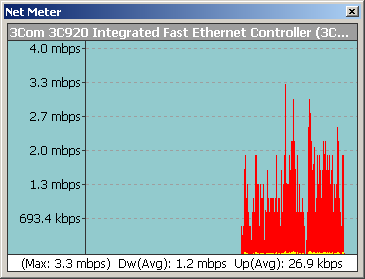
Figure 8: PSP file play bitrate plot
Once again, average file play and stream rates were about equal and the peak stream rate was lower than the play rate by a little more than 10%. Peak to average rate ratios were 2.8 for file play and 2.2 for streaming.
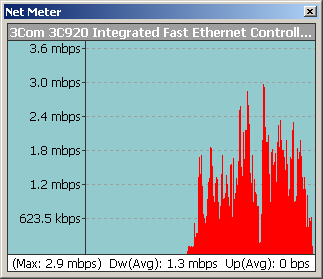
Figure 9: PSP file stream bitrate plot
Since the same content was not used in each case, the ratios and percentages described above can’t be used to compare the encoding methods used. They are provided only to show how a single number for bit rate can’t begin to capture the network load a multimedia file presents.
I originally also included Quicktime 7 HD files encoded in H.264, but had to give up on using them in the test. The VLC player’s H.264 support is still “experimental” (see this chart) and I did, in fact have problems playing various files from Apple’s movie trailer site. And using the Quicktime player itself was out, since I couldn’t get it to open a stream from the VLC player.
Packet Loss Sensitivity – UDP Streaming
So with these test files in hand, I then both streamed and played them while trying different packet loss settings in the Linktropy 4500. I started out with a 1% packet loss rate with a streamed file and found blockiness right of the bat. I then ran a series of tests summarized in Tables 1 through 3 below. You’ll have to forgive the use of subjective descriptions in the results, but it was the best way that I could characterize what I found.
I’ve also included some screen captures of error rates, so that you can get a feel for what I was seeing.
| Packet Loss | Result |
|---|---|
| 5% | unwatchable |
| 1% | unwatchable |
| 0.5% | borderline watchable with blockiness |
| 0.25% | watchable, with frequent small blocky glitches |
| 0.1% | watchable, with less frequent small blocky glitches |
| 0.05% | watchable, with occasional small blocky glitches |
Table 1: VOB file stream results
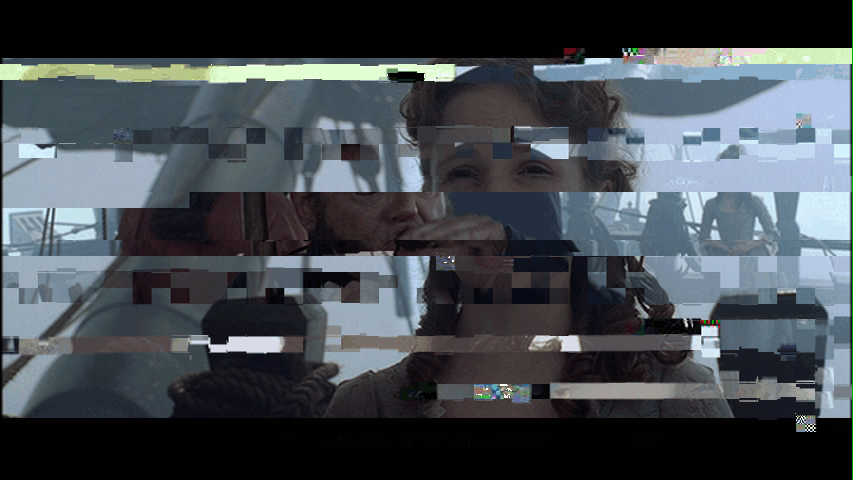
Figure 10: Streamed VOB file with 5% packet loss (image © Disney)
| Packet Loss | Result |
|---|---|
| 5% | unwatchable, video and audio breakups |
| 1% | unwatchable. Constant large blockiness |
| 0.5% | borderline watchable with blockiness |
| 0.25% | watchable, with frequent small blocky glitches |
| 0.1% | watchable, with less frequent small blocky glitches |
| 0.05% | watchable, with occasional small blocky glitches |
Table 2: DivX file stream results

Figure 11: Streamed DivX file with 1% packet loss (image © Sony Pictures)
| Packet Loss | Result |
|---|---|
| 5% | unwatchable and player locks up |
| 1% | unwatchable, but player doesn’t lock up |
| 0.5% | borderline watchable |
| 0.25% | watchable, with occasional glitches |
| 0.1% | watchable, with occasional glitches |
| 0.05% | watchable, with a few glitches |
Table 3: PSP / MPEG4 file stream results
Figure 12 shows a particularly nasty glitch encountered with a 0.05% packet loss. So even when the glitches were infrequent, they could still be pretty nasty!

Figure 12: Streamed PSP/MPEG4 file with 0.05% packet loss (image © Disney)
My general conclusions from the streaming tests are:
- it doesn’t take much packet loss to introduce problems into streamed video
- bit rate and encoding format don’t make much difference in a stream’s ability to compensate for packet loss errors
Packet Loss Sensitivity – TCP/IP File Play
After the streaming tests, I repeated my experiments using the file play method and found quite different results. As might be expected due to TCP/IP’s tenacity at fixing transmission errors, I found it much harder to get the video to break up. And when it did falter, the problem was more likely to be pauses and skips than compression artifacts such as blockiness.
I had to resort to introducing uniformly distributed delay as well as packet loss to reliably get the video to fail. With 1% packet loss and delay between 10 and 500 ms, the VOB file suffered frequent stutters and pauses and eventually locked up after a few minutes. When I tried the same settings with the same file encoded with DivX using its Home Theater Quality setting, I encountered less frequent stutters and pauses and the file didn’t lock up.
My general conclusions from the file play tests are:
- Files played across a network using TCP/IP are much more resistant to packet loss errors
- bit rate and encoding format can make a difference in a played file’s susceptibility to transmission errors
Conclusions
I was surprised at how little packet loss it took to affect video streaming, and just as surprised at how hard it was to disturb files played using TCP/IP based protocols. In Part 2, I’ll put this knowledge to work with wireless LANs to see what works and what doesn’t for successful video streaming.