

Updated 1/27/2015 – Fixed links and corrected origin
One of the cool things about networks is there are many free tools to work with if you know where to look and how to use them. I’ve looked at a couple free network tools on this blog so far, including Wireshark and NetMeter. This time, I’m going to take a look at another network tool known as Iperf, a network performance tool used for measuring the bandwidth and the performance of TCP and UDP data flows between two endpoints.
According to Wikipedia, Iperf is a compatible reimplementation of the ttcp program that was developed by the Distributed Applications Support Team (DAST) at the National Laboratory for Applied Network Research (NLANR). This research lab merged with the University of California San Diego’s Cooperative Association for Internet Data Analysis (CAIDA) group, but was shut down on December 31, 2006, due to termination of funding by the United States’ National Science Foundation.
First, a couple quick background points. Applications transmit and request data between endpoints on networks using IP addresses as the source and destination addresses. The TCP and UDP protocols are used to control the application data flows between the endpoints. TCP is used for application data flows requiring reliability and error correction, such as web surfing(HTTP), email(SMTP), and file transfers (FTP). UDP is used for application data flows requiring minimal delay, such as real-time services like VoIP and Video.
Iperf is a simple server-client based tool for measuring TCP and UDP performance between two endpoints. By running the Iperf software on two computers over a network, data flows are sent between the computers and measurements returned regarding the performance between the endpoints. These measurements are then useful to identify how a network will perform for a specific application.
I downloaded the Windows version of Iperf, release 1.7.0, from the Iperf website and extracted the files on both a Vista and XP Pro PC. Of course, there are Iperf versions for UNIX, Linux, BSD, MAC OS X, and Solaris. The Windows application is a simple executable run from the command line, thus no software has to be installed or configured.
To run a basic TCP test between two devices, the executable has to be run in server mode from one PC and in client mode on the other. Connecting the two PCs is done by providing the IP of the server PC in the command sequence on the client.
Take a look at Figure 1 below. The top window is my Vista PC. I used the command iperf -c 192.168.3.156 to tell the software to run in client mode and tell it that the server is located at 192.168.3.156. The bottom window is my XP Pro PC which I ran in server mode with the command iperf -s.
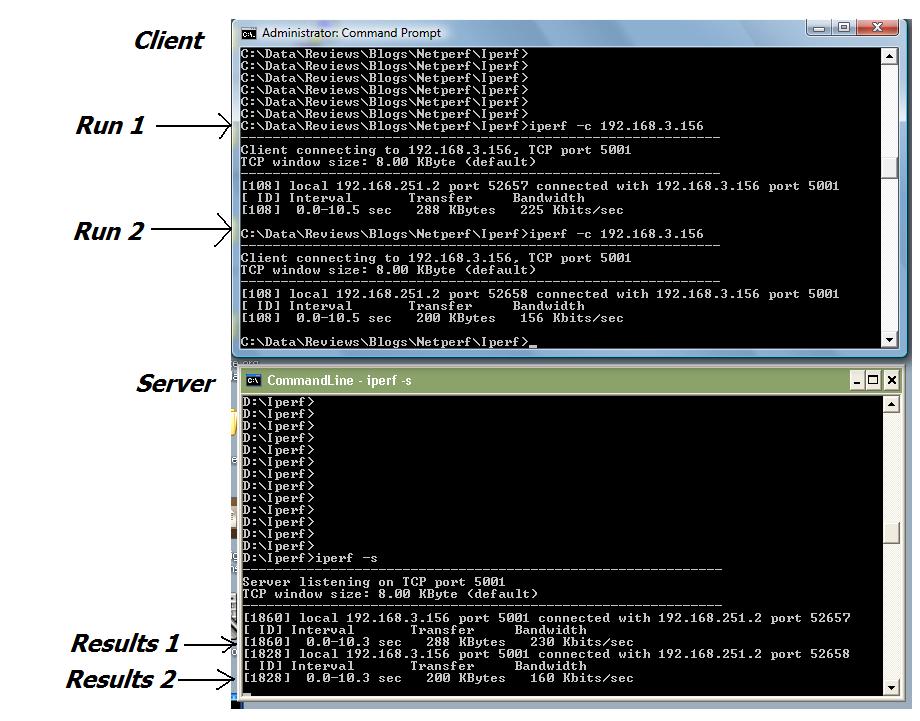
Figure 1: Iperf – TCP test
I ran the test twice, using the default values for all tests, which means I used TCP as the measured protocol. To make it easier to read, I copied the results from the command line to Table 1.
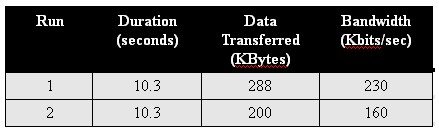
Table 1: TCP test results
This output is pretty interesting. The output in Run 2 has some easy numbers to check the calculations. The readout is telling me that 200 Kbytes of information was successfully transferred between my two PCs in just over 10 seconds, at a throughput rate of 160 Kbits/second. Doing the math on the results is simple. There are 8 bits in a byte, so 200 Kbytes is 1600 Kbits. 1600 Kbits/10 seconds is 160Kbits/second. I love it when the math works!
To use Iperf to measure UDP throughput, simply append the -u parameter to the end of the command sequence. As you can see in Figure 2 below, I used the command iperf -c 192.168.3.156 -u on my Vista PC and iperf -s -u on my XP Pro PC.
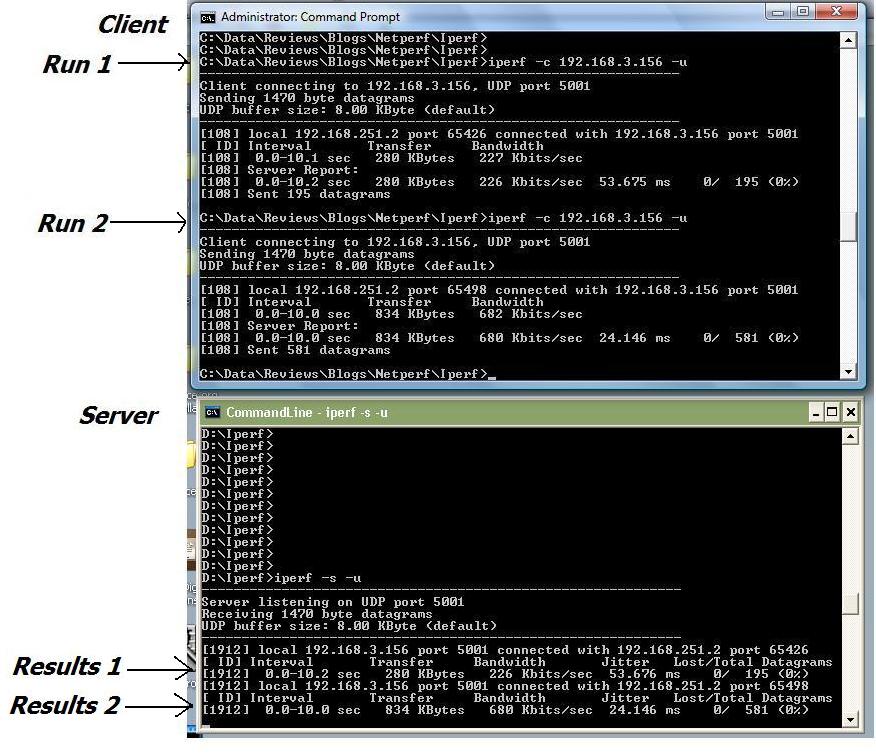
Figure 2: Iperf – UDP test
The UDP test produces some additional measurements, which I put into Table 2. For some reason, the bandwidth on my second run was significantly higher than my first. I’m running these tests from a my laptop over a VPN tunnel to my XP Pro machine at home, so I suspect there must have been some variation in the networks that I’m traversing. The key aspect to the UDP test is that it not only measures throughput, but also Jitter and Packet Loss, which are key quality measurements in VoIP.
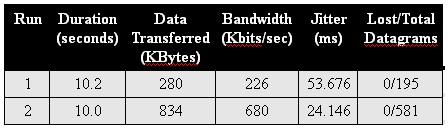
Table 2: UDP test results
There you have it, a simple introduction to a very useful network tool. In spite of the basic command line operation, it really is pretty simple to use. However, there are numerous other capabilities and features to Iperf, which I will leave to my next post. Stay tuned!