

As devices are added to a small network, more switch ports are needed to connect those devices to the network. At some point, additional switches may be added to accommodate that growth. Ideally, those switches will be connected to each other, allowing for connectivity between devices.
Adding unmanaged switches is a cheap and easy strategy, but a limited one. Unmanaged switches may be susceptible to loops (no Spanning Tree support), have no broadcast control (no VLAN support), and lack support for features such as Quality of Service (QoS) and Link Aggregation or Trunking.
Managed switches provide many advantages for a growing network, including support for VLANs, QoS, and Trunking. I touched on simple VLAN configuration a while back. In this article, I’m going to describe how to set up Link Aggregation between two managed switches to provide connectivity, redundancy, and expanded bandwidth.
I’m going to set up Link Aggregation between two gigabit switches: an 8 port Linksys SRW2008; and a 16 port Netgear GS716GT, shown in Figures 1 and 2 below. We covered both switches here a while back. Link Aggregation can also be set up with multiple NICs between a server and a switch, which we’ll leave to a future article.

Figure 1: Linksys SRW2008

Figure 2: Netgear GS716GT
Link Aggregation is also referred to as Port Trunking, Port Teaming, Ethernet Trunking, and Link Bundling. Cisco has a a multi-port proprietary technology known as EtherChannel. All refer to the same concept; multiple ports acting as a single connection between network devices. The key to setting up Link Aggregation between different brands is ensuring they both support the IEEE standard 802.3ad.
The value to Link Aggregation is that the two switches will treat multiple ports configured in a Link Aggregate Group (LAG) as a single trunk, providing increased total bandwidth, as well as redundancy. If two ports are configured as a single LAG between two gigabit switches, there will be two Gbps total bandwidth between the two switches (1 Gbps in each direction).
Further, if one of the links were to fail, the connection would continue ,but with only 1 Gbps of bandwidth. Note that when connecting switches in different areas of a building with LAGs, a best practice is to run the cables over different paths to minimize the chances of both cables getting cut simultaneously.
Setting up a LAG on my two switches was a simple task. I connected Ethernet cables to ports 1 and 2 on my two switches, then applied my configurations. On the Linksys, I navigated to Port Management > Link Aggregation > LAG 1 > Detail then selected ports 1 and 2 as shown in Figure 3 below.
Figure 3: Selecting Ports 1 and 2 for Link Aggregation – Linksys SRW2008
For the Netgear, I clicked Trunking and then selected ports 1 and 2 as shown in Figure 4 below.
Figure 4: Selecting Ports 1 and 2 for Link Aggregation – Netgear GS716GT
Once complete, both the Linksys and Netgear indicated that ports 1 and 2 were now functioning as a common trunk. As you can see in Figure 5, the Linksys switch shows that ports g1 and g2 are members of LAG 1. Further inspection in the Linksys VLAN menu shows these two ports no longer as members of any specific VLAN, which is expected now that they are providing trunking between switches.
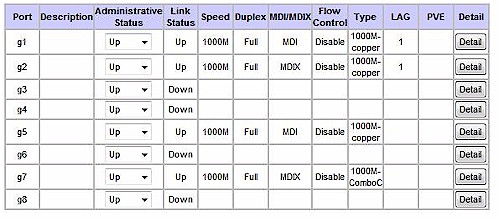
Figure 5: Linksys showing LAG configured
Figure 6 below shows the status of ports 1 and 2 on the Netgear switch. Although a more basic display, it is showing that the switch considers both ports 1 and 2 to be a single trunk, in this case Trunk ID 1.
Figure 6: Netgear showing LAG configured
I tested my Link Aggregation from a laptop connected to the Linksys and ran a continuous ping to the management interface of the Netgear. I then disconnected one of the links between the Linksys and the Netgear and observed the output of the ping. Disconnecting one link caused a single ping to fail, which quickly restored as the ping moved to the second path.
This simple test also illustrates an important concept regarding Link Aggregation. A single data flow between two end points will travel over a single link in the LAG. Even though there are two or more paths between the two switches, each individual data flow can only use one path in order to maintain proper data sequencing. A data flow will failover almost instantly to a second path when Link Aggregation is deployed, but can’t use both simultaneously.
A final interesting aspect about a LAG is it doesn’t increase throughput for individual data flows. Each data flow is limited to the bandwidth of a single link in the LAG. In a LAG with two or more 1 Gbps links, the best throughput an individual data flow will see is 1 Gbps. The real value of LAG is in increasing total (or aggregate) throughput between devices. Read this brief presentation for a nice and clear explanation.