

Introduction
In Part 1, I described using rsync to back up files from a NETGEAR ReadyNAS NV+ that I am retiring to a Synology DS109+. This time, I’ll be setting up rsync between the DS109+ and a QNAP TS-109 Pro.
Synology to NETGEAR
But first, a reader asked if I could describe how to do the opposite of the backup described in the previous article, i.e. rsync from the DS109+ to the NV+. So here it is.
First, we need to add a share on the NV+, then enable the rsync service for it. Figure 1 shows the share named test that I created. Clicking on the Rsync icon brings up the edit window for services shown in Figure 2.
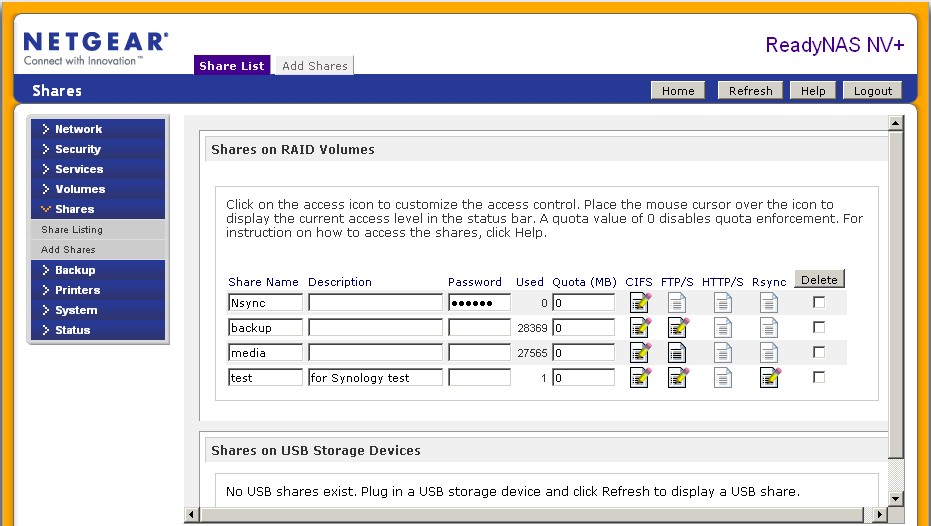
Figure 1: Enabling rsync for a ReadyNAS NV+ folder
Figure 2 illustrates one of the continuing annoyances of the ReadyNAS admin interface—its fixed height window. You can see the setting for Default Access permission at the top and the Share Access Restrictions, which let you limit access to specific hosts / IP addresses for additional security. But you can only see the top of the Rsync Password Option portion of the form, which provides room for three users’ login credentials.
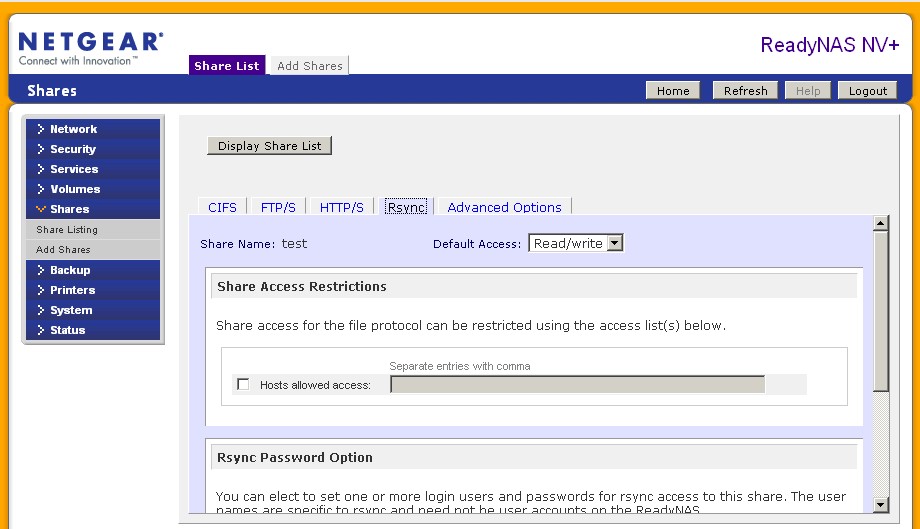
Figure 2: Editing rsync settings
You will need to establish a username and password for the rsync target folder, because the Synology won’t rsync to a public folder. With the NV+ set up, I moved over to the DS109+ and used the Backup wizard to set up the backup. But I’ll use the edit window to show you what I did.
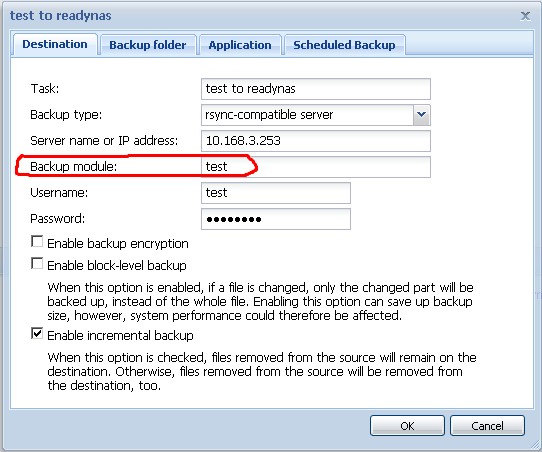
Figure 3: Synology Backup to NV+ settings
In Figure 3, I’ve circled the key information in this screen that I had to ferret out of the ReadyNAS documentation—the rsync module name. Once you have enabled rsync for a ReadyNAS folder, its name can be used as the rsync module name. So that’s what I entered in Figure 3, i.e. test, along with the username and password that I established for it over on the NV+.
I won’t show the other tabs, since the Backup folder tab just presents a list of DS109+ shares and checkboxes to select them for backup, the Application tab provides backup selects for the Synology’s MySQL, Photo Station and Blog databases and the Scheduled Backup tab is self-explanatory.
Again, the tricky part was figuring out the ReadyNAS rsync module name. But once that was done, and everything was set up, the Synology to NV+ rsync ran just fine.
QNAP to Synology
The rsync setups on the Synology and QNAP NASes are similar, but each has features that the other doesn’t. QNAP refers to its NAS-to-NAS backup feature as Remote Replication, which is found under the System Tools menu. Figure 4 shows the controls, which include separate enables for rsync serving and target and the ability to change the default rsync port number. (Synology provides only an rsync enable.)
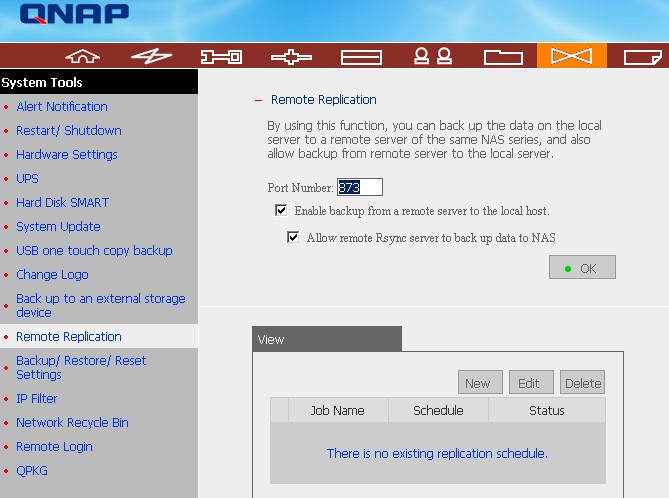
Figure 4: QNAP Remote replication (rsync)
Clicking the New button brings up the Add a remote replication job screen (Figure 5). I selected Rsync server as the Server type instead of NAS server, which is used for QNAP NAS targets.
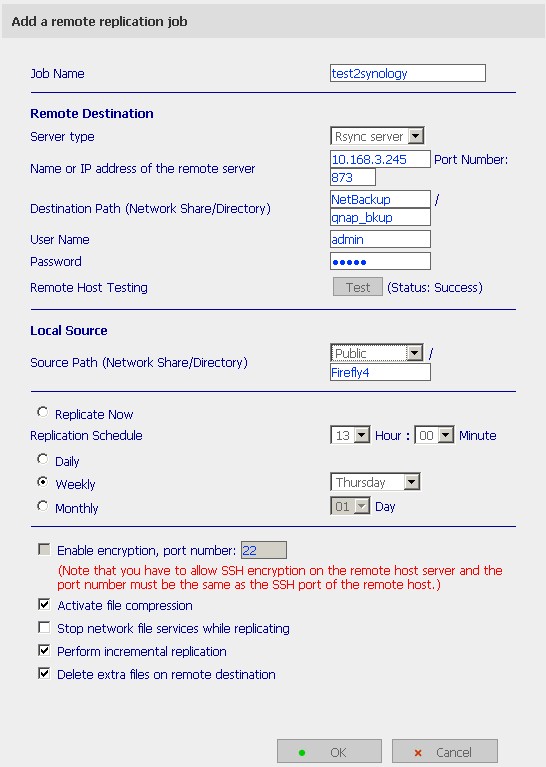
Figure 5: Backup to Synology settings
The Destination Path (Network Share/Directory) setting name is misleading and the online help text doesn’t make clear that you can’t just enter just any share name here. Whatever you enter has to be an rsync module name. Since Synology has set the module name as NetBackup, that’s what I had to enter. But I could create a new subfolder (qnap_bkup) in the NetBackup directory to keep the backup files separate from my NV+ test backup.
Like Synology, QNAP requires using a username and password to access the target folder. But I didn’t have to create a user to set access permissions. Instead, I just used the default admin user and password. Once I had entered all the Remote Destination settings, I clicked the Test button, which checks to see if a connection can be properly made to the rsync target. You get an error if it can’t, but you don’t get much information to help you determine why the connection failed.
I didn’t want to set a backup schedule, but there isn’t an option to just create and save a backup job, so I set a dummy schedule.
Both QNAP and Synology provide enables for incremental backup. But where enabling incremental backup on the Synology also will remove files deleted on the rsync source, QNAP provides a separate enable for this (Delete extra files on remote destination). The QNAP also lets you enable file compression to minimize bandwidth, where Synology provides a block-level backup option.
Once I saved the job on the QNAP, I had to go back and edit the job again to run it, since QNAP doesn’t provide the equivalent of Synology’s Back Up Now button on the backup job list page. The test run, which copied a 4.35 GB ripped DVD test folder that I use in the NAS Chart Vista SP1 file copy tests, had a throughput of 3.82 MB/s without compression—not very speedy.
I also tried a backup with compression enabled, but quit it after more than an hour has passed and it was still nowhere done. Since there is no user control to stop a backup job, I had to log in as admin via SSH and kill the rsync process.
Synology to QNAP
The DS109+ backup job setup in Figure 6 looks very similar to the one for the NV+ shown in Figure 3. Like the NV+, QNAP adds an entry to its rsyncd.conf file for each share created, so that each share is also an rsync module. So I just created a share called rsynctarget, used the admin username and password and entered the TS-109 Pro’s IP address.
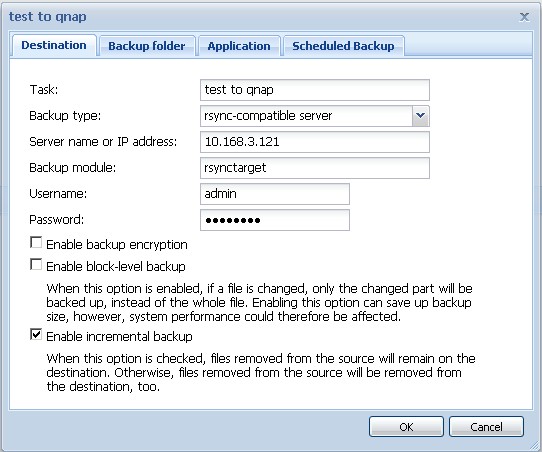
Figure 6: Backup to QNAP settings
Setup for the rsync target share on the QNAP was easier than for the NV+. I just created the share; QNAP doesn’t control folder access for individual services.

Figure 7: QNAP Share setup
Once setup was complete, I just returned to the Synology Backup page, selected the Backup job and clicked the Back Up Now button (Figure 8). The backup ran without a hitch, with throughput of 3.65 MB/s. Since the TS-109 Pro is much slower than the DS109+, I’m guessing it is what is setting the slow pace of the rsyncs.
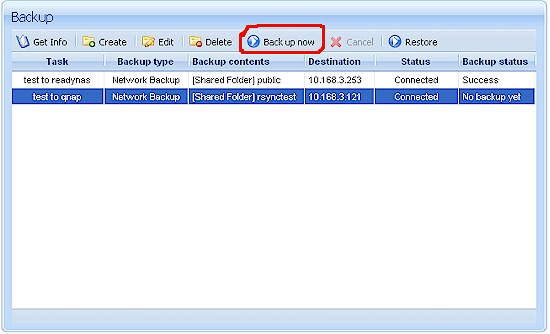
Figure 8: Starting Synology Backup
So the Synology and QNAP are pretty compatible as rsync partners. Each has a few unique features—the QNAP, its file compression and the Synology its block-level transfer. But the Synology also has an edge over the QNAP in that it can be scheduled to run its backup multiple times per day.
Figure 9 shows the Synology Advanced Schedule page. You can schedule backups anywhere from every 1 to 15 hours, establish a start and end window and total number of backups. This gives it the edge over the QNAP in replacing the NV+ for backup duties, since it also can run multiple backups per day.
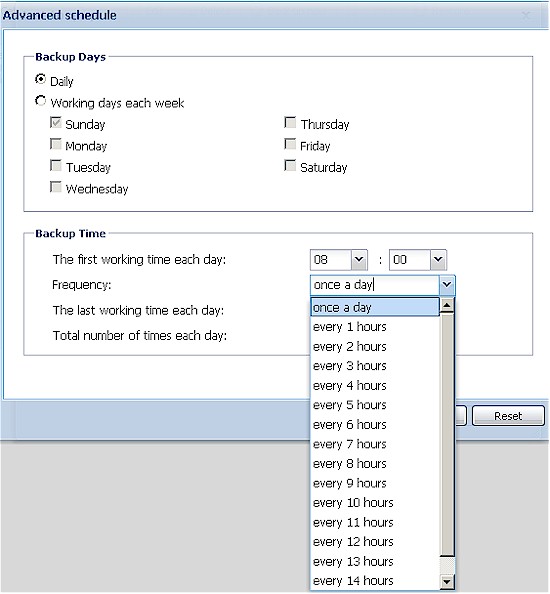
Figure 9: Synology Advanced backup schedule
But both the QNAP and Synology NASes are a bit on the expensive side, if all you want is NAS-to-NAS backup. Next time, I’ll see if a WD My Book World Edition can provide a cheaper rsync target alternative.