

Introduction

| At a glance | |
|---|---|
| Product | TP-LINK Ultimate Wireless N Gigabit Router (TL-WR1043ND) [Website] |
| Summary | Bargain-priced Gigabit-port 2.4 GHz N router based on Atheros chipset with FTP/UPnP USB drive sharing. |
| Pros | • Relatively inexpensive for a Gigabit four port router • In and outbound bandwidth limiting • Upgradeable antennas • WDS support |
| Cons | • No SMB drive sharing • Unimpressive wireless uplink performance • No Guest WLAN |
Typical Price: $70 Buy From Amazon
If you’re thinking of purchasing a wireless router, the brand names most likely to come to mind would include Cisco/Linksys, D-Link and NETGEAR. But there’s a relative newcomer that is targeting budget-conscious consumers with feature-rich products at budget-friendly prices: TP-Link.
For this review, I’ll be looking at TP-LINK’sTL-TL-WR1043ND Ultimate Wireless N Gigabit Router. While the TP-LINK brand may not be a familiar household name, it does have limited distribution in U.S. retail outlets and a much broader online distribution. Click here to see where you can find TP-LINK branded products. Tim covered the design and performance of the TL-TL-WR1043ND in his article. Be sure to read it too for the whole story – it contains a lot of valuable content that I won’t be duplicating.
The image above shows the front panel of the TL-WR1043ND. If you like lots of indicator lights, this could be the device for you. There are indicators for: Power; system; Wireless Network; WAN; four LAN indicators and a so-called QSS indicator. TP-LINK has apparently coined their own term, Quick Secure Setup, for what the rest of us know as Wi-Fi Protected Setup (WPS). While I’m a big fan of front-panel status indicators, I was disappointed that the WAN and LAN indicators didn’t indicate the link connect speed. Nor is there any place in the browser-based management interface to indicate link speed on any of the ports. Many competitive routers use multi-color LEDs to indicate either a 10/100 or Gigabit connection.
Figure 1 shows the rear panel detail. While I was pleased to see that the ports were color-coded, unfortunately, neither the quick start guide, the easy setup wizard, nor the instruction manual took advantage of mentioning the port colors in the setup instructions. I recently reviewed the NETGEAR WNDR3800, and like the TL-WR1043ND, it also has color-coded ports. But NETGEAR took setup one step further by including a yellow “WAN” cable to correspond to the yellow WAN port, and even labeled both ends of the cable to help the consumer properly connect the device. Though it’s a small detail, in a market that’s increasingly becoming commoditized, attention to detail makes a difference.
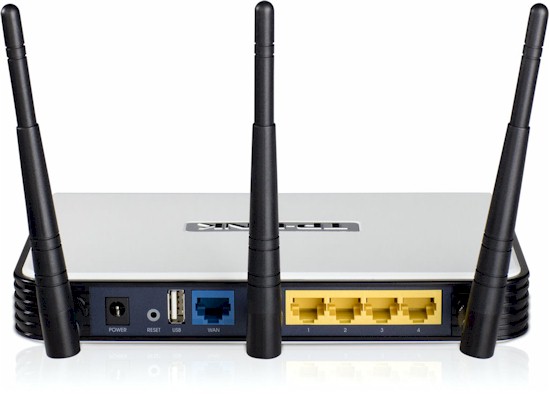
Figure 1: TL-WR1043ND rear panel
Feature Summary
Before delving into the setup and user interface, here’s a summary of the TL-WR1043ND’s features that I compiled from its data sheet and admin interface.
Routing
- Static and Dynamic IP, PPPoE , PPTP, L2TP and BigPond Cable WAN connections
- MTU Adjust
- DHCP Server, lease time setting, default domain and primary/secondary DNS
- DHCP Client list
- DHCP reservation
- Virtual Server entry for single or multiple ports with TCP, UDP or all protocols forwarded. Enable/disable for each entry. 10 preconfigured common service ports
- Port triggering – can set individual or range of incoming ports. 10 preconfigured common applications
- DMZ Host
- UPnP enable/disable with list of current UPnP applications, settings, protocols, internal port and status
- IPv4 Static Routes
- DDNS support for Dyndns (www.dyndns.org), Comexe (www.comexe.cn) and No-IP (www.no-ip.com)
Security
- SPI firewall enable/disable
- VPN Passthrough enable/disable for PPTP, L2TP and IPSec
- Application Layer Gateway enable/disable for FTP, TFPT, H323 and RTSP
- DoS (denial of service) enable/disable
- Enable UDP Flood filtering (with settable threshold)
- Enable TCP-SYN Flood attack filtering (with settable threshold)
- Ignore Ping Packet from WAN port
- Ignore Ping Packet from LAN port
- Limit/allow LAN-based PCs access to router UI
- Remote Management with user configurable port
- Internet access control – Rule based access control for host (domain name or IP address) and target lists(domain name or IP address) using user-defined schedules
- Enable/disable bandwidth control with user settable egress/ingress (upload/download) speeds.
- Bandwidth rules list based on IP address (or IP range), port range and protocol
Wireless features
- WEP, WPA / WPA2 Personal and Enterprise (RADIUS) support
- Wi-Fi Protected Setup (WPS) support, pushbutton and PIN (called QSS – Quick Secure Setup by TP-Link)
- Auto and manual channel set
- Transmission rate set
- SSID broadcast enable/disable
- Enable/disable wireless
- Enable WDS Bridging
- Beacon period, RTS threshold, DTIM interval, Fragmentation Threshold adjusts
- Wireless client isolation (from each other)
- Wireless MAC address filtering (allow or deny based on MAC address)
- WMM disable
- Short GI disable
- Wireless modes: b-only, g-only, n-only, mixed b/g, mixed b/g/n (default)
- High / medium / low transmit power adjust
- Beacon period, RTS threshold, DTIM interval, Fragmentation Threshold adjusts
- Wireless client isolation (from each other)
- WMM disable
- Short GI disable
Despite the list above, there are some missing features that might make a big difference to you:
- IPv6 support
- Ability to populate DHCP reservation from existing client list
- HTTPS (secure) remote management
- Automatic internet bandwidth measurement
- Scheduled wireless enable/disable
- AP/router mode switch
- Guest network
Setup
To setup the TL-WR1043ND, you have two choices. You can use the Windows-based easy setup program that’s included on a 3 1/8” CD (along with the user manual). Or you can manually set up the router by plugging in the cables according to printed Quick Installation Guide and pointing your web browser to http://tplinklogin.net.
If you choose to use the Easy Setup program, Figures 2 and 3 will give you a flavor of the program. You’ll be guided through the setup process, and be asked to specify type of ISP connection (static, DHCP or PPOE), a name for your wireless network, the type of wireless security you prefer, and a wireless passphrase.
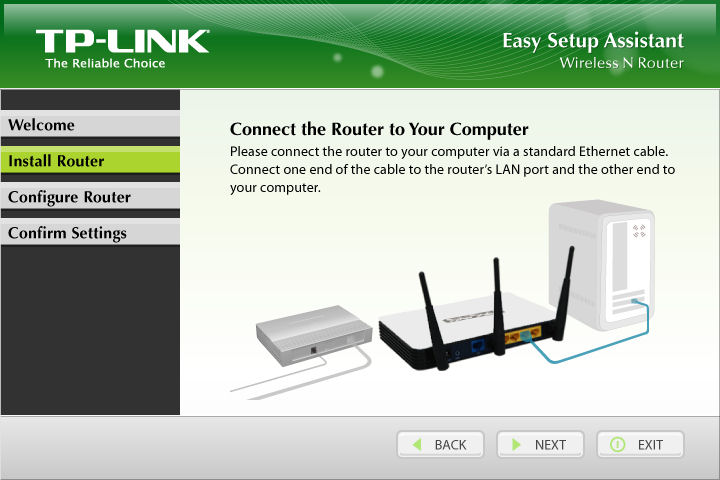
Figure 2: TP-LINK Easy Setup Assistant
The setup program recommends that you enable wireless security, but doesn’t force you to use security. Nor does the setup program even ask about changing the administrator’s password.
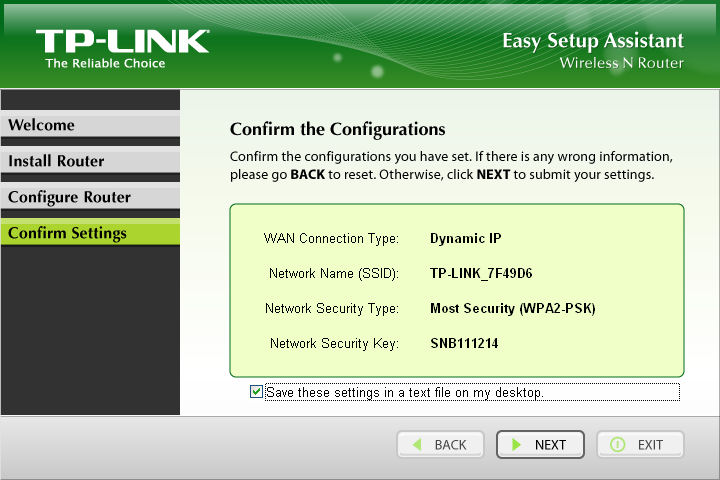
Figure 3: Final confirmation of the settings you input
When you log into the web UI, you land at the Status page shown in Figure 4.
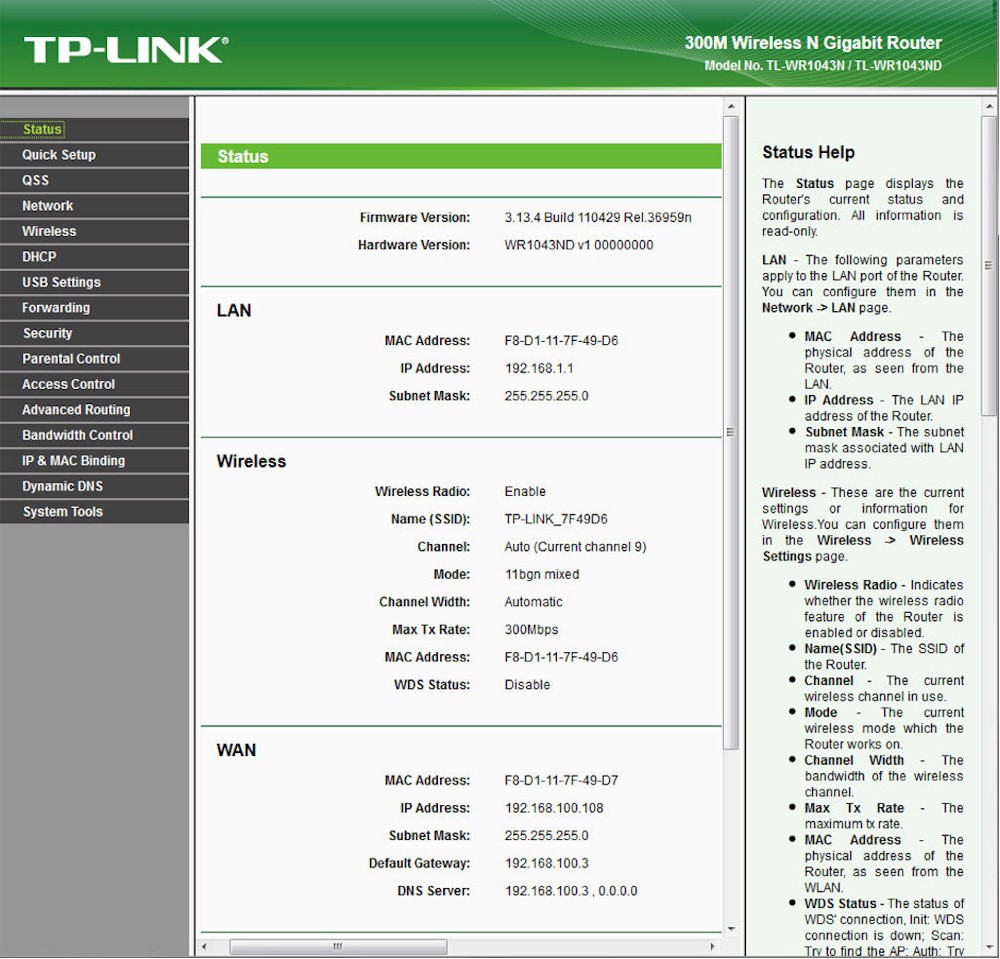
Figure 4: TP-Link TL-WR1043ND landing (status) page
The entire user interface is formatted exactly the same way as the landing page: On the left, you have icons for individual menus; in the center of the screen you either have a status pane or a configuration pane; on the right side of the screen, you have a help pane that scrolls independently from the configuration pane. The Help shown corresponds to the settings in the configuration pane, and is often a verbatim pickup of the text in the user manual.
Feature Tour
Figure 5 shows an enlarged view of the list of menus that appear on the left side of the UI. Many of these submenus allow for standard configuration of common features detailed above. So I’ll only comment in detail on sections that I feel need specific mention.
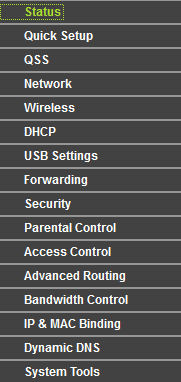
Figure 5: Configuration menus that appear on the left side of the web interface
Quick Setup – Browser-based wizard for setting up Internet connection
QSS – What everyone else calls Wi-Fi Protected Setup. PIN and pushbutton methods are supported.
Network – Basic configuration for WAN, LAN and MAC clone function.
Wireless
This menu allows you to configure all of the wireless settings listed in the wireless features above. Under wireless, however there are several interesting things to note. As Tim noted in his overview, the TL-WR1043ND did not properly default to 20MHz bandwidth mode, even though it is Wi-Fi Certified.
Auto channel selection appeared to work well. In my location, there are numerous wireless networks and the TL-WR1043ND chose channel 9 as the best operating channel. Based on a site survey, this looked like a good choice.
The TL-WR1043ND does not support multiple SSIDs or a guest network. Since many routers now include a guest network with separate configurable security settings, this puts the TL-WR1043ND at a disadvantage if that’s a feature that you would use.
Figure 6 shows the wireless security settings page. Interestingly, the Group Key Update Period defaults to 0 which means that the group keys aren’t rotated. Since rotation of keys is a key element in wireless security it should default to something greater than 0. Some routers that I’ve seen use a key rotation period of 3600 seconds.
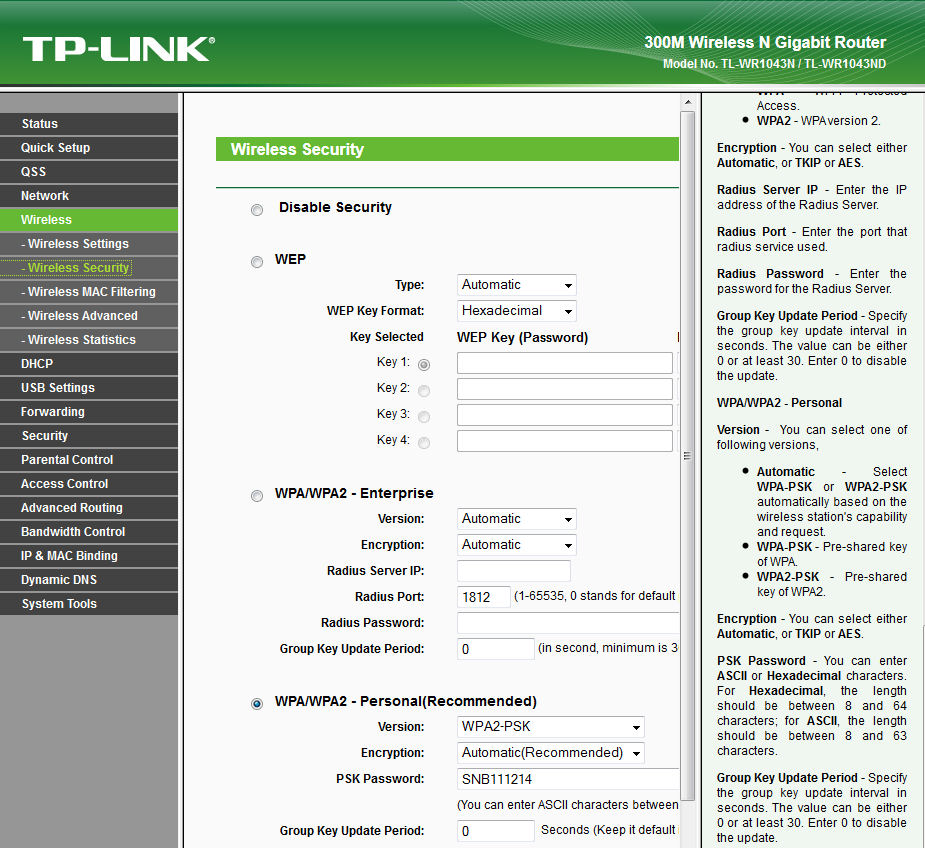
Figure 6: TL-WR1043ND Wireless Security Configuration
Feature Tour – more
DHCP
Allows you to configure your DHCP server, view the DHCP Client list, and create DHCP reservations. The default DHCP reservation is only 120 minutes; 1440 minutes (1 day) is more common. The maximum lease time is 2 days.
DHCP reservation doesn’t allow you to set a reservation by choosing from a list of existing DHCP clients. Instead, you need to copy and paste the MAC address into the DHCP reservation entry box.
USB Settings
The TL-WR1043ND has a USB 2.0 port that you can use to share a storage device on your network. Unfortunately, the only way to share storage is via FTP. You can use a dedicated FTP client, use your browser by typing in ftp://router_ip_address, or use a browser FTP plugin.
This menu allows you to enable/disable FTP services, make FTP services available to the Internet, create user accounts, and grant RO or RW rights to users. You can also enable a DLNA server, specify the folders to be scanned by the server and set the scan update frequency.
Forwarding
This menu lets you set up Virtual Servers and forward ports or ranges of ports to LAN IP addresses. Figure 7 shows the list of common service ports. Of course, you can configure any port, such as 443 for HTTPS. This menu also lets you set up port triggering for gaming applications, configure an IP address as a DMZ host, and enable/view UPnP settings. Note that you can set different external and internal port numbers for each rule.
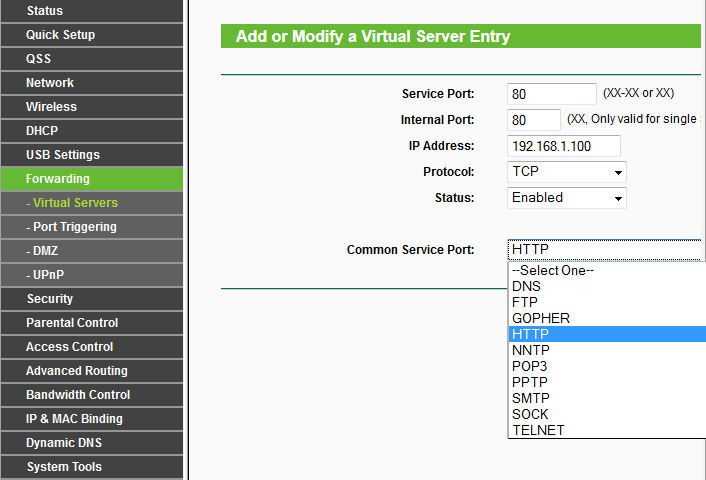
Figure 7: Port forwarding setup for HTTP
Security
This menu has a couple of interesting options. Basic security lets you enable VPN passthrough, ALGs and the SPI firewall listed in the features above. Advanced security lets you configure your router to handle DoS (denial of service) attacks as shown in Figure 8.
Local management lets you specify up to four MAC addresses that can access the router’s admin web interface. Remote management lets you specify a port to use for remote management and remote IP addresses allowed. Note the TL-WR1043ND does not support secure remote management via HTTPS – an unfortunate omission.
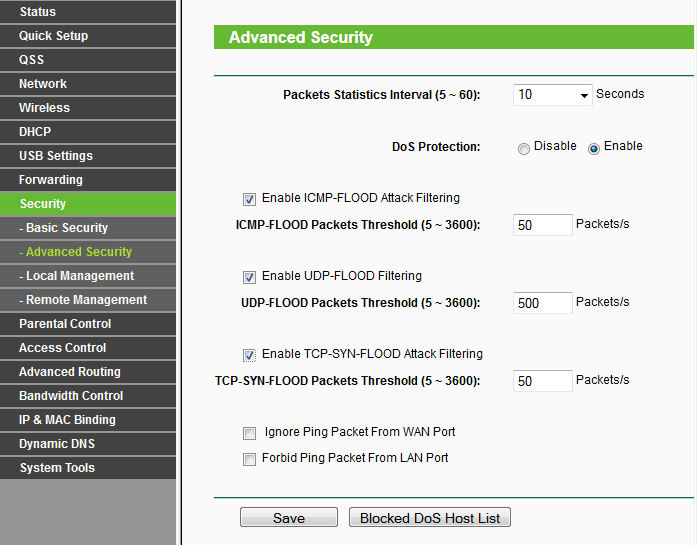
Figure 8: DoS protection
Parental Control
Enabling parental control allows you to restrict internet access to computers whose MAC address is not on a parental control list. Once enabled, you can enter the MAC address of the child’s PC and block up to eight domains on the internet. You can also use any schedules that you’ve created under the Access control menu.
Access Control
This menu allows you to enable internet access control and choose a default filter policy of either allowing or denying access by any enabled access control policy. You can create host and target rules based either on MAC or IP address, and a assign a schedule to each rule.
Figure 9 shows an example of a schedule that could be used in conjunction with a rule to restrict access “after school” on weekdays from 3:00PM to 6:00PM.
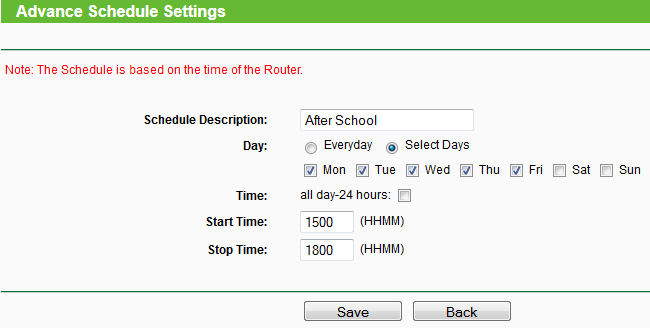
Figure 9: Access schedule
Advanced Routing – This menu allows you to set up a static route, or view the system routing table. Note that the TL-WR1043ND supports IPv4 only. No IPv6 functions or routing is supported.
Bandwidth control – This menu lets you enable bandwidth control and specify upload and download speeds. The router does not automatically measure your internet connection speed as many other routers do. So it’s important to enter correct values here or the bandwidth settings you make won’t be properly implemented.
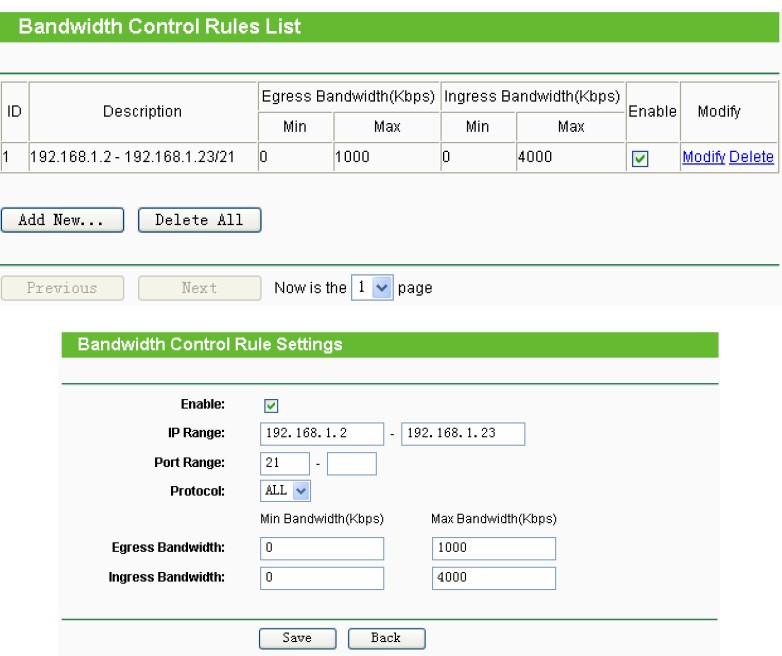
Figure 10: Bandwidth control rules
Bandwidth rules (Figure 10) allow you to specify maximum and minimum upload and download speeds for an IP address or range of IP addresses for a range of ports and protocols. Download bandwidth limits in particular can be helpful for controlling bandwidth hogs. But you need to know the ports used by the services you want to control, which can be difficult for controlling gaming and Torrenting.
IP & MAC binding – In reading through the help, this feature looks very similar to DHCP reservation which allows you to assign an IP address to a specific MAC address. I’m not really sure what this function is, or how you would use it.
Dynamic DNS – Only three DDNS providers supported: Dyndns (www.dyndns.org); Comexe (www.comexe.cn); and No-IP (www.no-ip.com).
System Tools
The System Tools submenus shown in Figure 11 are fairly self-explanatory. However, the system log deserves a little extra attention. The system lets you filter the log entries by the log types shown. You can also filter the log by choosing one of the five Log Levels (All, Error, Notice Warning or Info). You have the option of saving the log or, if you’ve configured outbound SMTP mail settings (authenticated SMTP supported), mail the log daily at a specified time or every 48 hours.
There are a few issues to note, however. Syslog is not supported, so the web-based log is all you get. The log system doesn’t appear to log FTP sessions. When I FTP’d into the TL-WR1043ND on the WAN port, my session didn’t appear in the log file (Figure 11).
Notice all of the DHCP traffic as a result of the default short DHCP lease time. According to the rules for DHCP, a client will try to renew its lease when the lease is 50% over. With the default two hour lease, you can see that the client on 192.168.1.100 is requesting and receiving a renewal every hour.
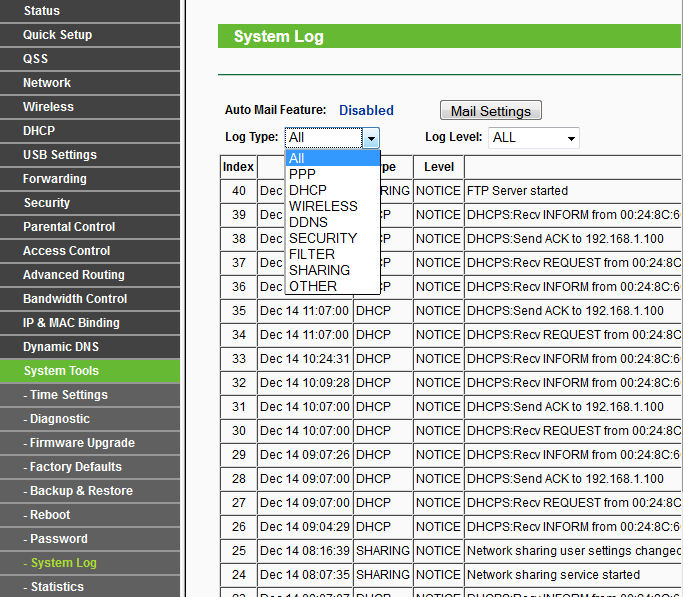
Figure 11: TL-WR1043ND System Log
I also found a command-line interface for the FTP server as shown in Figure 12.
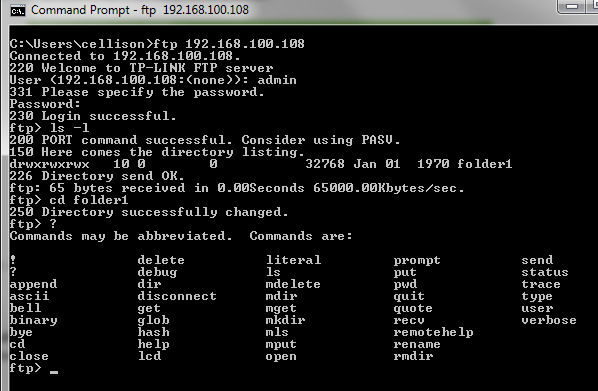
Figure 12: Command line FTP session showing available commands
Closing Thoughts
As Tim pointed out, the TL-WR1043ND doesn’t really excel when it comes to wireless performance – especially uplink. Frankly, for a three-antenna router, I had expected somewhat better performance, since the third antenna in a dual-stream router is supposed to enhance receive gain. I was also disappointed that for a top-of-line router, I couldn’t confirm that I was getting a Gigabit connection via either the LED indicators or through the web UI.
From a security standpoint, I would have preferred that the setup utility had forced a password change for the administrator’s account and preferably, enforced the use of wireless security. An unsecured router with an unsecured wireless connection reminds me of routers from bygone days. But those security issues are relatively minor problems that are easily addressed by savvy users during initial setup.
Finally, for most people, I think that sharing USB storage on a local network via FTP only is a feature that won’t be used. If SMB/CIFS had been supported, I would have found the device much more useful. Still, I agree with Tim. For a $55 single-band N router with Gigabit ports, up and downlink bandwidth control and WDS support, it isn’t too bad. And you can always throw DD-WRT onto it if that’s your thing.