

Introduction
Updated 7/30/2008: Corrected Web Camera information
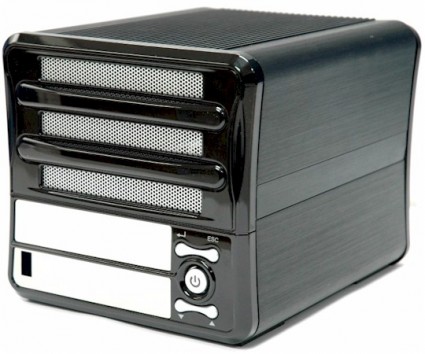
| At a Glance | |
|---|---|
| Product | Thecus RAID 5 Home NAS (N3200) |
| Summary | Three bay multi Terabyte-capacity BYOD NAS with RAID 0, 1, 5, and JBOD support |
| Pros | • Good performance • Hot-swappable drives • AFP and AD/NT domain support |
| Cons | • Limited availability |
Many RAID 5 NASes have made their way through the SmallNetBuilder test lab. But the N3200 is the first one to have three drives. I suppose that isn’t surprising, given that Thecus is also the only manufacturer to have submitted a five-drive NAS.
The N3200 is Thecus’ top-of-the-line SOHO offering and is positioned as a "Home NAS with RAID5 Protection". By contrast, its five-drive N5200 [reviewed] is positioned at the top of its "SMB/SME" line, while the N5200 PRO desktop [reviewed] and 1U4500 rackmount [reviewed] NASes make up its "Enterprise" lineup.
Marketing positioning aside, the 3200’s feature set is very similar to its business-focused siblings and shares the same no-frills web-based admin interface. So I’ll focus mainly on the differences, which are mostly in its multimedia features, and leave you to check out the other reviews and if you need more details on the 3200’s basic functions.
The 3200’s physical design is a bit more consumer friendly than the 5200/PRO’s, although it has a bigger footprint than four-drive NASes such as the Netgear NV+ [reviewed]. Figures 1 and 2 provide a summary of the front and rear panels.
The three hot-swappable drives are hidden behind a front panel that easily lifts off. Drives are secured with tool-less brackets that slip into drive mounting holes and hold each drive securely in place via thumbscrews on each side. The front panel LCD display has been carried over from the 5200s. But I like the rocker-style navigation switches better than the 5200’s push-button stubs that look like mini-toggles.
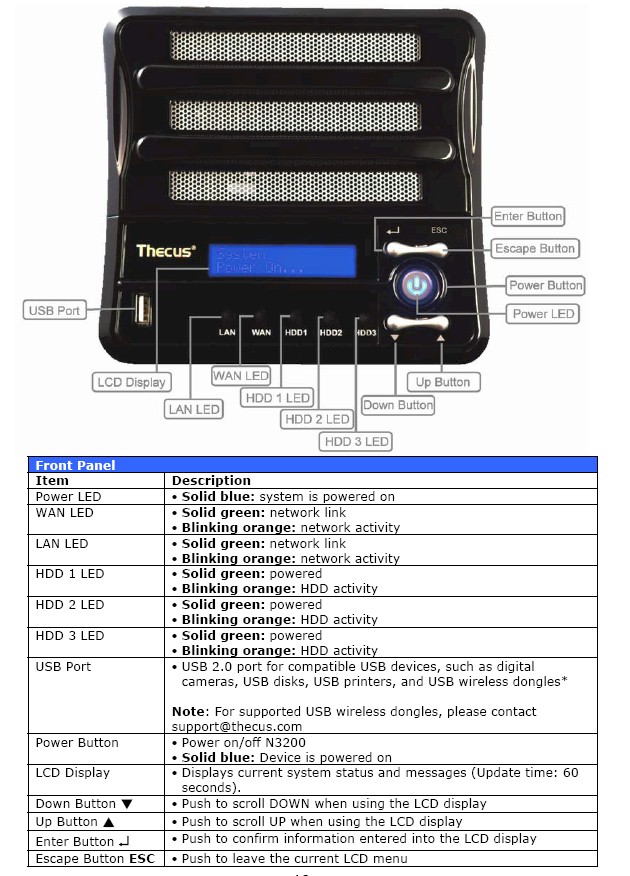
Figure 1: Front Panel
Things are a bit different on the rear panel (Figure 2). There is only one USB 2.0 port (for a total of two) and the Type B (squarish) USB port that allowed using the 5200 / PRO as a direct-attached USB drive has been dropped. But you can attach a USB wireless LAN adapter that uses the relatively uncommon ZyDAS ZD1211 or ZD1211B chipset to either of the Type A USB 2.0 ports. (The Zyxel ZyAIR G-220 V2 will probably be the easiest to find.)
Curiously, Thecus has kept the odd WAN/LAN Ethernet port arrangement, which is surprising, considering the product’s home focus and the limited usefulness of the IP Sharing capability.
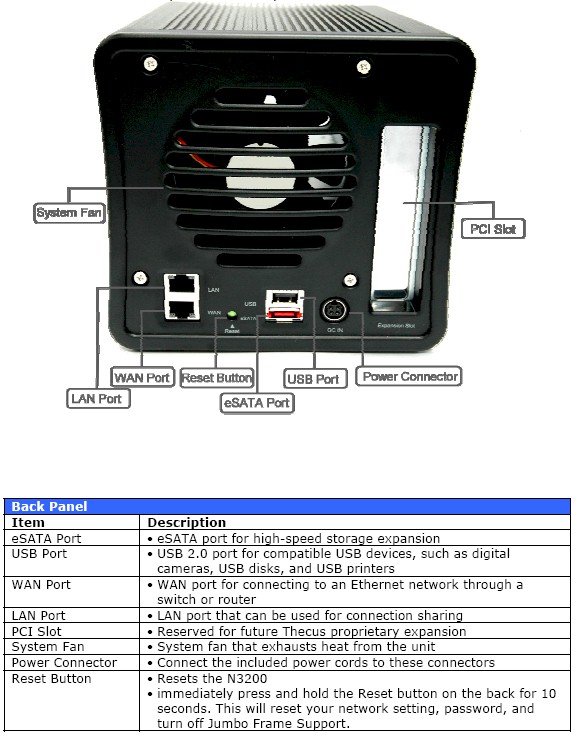
Figure 2: Rear Panel
You’ll note that the eSATA port has been kept, for those who like to expand storage that way. Hackers who are intrigued by the PCI slot will be disappointed, however, since the connector was not even loaded on my 3200’s board. The large fan is a plus, since it can run quietly at a lower speed and still move the required air.
Internal Details
There are more internal shots in the slideshow, but I’ve included a shot of the 3200’s board for those of you who like to ogle them. The missing PCI connector would be sitting in the group of holes near the bottom of the board.
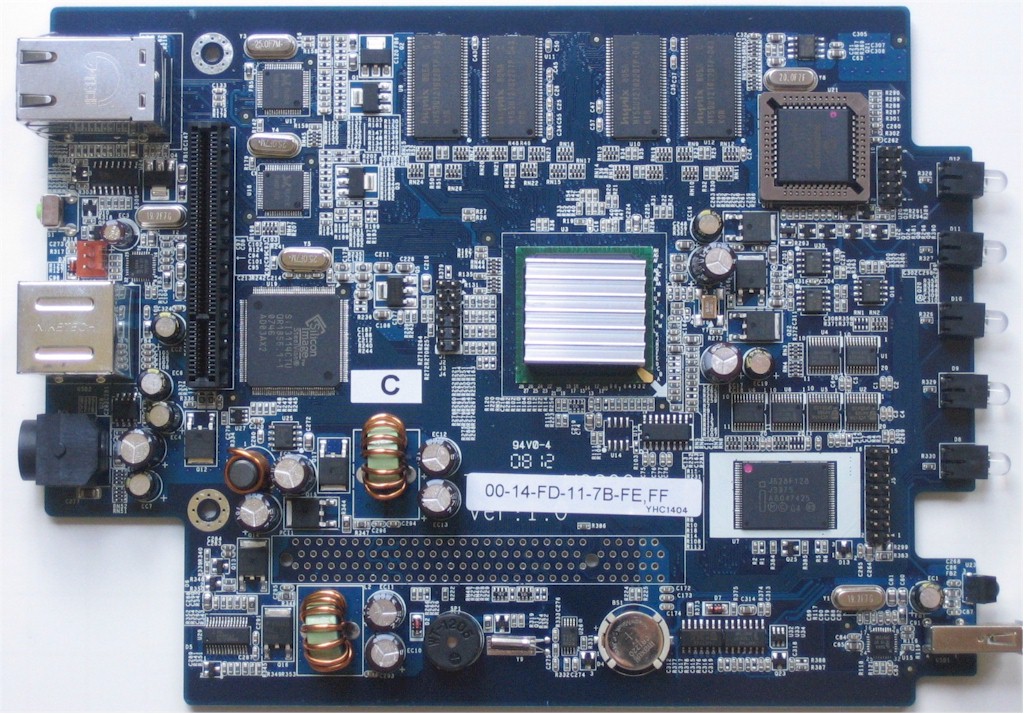
Figure 3: N5200 Pro motherboard
The board is powered by a Freescale 8347 @ 400Mhz CPU and has 256 MB of soldered-in RAM and 16 MB of flash. The SATA controller is a Silicon Image SiI3114 – PCI to 4 Port SATA150 and the two gigabit Ethernet ports (supporting 4 and 8K jumbo frames) are via Realtek RTL8211‘s. There is also a Microchip PIC16F877 8 bit microcontroller.
The drive backplane plugs into the connector at the top left of the photo. The backplane provides blind-mate connection to three 3.5″ SATA II drives, which will be formatted using the ext3 filesystem. Drives up to 1 TB are supported (a PDF list of supported drives can be downloaded here).
Features
Given the 3200’s home user focus, it’s not surprising that Thecus has not included iSCSI support. But they have carried over support for NFS and AFP network file systems and the ISO Mount feature that allows users to mount CDROM ISO images without having to use an actual disk. You also get AD/NT Domain support, which I doubt most home users need.
Most of what the 3200 brings to the party takes the form of multimedia support beyond the Mediabolic UPnP AV server found in the 5200 / PRO. There’s an iTunes server (Figure 4), which is disabled by default. But once I copied a folder over to the 3200’s default Music share and enabled the server, the 3200 and content popped right up in iTunes and I was able to start playing music.
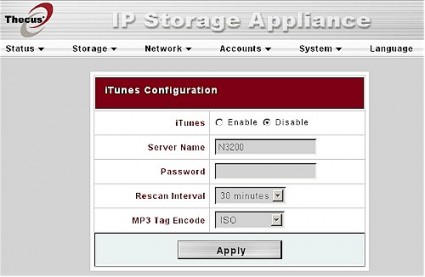
Figure 4: iTunes server
I didn’t fare so well with the Web Camera feature. It is supposed to capture images from an attached USB webcam at intervals from 1 to 60 seconds at image sizes of 160×120, 320×240 (default) and 640×480 (Figure 5).
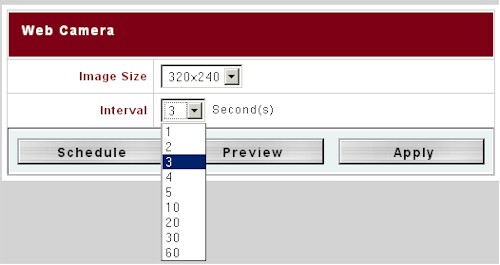
Figure 5: Web Camera capture
You can also enable a single schedule (Figure 6). There is no motion sensing, you can’t automatically email or FTP images and the interval range is pretty short. So I’m not sure how much of a workout this feature will get.
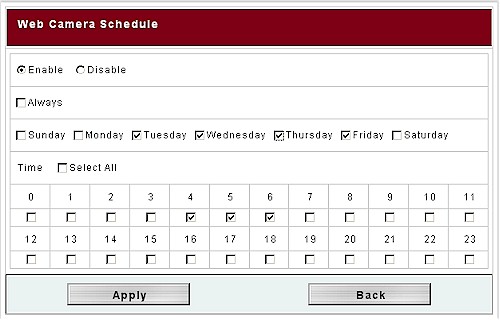
Figure 6: Web Camera schedule
Updated 7/30/2008: Corrected Web Camera information
I couldn’t confirm any of the features because the 3200 didn’t even recognize the Logitech Quickcam Pro 5000 that I tried on both the front and rear ports. So I asked Thecus for a list of supported cameras and they pointed me to this page on their support site, which lists three Logitech (not including mine) and one Microsoft USB camera.
Integrated download managers are getting to be more common in NASes and the 3200’s handles FTP, HTTP and BitTorrent downloads. Figure 7 shows one of each scheduled. If you want to see the controls for the BitTorrent downloads, there’s a shot here in the slideshow.

Figure 7: Download Manager
Photo Gallery
The last media feature in the 3200 is the Photo Gallery. I first thought that it was missing, since I didn’t see an option for it in the admin interface. But I found that you need to create a user account, then log in as a user. This gets you to an entirely different user interface (Figure 8).
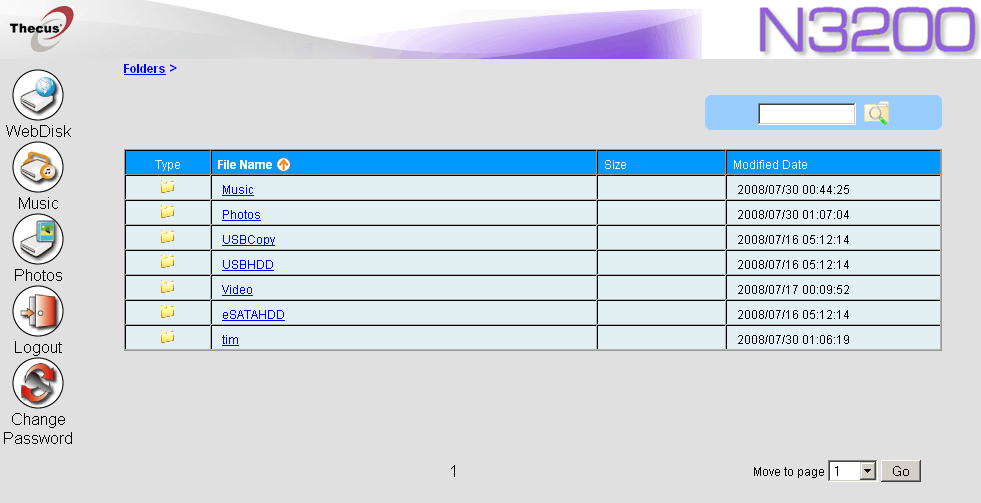
Figure 8: User Interface – WebDisk
You land at the WebDisk option, which allows file browsing, up and download via your web browser. This interface (and the admin interface) is also available via secure HTTPS access. But you need to use https:// in your URL; the N3200 won’t automatically redirect you from HTTP to HTTPS.
Clicking the Photos button takes you first to a page showing all users that have photo albums. Note that there is a default "http" user that isn’t a functional album. Clicking on your icon takes you to a blank album page, where you click the "+" icon in the upper right-hand corner to create an album. Figure 9 shows my album page with two albums that I have created. One has a cover photo, which I was able to create using the upper-right Cover icon.
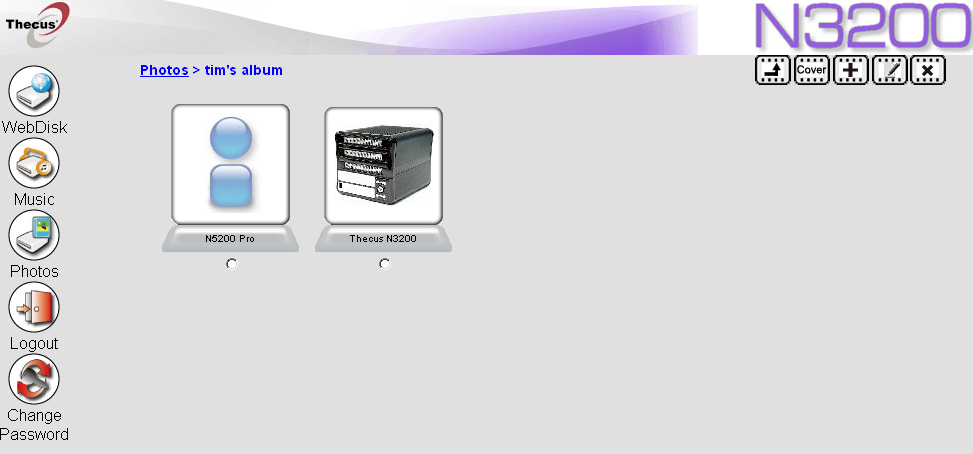
Figure 9: Photo Albums
The Upload Photo feature handles individual files only (up to 9 at a time), but lets you enter a 20 character "Subject" (title) and 100 character "Description" (caption) for each. I really find this one-at-a-time method annoying, so checked to see if a folder of images that I manually copied to my photos folder using drag-and-drop would show up, and it did.
But I first had to log out and back into the admin interface to make my photo folder public. It was the only way that I could get rid of the Windows login box that popped up when I tried to browse to my photo folder and that refused to accept the N3200 user name and password that I had created.
Once I got the folder uploaded, I logged back into the User interface and found that an album had been created, complete with 100×100 (max) thumbnails. Figure 10 shows the Album page, which allows adding, deleting and editing photos.
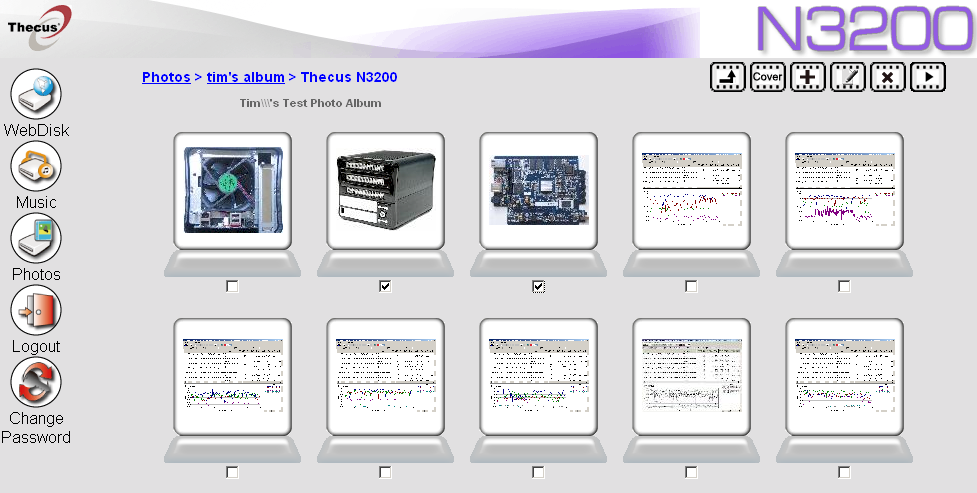
Figure 10: Photo Gallery – Album Page
Editing is limited to Subjects and Descriptions; you can’t change the order of pictures. Picture order seems to be determined by the order in which pictures are added. Adding photos makes them appear at the beginning of the album.
Clicking on a photo in the Album page takes you to that photo’s page (Figure 11). Navigation from photo to photo is done with the "filmstrip" at the bottom of the page. The arrow icon down there doesn’t start the slideshow (that icon is at the upper right), but advances to the next group of five images. Clicking the EXIF link brings up that data. Clicking the images itself opens a new browser tab or window with the full-sized image.
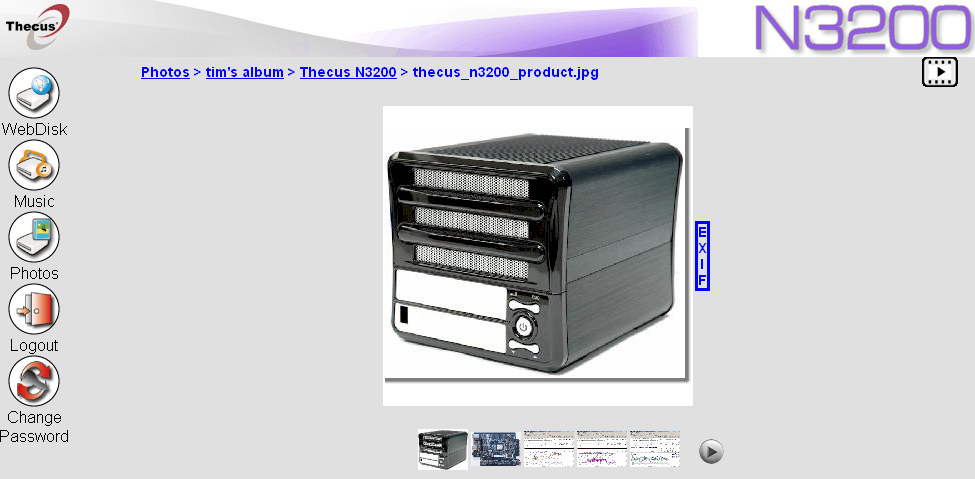
Figure 11: Photo Gallery – Photo page
The N3200’s Photo Gallery is better than I have seen on some NASes, but still could use some work. As noted, you can’t reorder images, but more importantly, you can’t change either thumbnail or individual images sizes. You also can’t change timing in the slideshow, which also lacks any image transition effects.
RAID Fail Test
I performed our usual pull-the-drive test on the N3200 and it passed with flying colors. I first enabled email notification (Figure 8) to see how that worked. The Notification feature has probably the most complete set of email configuration options that I have seen on a networking product.
Figure 12 shows that the SMTP port can be specified along with three authentication methods. I first tried the on Auth Type, but eventually found that login worked for me.
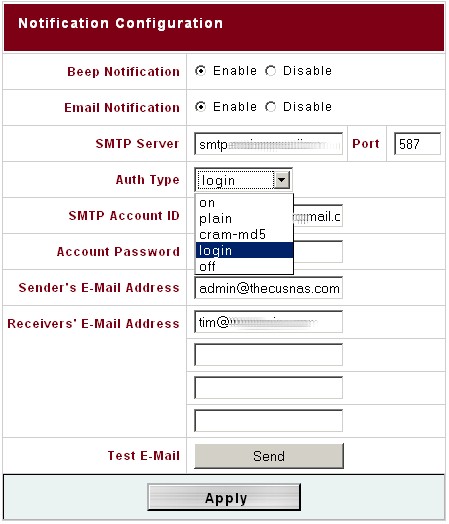
Figure 12: Email notification configuration
I then started a large folder copy, waited until it was underway, then pulled a drive. Within 30 seconds, the front panel display changed to tell me that a drive had been removed. The internal beeper also sounded off with a continuous, loud tone that was as ignorable (and loud) as a smoke alarm. Fortunately, I was able to silence the alert tone by pressing the ESC front panel switch.
I also received the following email within 10 seconds of pulling the drive:
Hello tim@*********
This notification message is generated automatically from N3200 (10.168.3.167).
The system experienced the following event(s).
Disk 1 on "N3200" has been removed.
Please be aware of the event(s) above. Also if necessary, please react to the event(s).
==============================================
The automated message is generated at 2008-07-30 00:25:07 by N3200 (raid5) (10.168.3.167).
It was followed shortly by another email telling me that the NAS was operating in a degraded condition. I then reinserted the drive and soon received another email telling me that the drive had been inserted.
I logged into the admin interface to see if there was any indication of failure. But, as is typical with most NASes, there was no alert shown on the Status > Product Information (About) page that is shown upon login. I had to navigate to the Storage > RAID page, where I found that the system was automatically rebuilding the RAID volume (Figure 13).
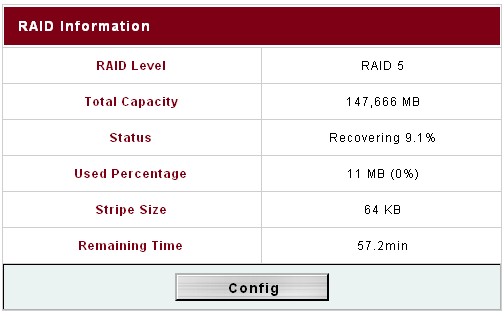
Figure 13: RAID recovery in progress
The rebuild finished in just about an hour, confirmed by a final email. By the way, the filecopy continued uninterrupted throughout the test, just as it should.
Performance
I used IOzone to check out the file system performance on the 3200 (the full testing setup and methodology are described on this page). Thecus supplied the 3200 with a mix of 7200 RPM SATA drives: one each of Western Digital WD1600JS-75N and WD800JD-23JN and a Seagate ST3160827AS. My test unit had the latest 1.00.01 firmware and I used default RAID settings, which included a 64 KB stripe size.
I usually test dual-drive RAID NASes in JBOD and RAID 1 modes and quad-drive NASes in JBOD and RAID 5. But given the 3200’s odd (ha!) drive configuration, I tested it in JBOD, RAID 1 and RAID 5 modes with 100 Mbps, 1000 Mbps and 1000 Mbps w/ 4k jumbo frame LAN connections.
Figures 14 shows a summary of the Pro’s large filesize write test results with 1000 Mbps and 1000 Mbps 4k jumbo frame LAN connections. As expected, RAID 5 came in slowest. But it’s interesting that the JBOD and RAID 1 speeds tracked so closely.
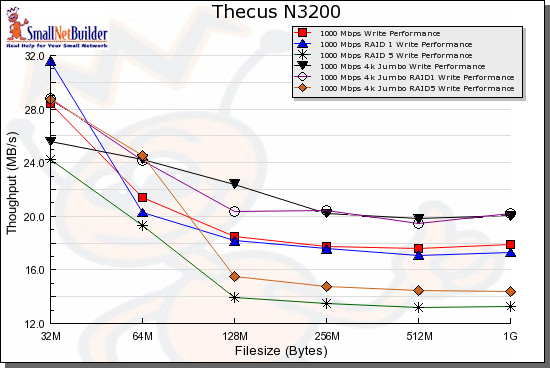
Figure 14: N3200 write benchmark comparison – 1000 Mbps LAN
Figure 15 gathers together the read test results for the same test configurations. The test with and without jumbo frames seem to cluster together up to 128 MB file size, then break into different groupings.
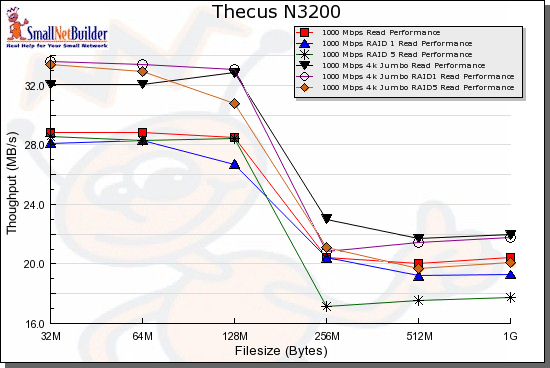
Figure 15: N3200 read benchmark comparison – 1000 Mbps LAN
Competitive Comparison
The 3200’s odd drive configuration put me in a bit of a pickle when it came time to choose comparison products. The 3200 actually comes in at #2 in the RAID 1 Write and Read Average performance charts, bested only by the four-drive Intel SS4200-E [reviewed]. I normally would not have tested a quad-drive RAID NAS in RAID 1, but the SS4200-E supports only RAID 0+1 and 5.
But since Thecus positions the 3200 as "RAID 5 for the Home", I chose comparison products from quad-drive NASes that were ranked similarly in the RAID 5 average throughput charts w/ 1000 Mbps LAN connection, i.e. the Qnap TS-409 Pro [reviewed], Synology CS-407 [reviewed] and a recent entry into the RAID 5 NAS wars, D-Link’s DNS-343 [previewed]. (If you want to see the N3200 compared with the N5200 PRO, check the slideshow.)
Figure 16 is a comparison of RAID 5 write performance with a 4k jumbo frame gigabit LAN connection. The 3200 tracks the Synology CS407 most closely. But it’s tough to call a winner between the Qnap and D-Link, since the Qnap’s performance falls off with larger filesizes.
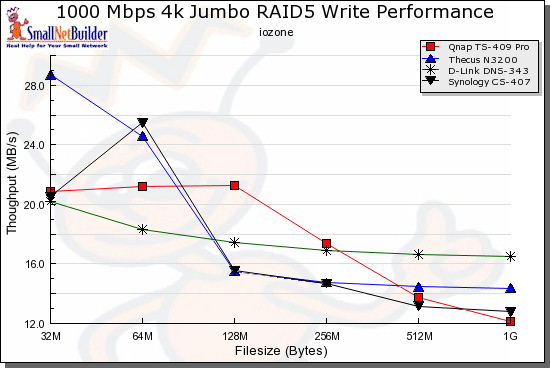
Figure 16: Competitive comparison – RAID 5 write, 1000 Mbps 4k jumbo LAN
So Figure 17 is a shot of the average write performance rankings, where you can see that the four products are very similar in performance.
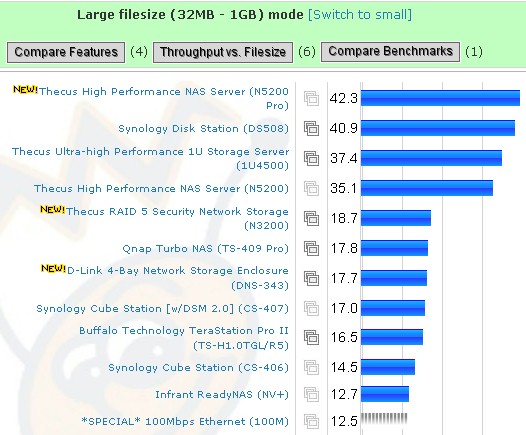
Figure 17: Average large filesize throughput – RAID 5 write, 1000 Mbps 4k jumbo LAN
Switching to read performance under the same conditions for the same set of products, Figure 18 shows that it’s even tougher to call a clear winner.
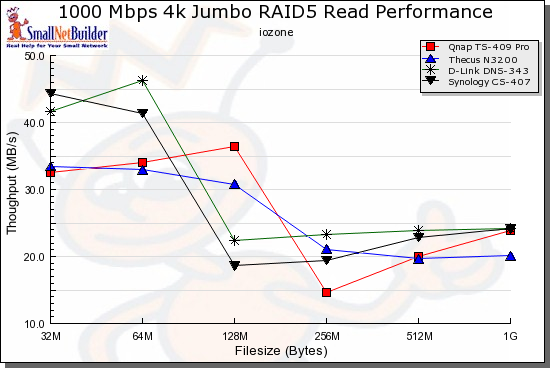
Figure 18: Competitive comparison – RAID 5 read, 1000 Mbps 4k jumbo LAN
So Figure 19 shows the average read performance rankings. Once again, the numbers are similar, with the N3200 and Qnap TS-409 virtually the same.
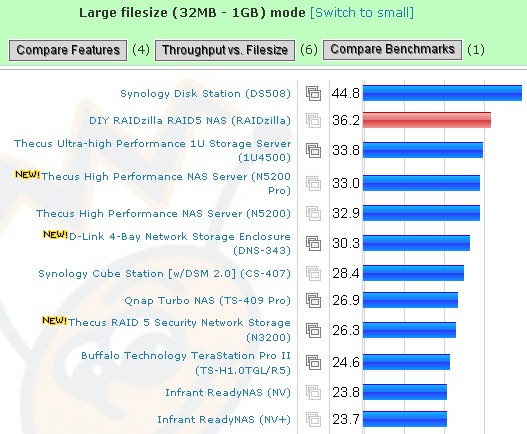
Figure 19: Average large filesize throughput – RAID 5 read, 1000 Mbps 4k jumbo LAN
Closing Thoughts
Thecus has taken a bold step with a three-drive RAID 5 NAS, since RAID 5 is so closely associated with four drives. The smaller number of drives also limits maximum capacity, which is one of the reasons that people choose RAID 5 over RAID 1 products.
But while the 3200’s manufacturing cost probably isn’t much lower than its quad-drive competition, Thecus has priced the 3200 aggressively as shown in Table 1.
| Product | Price Range | Avg. Price |
|---|---|---|
| Qnap TS-409 Pro | $599.00 | $599.00 |
| Synology CS407 | $469.99 – $687.19 | $579 |
| D-Link DNS-343 | $383.88 – $497.00 | $440 |
| Thecus N3200 | $385.40 | $385 |
Table 1: Pricing summary (Source: Pricegrabber 7/29/08)
The downside is that Thecus still doesn’t have wide U.S. distribution and may be harder to find.
Thecus tends to be primarily focused on performance and the N3200 reflects that focus. If you don’t mind an unsophisticated user interface and don’t need a lot of hand-holding, then the N3200 could be the RAID 5 NAS for you.