

Introduction
If you’re responsible for a small network, whether at your home or small business, sooner or later you’re going to face the problem of a few users that use up most of your bandwidth. Large downloads and heavy P2P users (BitTorrent, Morpheus, etc.) are usually the culprits. But gaming and multiple video streams can also make for unhappy people.
You would think that this is a perfect opportunity for consumer router makers to differentiate themselves and get a bit more money (and hopefully, profit) from a product category that generally provides precious little. But, in general, bandwidth control has been largely ignored by most makers.
The few companies that do address the issue of bandwidth control, D-Link most notably, use Ubicom‘s StreamEngine automatic QoS (Quality of Service) technology. But StreamEngine is largely an uplink bandwidth optimizer that is focused on prioritizing real-time traffic, such as gaming, VoIP and other applications that depend on the timely transit of packets, over all other types of network traffic.
Figure 1 shows the "GameFuel" (D-Link’s marketing-speak for Ubicom’s StreamEngine) settings in the DGL-4300 router that is my main network router.
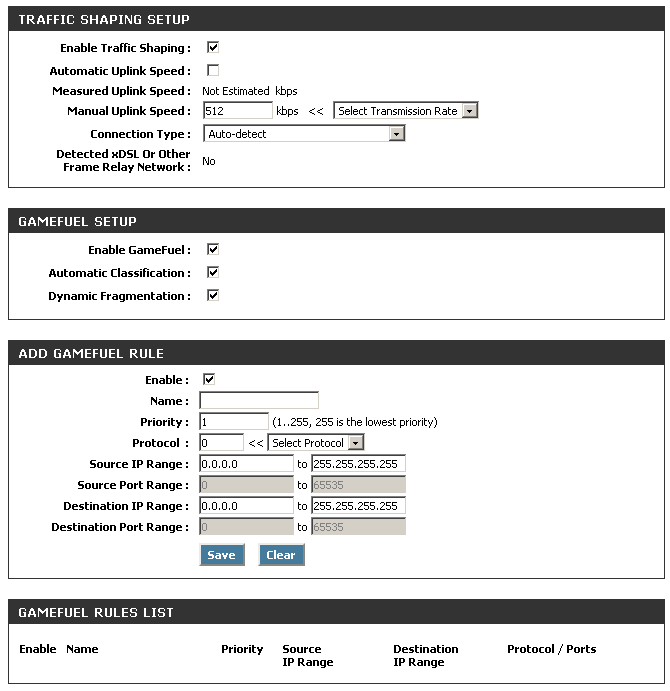
Figure 1: D-Link Gaming Router "GameFuel" auto-QoS settings
All you need to do is enable "Traffic Shaping" (a more descriptive term), and the router handles the rest. Most people will enable the Automatic Uplink Speed option, which measures your Internet connection’s actual uplink speed each time the router is rebooted. I disabled this option and manually entered my uplink speed because I got annoyed one day during a series of reboots at how long the measurement took.
You do have the Add GameFuel Rule option that you can use to manually set the priority on uplink traffic. But for that, you need to know the port number being used by the application. The Active Sessions screen (Figure 2) can be somewhat helpful in figuring out which ports to prioritize. But P2P applications are notorious for being able to shape-shift their port use to get around filters. So you can have a devil of a time figuring out which ports to tweak, only to find that they changed on you!
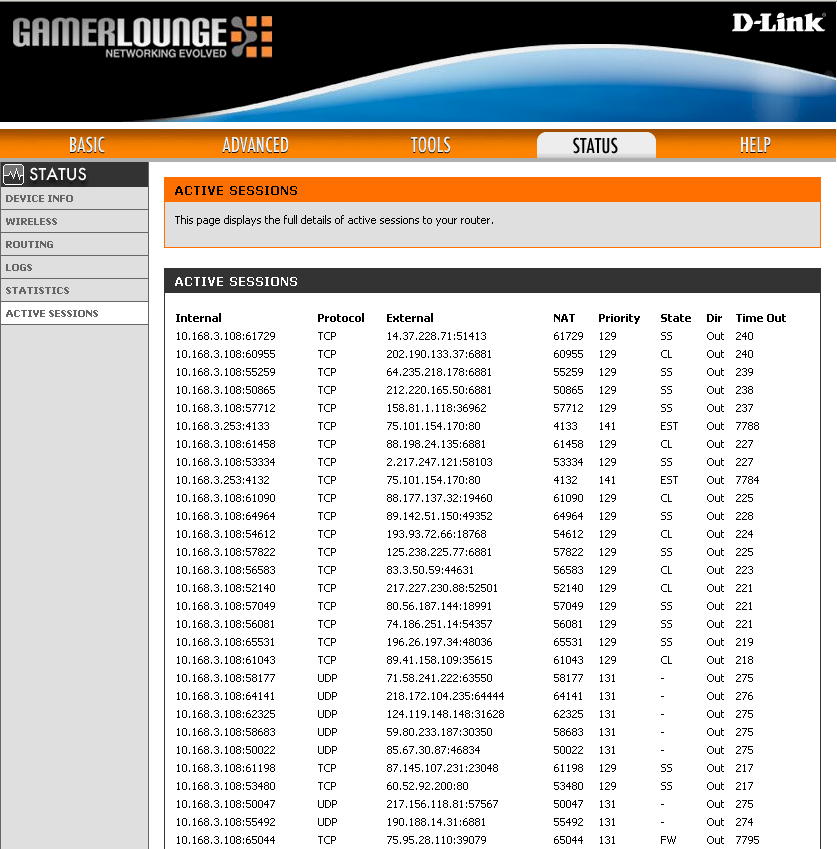
Figure 2: Sessions report
Linksys added manual uplink QoS features across their consumer router line some time ago. But, as Figure 3 shows, the controls are manual and again apply to uplink traffic only. There are two nice features that Linksys provides, however, which are the ability to control bandwidth priority by client (based on two MAC addresses) and physical switch (Ethernet) port. However, these controls are all uplink only, so not really helpful to control someone sucking up all download bandwidth.
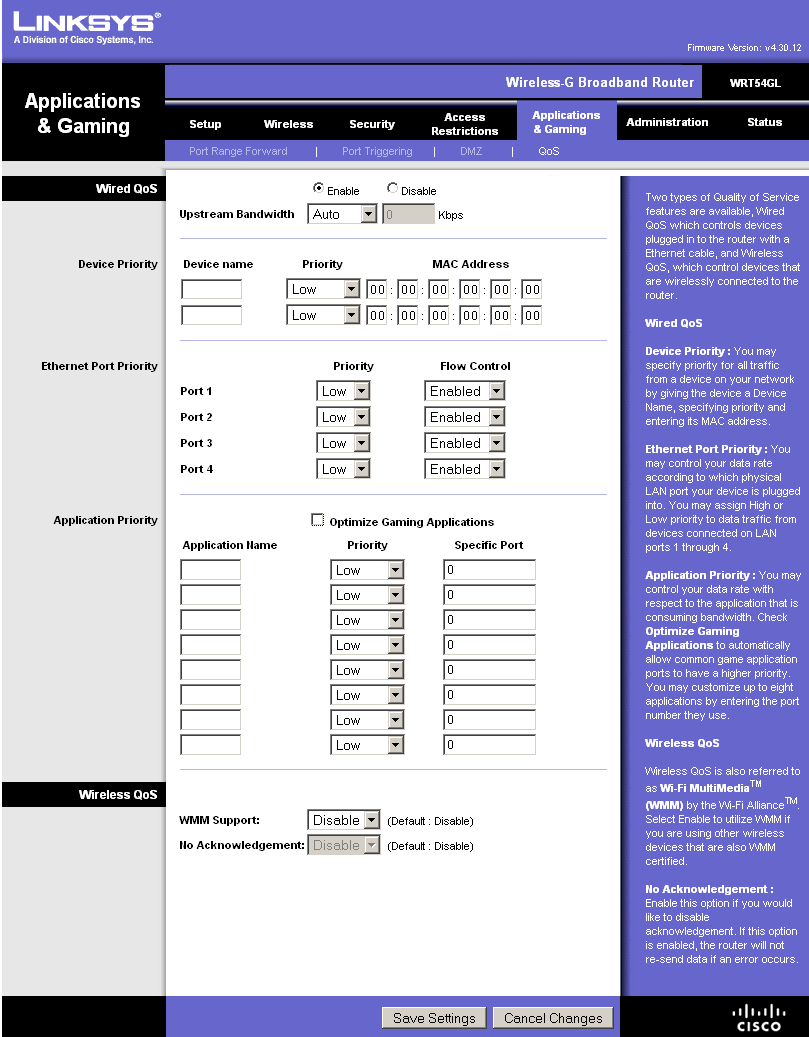
Figure 3: Linksys QoS
pfSense to the rescue
m0n0wall‘s Traffic Shaping features have long been the go-to tool for bandwidth control for folks who don’t mind throwing together custom routers using embedded x86-based computers. But, to tell the truth, I found the concepts of Rules, Queues and Pipes too complicated and continued to look for off-the-shelf products with easier-to-use controls. I also didn’t want the time and expense of putting together my own single-board embedded system.
However, Michael Graves’ recent article and his online video walkthrough, pushed me toward revisiting m0n0wall. Only this time, with a nudge from Forum regular YeOldeStonecat, I decided to try pfSense. pfSense is a m0n0wall fork, focused on running on standard PCs instead of embedded single board computers.
I downloaded the 1.2 version and gave it a quick try on my trusty, but aging Dell Inspiron 4100 notebook (1 GHz Celeron, 512 MB) by booting and running it directly from the CD. Although things were a bit slow, some simple experiments told me that it could control download bandwidth nicely. So I Ghosted the notebook, rebooted pfSense and had it install onto the Dell’s hard drive.
Of course, since I was using my notebook as a router, I first had to add a second Ethernet interface. pfSense detected the 4100’s 3Com compatible 3c905C internal adapter just fine. But it didn’t detect the Linksys PCM200 10/100 Cardbus Ethernet card that I pulled out of my back room. So a check of the pfSense Hardware Compatibility list (which points to the FreeBSD 6.2 Hardware Compatibility List) eventually led me to buy a D-Link DFE-690TXD (only $20), which worked just fine.
Once pfSense was installed on the drive, I ran a quick throughput check using Jperf and found 90+ Mbps both LAN > WAN and WAN > LAN; basically 100 Mbps wire-speed.
I’m not going to do a full review of pfSense here, but it has an impressive set of features. You can easily see why m0n0wall has such a large fan base, even if you can’t flash it on a $50 router like you can with DD-WRT, Tomato, etc.
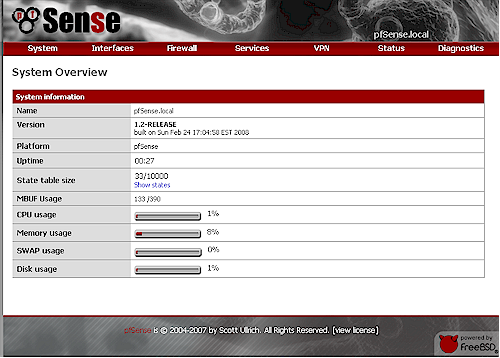
Figure 4: pfSense System Overview
pfSense even has different skins (System: General Setup) but I just used the default "nervecenter" shown in Figure 4. If you’re more accustomed to m0n0wall’s left hand menu bar, you can just switch to the "pfsense" skin.
The Traffic Shaper is under the Firewall menu and takes you right into the Traffic Shaper Wizard the first time you hit it. The Wizard walks you through a series of menus that automatically configure the Rules, Queues and Pipes for common applications, organized by categories. It’s a painless way to get a working set of bandwidth controls in place that you can tweak and/or copy to create new ones.
The first screen has you enter your actual Internet connection up and download speeds. It’s better to err on the low side here, using the results from a few bandwidth test runs (80% of the actual values is frequently suggested). For my "3 Mbps / 640 Kbps" ADSL connection, I entered 2500 and 350 (you enter Kbps), which is what I typically get from Embarq. Then you hit the VoIP screen, which has only two controls, Provider and Bandwidth that you want to guarantee for VoIP.
The next screen is the Penalty Box, the first of interest for controlling bandwidth hogs. Figure 5 shows the simple controls—just IP address (you can enter more than one) and up and down bandwidth limits.
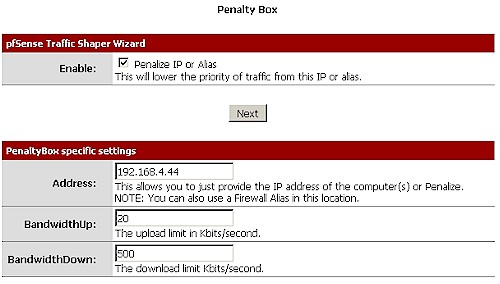
Figure 5: Traffic Shaping Wizard – Penalty Box
The Penalty Box is a fairly blunt instrument that applies to all traffic to and from an IP address. But it might be just the ticket for users who are too persistent in bypassing port-based controls by changing the ports used by bandwidth-hogging applications.
Next is the Peer to Peer Wizard. The controls are again simple; up and down bandwidth limits and a list of P2P applications. Note the p2pCatchAll option, which you need to use with care. This option creates two pair (not sure why) of the same LAN > WAN and WAN > LAN rules that take traffic from all protocols, ports and IPs and send it into the same reduced-bandwidth P2P queues.
Figure 5: Traffic Shaping Wizard – P2P
These rules are set at a lower priority than the port-specific filters, so kick in on all other traffic (Figure 6). This basically means that all traffic gets bandwidth-reduced unless you create higher-priority rules to send it to the default unlimited bandwidth queues. In other words, using that "catchall" option is like putting all traffic into the "Penalty Box"!
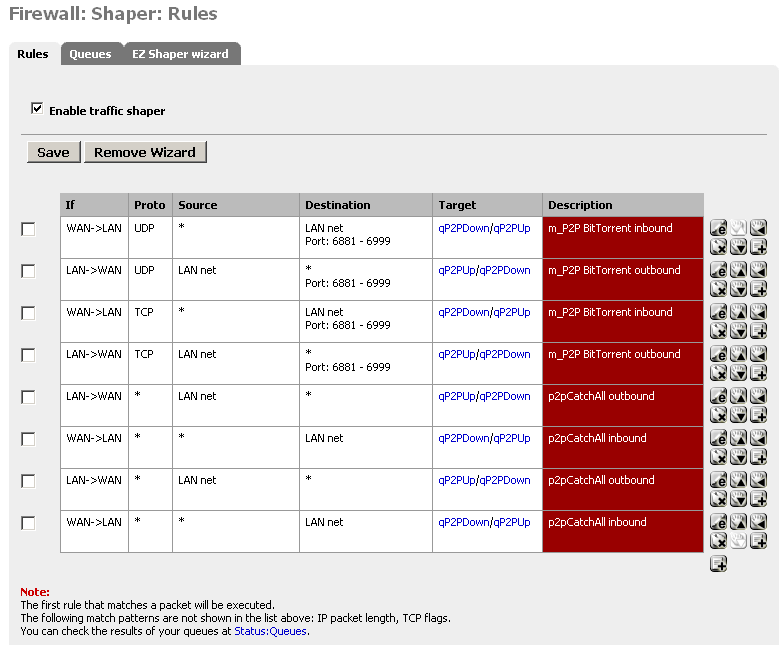
Figure 6: Shaper Rules w/ P2P Catchall
pfSense – more
The next Wizard screen is Network Games, which can be used to raise the priority of various games (Figure 7). You don’t set a bandwidth on this screen; just check off the games that you want to prioritize.
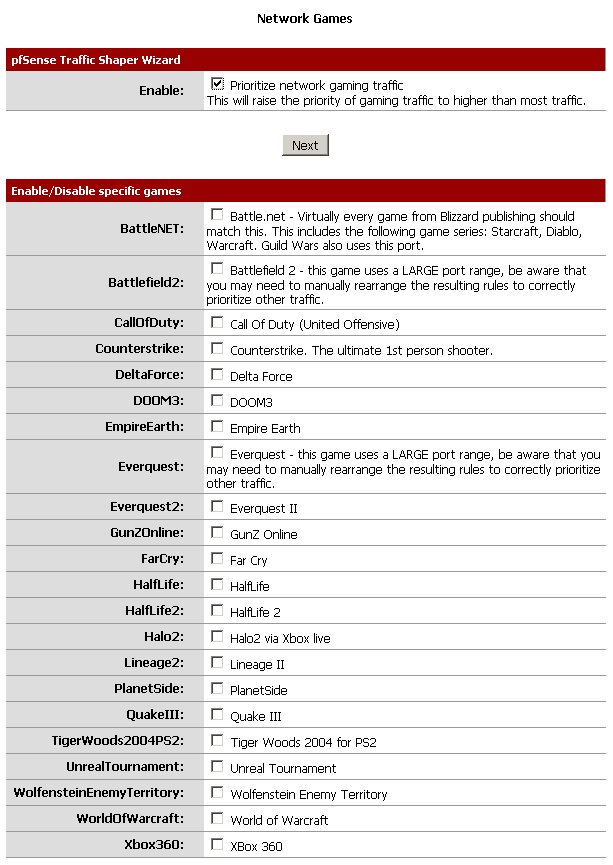
Figure 7: Traffic Shaping Wizard – Gaming
The final Wizard Raise or Lower Other Applications screen is self descriptive (Figure 8). The larger image shows all the applications, each of which can have its priority simply raised or lowered.
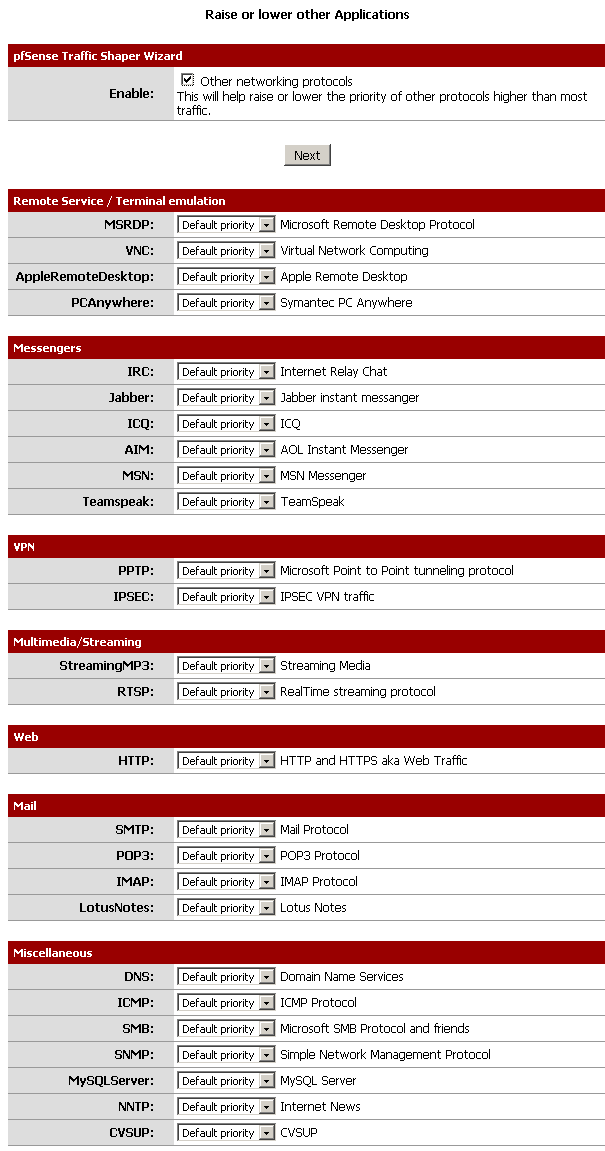
Figure 8: Traffic Shaping Wizard – Other Applications
After you finish the Wizard, the rules and queues are created and you can go exploring to see how things were set up. If you muck things up, you just run the Wizard again; you’ll find that it remembers your previous selections.
Also note that the traffic shaper is stateful meaning that only new connections will be shaped.
If this is an issue please reset the state table after loading the profile.
What this means is if someone is already running BitTorrent (or any other application that you are trying to control) and you create or modify a Traffic Shaper rule or queue, the new setting won’t take effect until after that session has ended.
All you need to do to have the new Shaper settings take effect immediately is to visit the Diagnostics: Show States page, click the Reset States tab and click the Reset button. I didn’t do this while trying out my BitTorrent filters and spent an hour or so wondering why my bandwidth limits were not taking effect!
Testing
To see whether pfSense really could crank down the bandwidth used by BitTorrent, I installed BitTorrent 6.1 on one of my systems, chose a Linux distro with plenty of seeds and started a download. You can see the bandwidth before and after I kicked in the P2P bandwidth shaping in Figure 9.
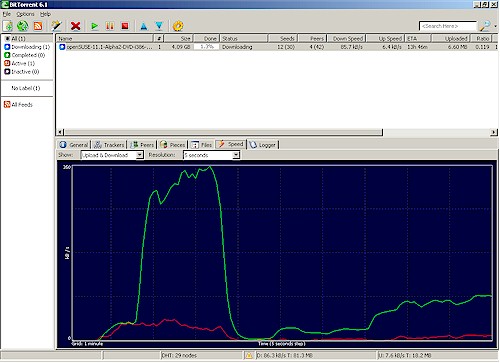
Figure 9: Traffic Shaping Wizard – Other Applications
When I reset the States (and broke all the Torrents) it took awhile for the BitTorrent client to re-establish the downloads. This is reflected in the slow ramp back up to the new 100 Kbps download cap.
Tweaking
Once you let the Wizard establish the basic rules, you can edit and copy them to suit your needs. You just navigate to the Firewall:Shaper:Rules screen shown back in Figure 6, choose the rule you want to edit or copy and click the appropriate icon. If you can’t decipher the icons, just move your mouse pointer over an icon and a tooltip will pop up, describing the function.
Figure 10 shows the edit screen for the third rule down in Figure 6 (m_P2P BitTorrent inbound for TCP). There is more to the screen, but most of the time, you’ll just be changing the Destination Port Range. This rule is for BitTorrent, so is set for ports 6881 through 6999. If you wanted to change the ports, just enter the new ones, save the rule and clear the States.
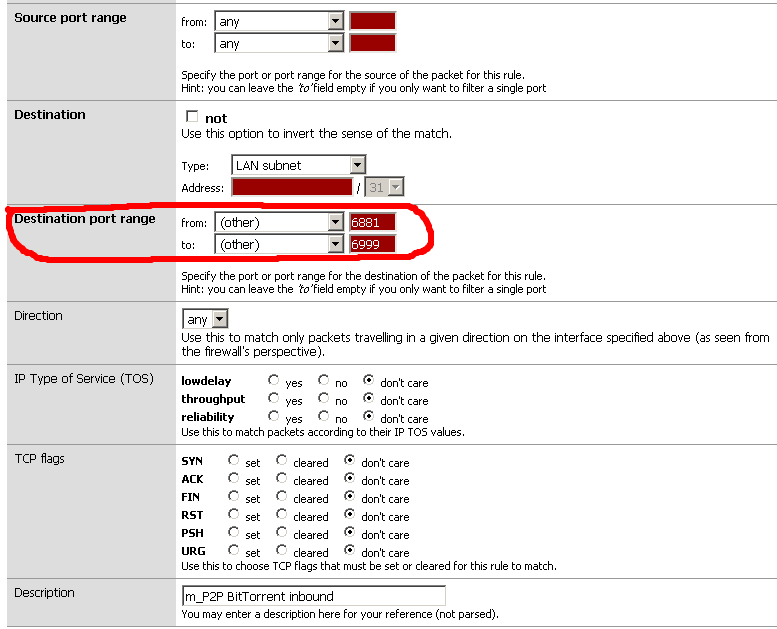
Figure 10: Rule edit
Each rule has a Target field that sets the Queue where the packets that match the rule are sent. To create a new rule for a different application, just find a rule that uses a Queue with the desired bandwidth, copy it, and change the Destination Port Range to the ports that the new application uses. Save it, reset the States and you should be all set.
Note that Rules are position sensitive and executed from top to bottom as listed. You always want to put more restrictive rules ahead of wider rules, otherwise the more restrictive rule will not be executed. That’s why in Figure 6, which includes the rules for the P2PCatchAll option, you see the BitTorrent rules (with destination ports 6881 – 6999) higher in the list.
You can tune existing Queues and create new ones too (no copying, however), but you need to proceed carefully. Figure 11 shows the Queues created by the Traffic Shaper Wizard when I used only the P2P page to set a bandwidth limit for BitTorrent.
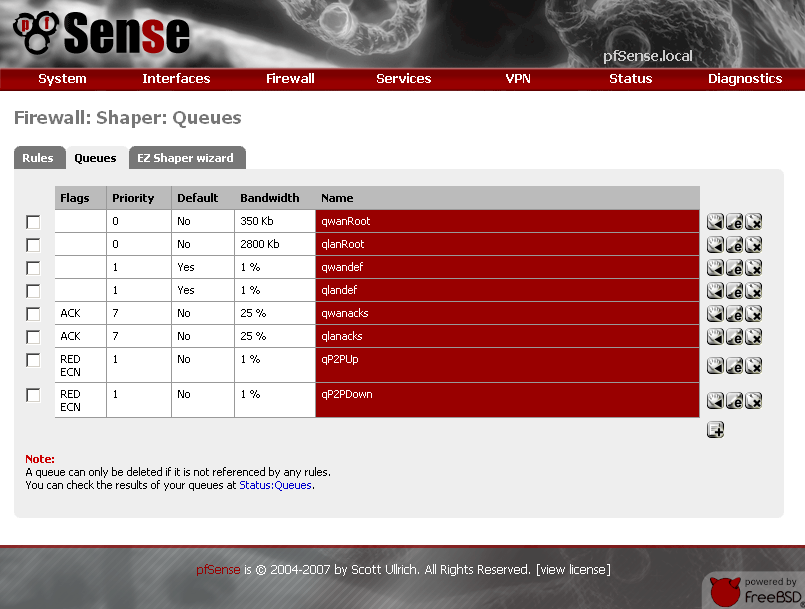
Figure 11: Rule edit
The qP2PUp and qP2PDown queues are what actually limit the traffic matching my BitTorrent rule. But note the pairs of "Root" and "def" and "acks" queues that were also created. These are automatically created by the Wizard and should be left alone.
But if you wanted to increase the bandwidth allocated to BitTorrent downloads, you can just edit that rule. Navigate to the Firewall: Traffic Shaper screen, click the Queues tab and click the edit icon for the qP2PDown queue. Figure 12 shows the edit screen for that rule.
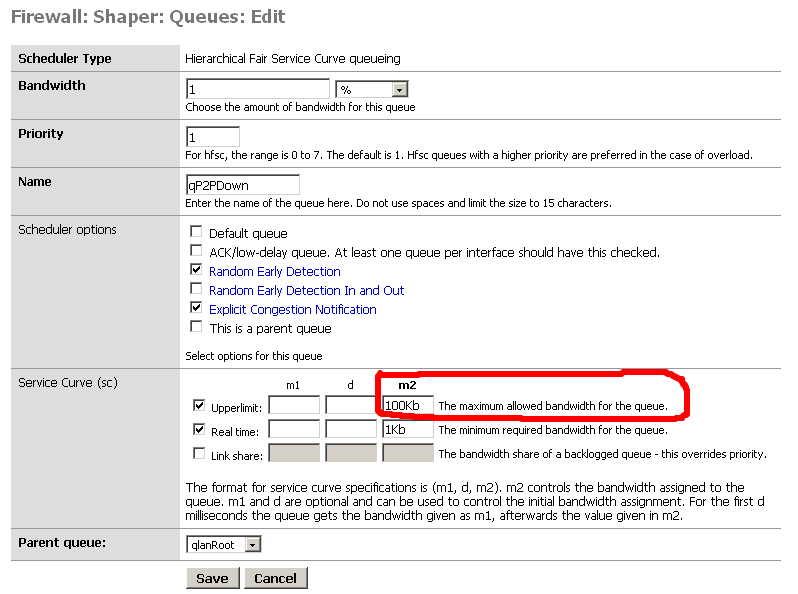
Figure 12: Queue edit
Again, there are lots of knobs to mess with. But all you need to adjust is the one circled in red (Service Curve upper limit, m2). Save the queue, reset the States and the bandwidth will be adjusted.
If you wanted to have a different bandwidth limit for a different set of applications, you could just use the Penalty Box option in the Wizard to create a new set of Queues. Then just copy a similar rule, edit the Destination ports and point it to the new pair of Queues
Finding Ports
But what if you don’t know the ports used by the applications that you want to throttle? Or the standard ones aren’t working because your little piggy has modified the ports or is using a proxy. Aside from just putting him or her in the Penalty Box, you can use PFtop to see what’s going on.
Pftop is a small, curses-based utility for real-time display of active states and rule statistics for pf, the packet filter for OpenBSD. It’s an option (9) available (and best used) in the pfSense console. But you can access it for quick checks using the Diagnostics: Execute Shell Command function (Figure 13). This mode only gives you the default view and sort, so it’s rather limited. But the default view seems to bring the most active connections to the top and would definitely reveal a large up or download.
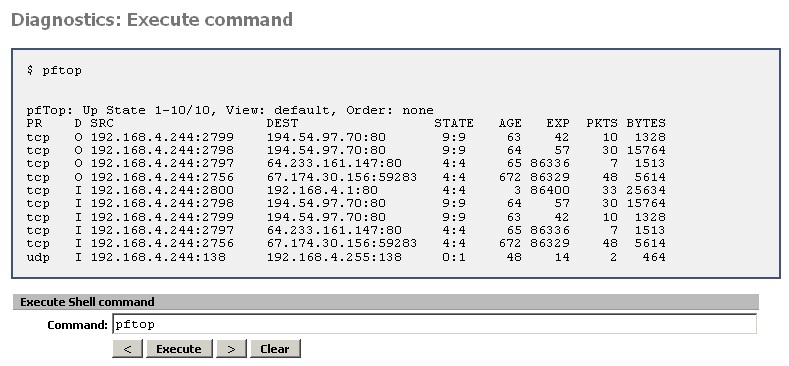
Figure 13: pfTop via Execute Shell Command
While I was debugging my BitTorrent filtering, I found pftop very useful. Help is available by typing h and provides the keyboard commands for the various field sorts. I found screen 7 (speed) to be very helpful in tracking down the sessions that were sucking the most bandwidth. The source field will tell you the IP address of the offender and the port number to use in your rule can be found in the destination IP after the colon, i.e. 194.56.34.2:80.
One last hint is that the Diagnostics: Show States screen has a kill icon next to each session (the right hand column in Figure 14). Unfortunately, the page doesn’t auto refresh and it doesn’t show rates or bytes transferred as pftop does. Still, it can be a quick and dirty way to kill off sessions that are eating up too much bandwidth.
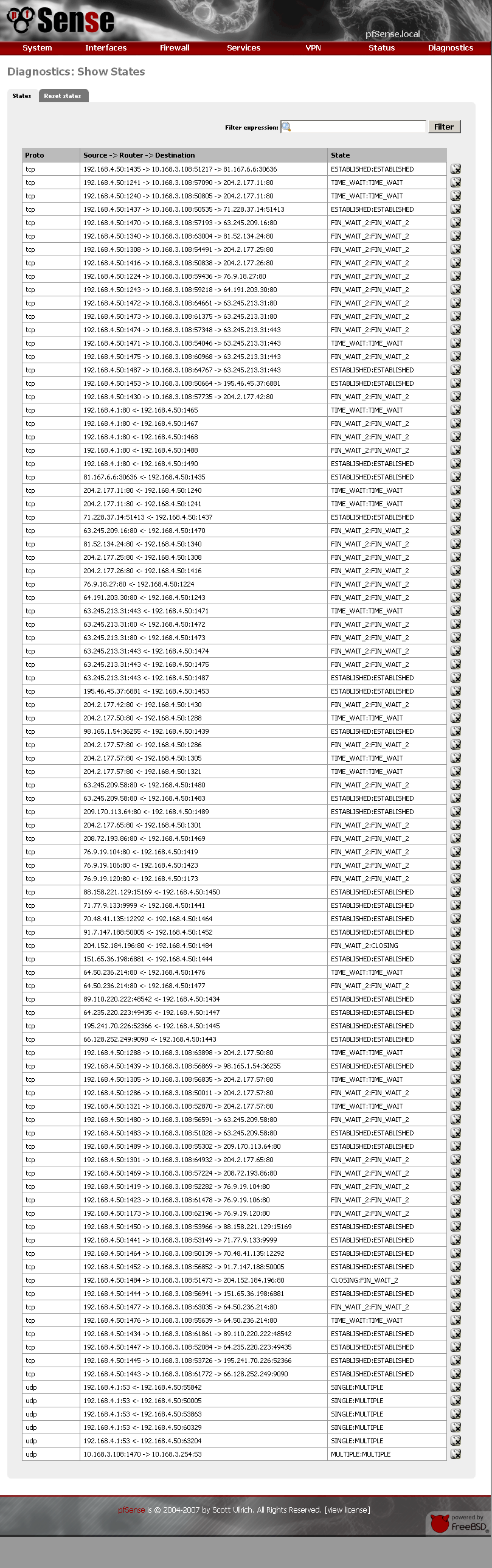
Figure 14: States screen
Closing Thoughts
I have just scratched the surface of pfSense’s Traffic Shaping features and haven’t even touched all of the other things that it can do to help tame an unruly LAN. But if you have a spare machine and a little patience, I’m sure you’ll find pfSense a handy addition to your network.
In Part 2, I’ll look at the bi-directional bandwidth management features in some small business routers.