

Introduction
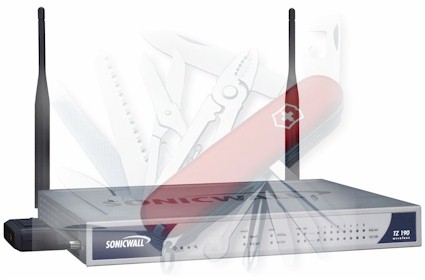
| At a Glance | |
|---|---|
| Product | SonicWALL Internet Security Appliance (TZ 190/TZ 190W) |
| Summary | Full-featured, “all-in-one” UTM appliance with WWAN support |
| Pros | • Wireless WAN (WWAN) Failover • Integrated Security Features for Anti-Virus, Anti-Spyware, Intrusion, and Content Filtering • Easy to use configuration wizards • Powerful SPI Firewall |
| Cons | • Questionable reliability of test unit • Ease of use for non-wizard configurations • Lack of Gigabit support on LAN |
The SonicWALL TZ 190/TZ 190W is a network appliance with an amazing array of capabilities and features! The 190 has dual WAN ports, Wireless WAN (WWAN) capability, Firewall and Unified Threat Management (UTM) Security functionality, VoIP configuration options and eight LAN ports. The 190W has all of this, plus 802.11g WLAN. For even more flexibility, the second WAN port, labeled OPT (optional), can be configured as a WAN port, a LAN port, or a DMZ port! Without question, this device is designed to do more than your typical small network device.
For this review, I tested both the TZ 190 and the TZ 190W. The difference between the two models is that the “W” indicates Wireless LAN functionality. The other difference is the TZ 190 I tested was an earlier Beta Unit, while the TZ 190W I tested was a more recent production model not designated as Beta.
The SonicWALL TZ 190W is pretty small considering all the power it has under its hood. It measures only 10” wide and 7” deep, while standing only 1.2” high. The front panel has simple indicator lights for power and status, as well as signal and activity lights for WWAN, WLAN, WAN, OPT, and (eight) LAN ports. The back panel is comprised of RJ45 ports matched to the front panel lights, as well as a console port.
Figure 1: the front panel
Figure 2: the back panel
The circuit board is pretty clean, as you can see in the below figure. The large silver device in the top right is the PCMCIA slot for the WWAN card. The board is based on a chipset manufactured by Cavium (www.cavium.com), which utilizes Cavium’s Nitrox Security Processor series. The board uses passive cooling, so it is silent, and has 128MB of RAM plus 16MB of Flash Memory.
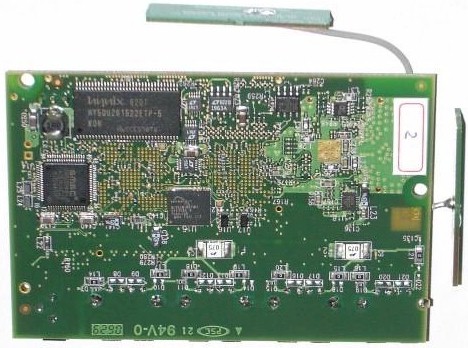
Figure 3: the circuit board
Setup
I installed the TZ 190 as my main Gateway Router and Firewall. It supported a LAN comprised of two servers, Wi-Fi router, two NAS devices, a network printer, two physical VoIP devices and multiple VoIP softclients, a managed Layer 2 switch, plus four client PCs. The Internet connection to the TZ 190 was a Verizon FiOS WAN connection. I tested both Verizon and Sprint WWAN cards as backup Internet connections.
I used the latest firmware from SonicWALL’s website, version 3.8.0.4e. The TZ 190 has a useful menu for firmware updates, allowing you to upload a new firmware version and then select from three choices before rebooting: Current Firmware, Current Firmware with Factory Default Settings, or Current Firmware with Backup Settings. This is handy, allowing an administrator to update firmware and restore a previous configuration at the same time. I selected the Current Firmware with Factory Default Settings option to start with a clean slate.
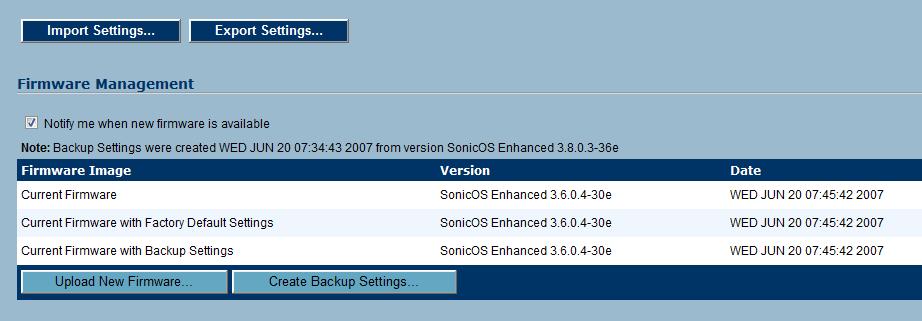
Figure 4: Firmware options
With the TZ 190 at the latest firmware and factory defaults, getting up and running is easy. SonicWALL provides multiple different wizards that simplify the configuration process to get you started.
Normally, I skip configuration wizards because I like controlling and selecting each option. For this review, I configured the TZ 190 manually and via the Setup Wizard, and found the Setup Wizard to be an excellent means for getting up and running quickly. Kudos to SonicWALL’s engineers for creating such a useful setup tool that saves a lot of time. Via the Setup Wizard, SonicWALL guides you through changing the default password, configuring the time setting, choosing WAN/WWAN options, configuring the WWAN card, configuring the WAN connection, and setting up the DHCP server. Again, all of these steps can be done manually, but the wizard made it easy.
I appreciated that SonicWALL’s wizard includes NTP (Network Time Protocol) configuration. Having all devices on a network time-synchronized is useful when it comes to troubleshooting and reading log entries to determine when certain events occurred on the network. Using NTP is also considered a best practice in VoIP networks.
A primary feature of the TZ 190 is its support for WWAN services, and the wizard guides you through the setup of the WWAN card. The TZ 190 can use the WWAN card as its main Internet service or as a backup to a standard WAN service. In this case, the WWAN is a backup, so I selected “WWAN as a backup” in the wizard.
There are a two other things I like to do for a router on my LAN: enabling Dynamic DNS and setting up Static DHCP. Dynamic DNS (DDNS) is a useful feature if you don’t have static public IP addresses from your ISP, and is supported by the TZ 190 in its Network menu. The TZ 190 supports four different DDNS providers, including DynDNS.org, changeIP.com, NO-IP.com and yi.org.
Configuring Static DHCP on the TZ 190 is manual, requiring the administrator to enter each device’s MAC and IP address. Other routers I’ve used allow you to simply click a box in a DHCP client display window to permanently associate an IP to a MAC. On the plus side, there is a neat mouse-over feature that allows you to place your cursor over the Details icon for each statically configured device and see the names you assigned to each IP. Below is a screen shot of a listing of devices on the test LAN; notice the informative display produced in the mouse-over.
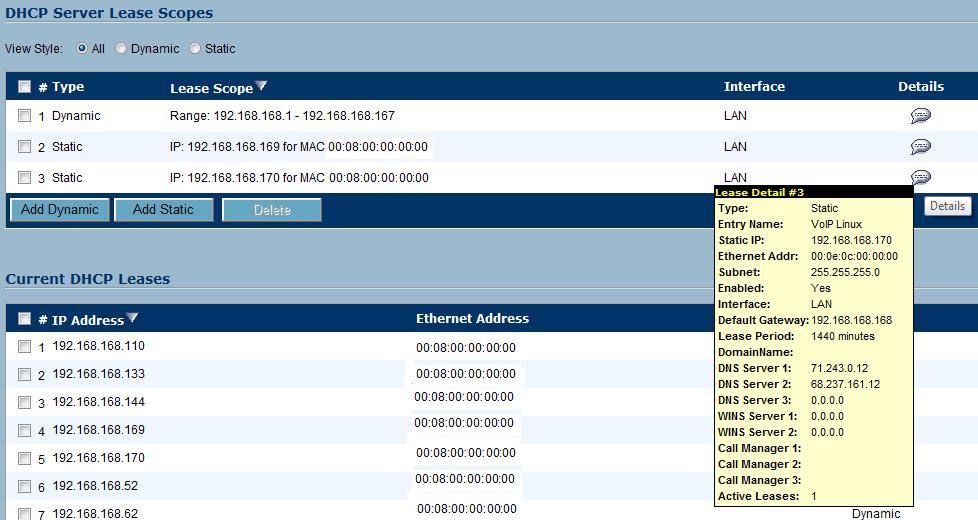
Figure 5: Setting up static DHCP
With the Setup Wizard complete and the above settings applied, the TZ 190 was up and running: my LAN devices received DHCP addresses and Internet access and were good to go for most the common services. Before going forward and possibly having to redo these configurations, I saved my configuration settings, which is easily done through the System-Settings menu.
WWAN
WWAN, or Wireless Wide Area Network, is the term used for Wireless Internet services offered by cell phone providers such as Verizon, AT&T/Cingular, and Sprint. The TZ 190 is a full featured Router and Firewall, yet the WWAN feature sets it apart. The TZ 190 can use a WWAN connection as failover for a primary WAN connection, or it can use the WWAN connection as the primary Internet service in areas where wired services are not available.
As described in the Setup, I configured the TZ 190 with a primary WAN service and the WWAN connection as failover. I successfully tested both Verizon and Sprint WWAN cards with standard monthly packages for this test. Verizon and Sprint aren’t the focus of this review, though. There are multiple WWAN service providers and card types supported; SonicWALL has a compatibility listing here.
WWAN services are priced with individual laptop users in mind, and intended for basic email and Internet usage. Using a single-user WWAN service in a router could exceed those limits and result in getting your service terminated. Verizon sets the limit at 5GB per month for their standard $59.99/month WWAN card.
To help with this, the TZ 190 tracks usage on the WWAN service and allows configuring limits. You can limit your usage by billing cycle, and then set a data limit. Below, you can see I’ve configured the TZ 190 for a billing cycle that starts on the first of the month, with a monthly limit of 5GB.
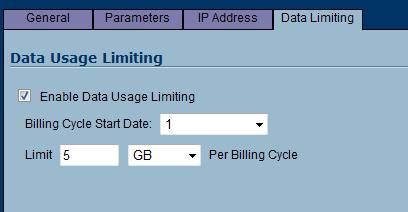
Figure 6: Setting WWAN data usage limits
The TZ 190 also has a nice report on WWAN utilization. Through several days of failover testing, I only used approximately 22 MB of my 5GB limit. This is a handy feature to be able to see when the WWAN utilization occurred and how heavily it was used.
An additional useful tool in the TZ 190 is the ability to schedule when the WWAN can and can’t be used. For example, if there is no need for network connectivity between 12 AM and 6 AM (which is a common maintenance window for service providers), you can configure a schedule to prevent WWAN use, even if the WAN connection fails during these hours. This is helpful to conserve on WWAN utilization.
Testing the WWAN failover service was straightforward. I set up a continuous ping to a public website (ping google.com -t), disconnected the WAN cable from the back of the router, and measured the time it took until the ping succeeded over the WWAN. Switching from a WAN connection to a WWAN connection shows a clear difference in network latency as evidenced by ping response times. Look at the ping times in ms in the top half (WAN) and the bottom half (WWAN) of the below output.
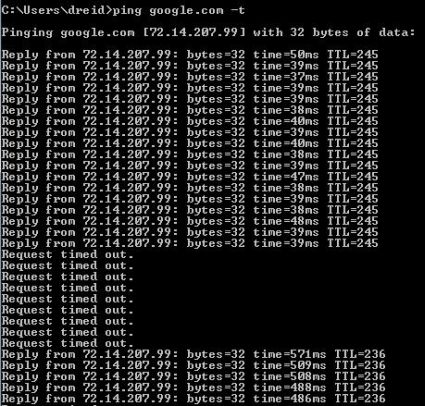
Figure 7: Pinging the WAN while switching to wireless
To test restoral, I reconnected the WAN cable to see how long before the TZ 190 would switch back to the WAN connection. At the point I reconnected the WAN, I had two working Internet connections, so it was interesting to see how the SonicWALL handled this situation. I was impressed; WAN restoral resulted in little or no interruption to Internet connectivity as there was with WWAN failover.
I ran this test numerous times to measure average duration for failover and restoral. On average, it took 1 minute 45 seconds for failover connectivity to be established on the WWAN interface once the WAN was down. For restoral, it took only an average of 25 seconds for the router to recognize the WAN interface was restored and switch from WWAN back to WAN. These results will vary depending on your WWAN provider and signal strength, but they demonstrate the functionality. (The above results were using the Verizon WWAN service.) It is important to recognize there will be some interruption of service while the device switches from WAN to WWAN.
I tried two different WWAN services in this review, Verizon and Sprint. Both have their strengths and weaknesses; you need to choose the one that works best in your area. In my testing, both worked, but I got better signal strength and throughput using Sprint.
WWAN – more
I spent a lot of time testing the WWAN connectivity, and learned a couple of key things. The TZ 190 has to be located in an area where there is good cell phone reception to your provider. Telecom and network equipment is often installed in a basement or wiring closet, which may not be the best place for a cell phone connection. If you’re thinking about installing WWAN connectivity in your network, make some test calls with a cell phone from your WWAN service provider at the location you plan to install the router.
In addition, you may need to configure the TZ 190 DHCP server with DNS IP addresses from both the WAN and WWAN connections. Devices on your LAN will need DNS IP addresses that work on both the WAN and WWAN connections. The TZ 190 DHCP server default configurations will provide DNS IPs from the WAN connection that may not work for the WWAN connection. I set the TZ 190’s DNS Server 1 and 3 to be from the WAN, and DNS Server 2 to be from the WWAN, as below.
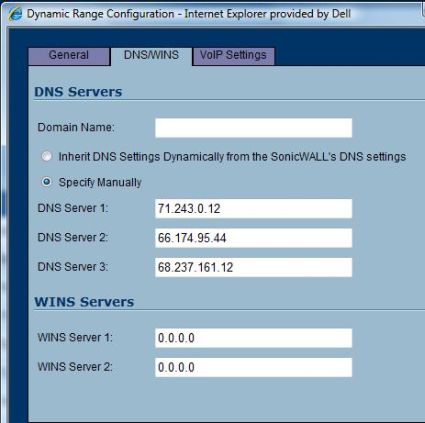
Figure 8: DHCP server configuration
Dual WAN
The TZ 190W has an optional port, cleverly labeled “OPT,” which can be configured as a second WAN port, a DMZ port, or an additional LAN port. Dual WAN connections are another means of redundancy and failover for Internet service. The OPT port works as advertised. With only one WAN service, I couldn’t test failover from WAN to OPT, but was able to configure the OPT port as a WAN connection and move my WAN cable to the OPT port and use the Internet. As you can see from the below picture, the TZ 190 Interface Settings shows the WAN connection with “No Link,” and shows the OPT connection as “Connected” with a public IP.

Figure 9: The OPT port
As a side note, if you’re using the OPT for a secondary WAN, it is a good idea to look into the cable paths your ISPs use to your location. For example, DSL or T1 connections from a Bell company (Verizon, Qwest, AT&T) and a Competitive Local Exchange Carrier (CLEC) may be non-redundant, as their outside wires could be traveling the same path. What good is it having two T1 connections to the same Central Office (CO) if that CO’s Internet connection fails? On the other hand, the outside wires for cable companies are often different from those of telephone companies, so having DSL and cable Internet connections could provide good redundancy.
For Dual WAN connections, SonicWALL provides four Load Balancing options: Failover, Per Connection Round Robin, Spillover-Based, and Percentage-Based. The Failover option sets the router to use the primary WAN port exclusively unless it fails, when it will then switch to the OPT port. The Per Connection Round Robin will alternate between the WAN and OPT connections with each request to a different URL or destination.
The Spillover-Based option enables the network administrator to set a bandwidth threshold on the TZ 190, which is triggered when the sustained outbound traffic across the Primary WAN interface exceeds that threshold. Upon exceeding the threshold, the TZ 190 will utilize the Secondary WAN interface.
The Percentage-Based option allows you to actively utilize both Primary and Secondary WAN interfaces by assigning a percentage of traffic to each WAN interface. This option effectively increases your total bandwidth with dual WAN connections.
Feature Tour
While evaluating the features on the Beta TZ 190, the device hung several times, becoming non-responsive and requiring a power cycle to get to a “Safe Mode,” which requires setting your NIC to a static IP to access the SonicWALL’s menu and force a reboot to the OS. I discussed this with SonicWALL’s product manager, who was good enough to send me a newer TZ 190W.
The newer TZ 190W was more stable, yet dropped to “Safe Mode” twice during my testing. “Safe Mode” only occurred in the midst of making changes, not during normal operation. It is important to note that testing involves continuously changing configurations and saving them, putting a heavy load on the CPU and OS.
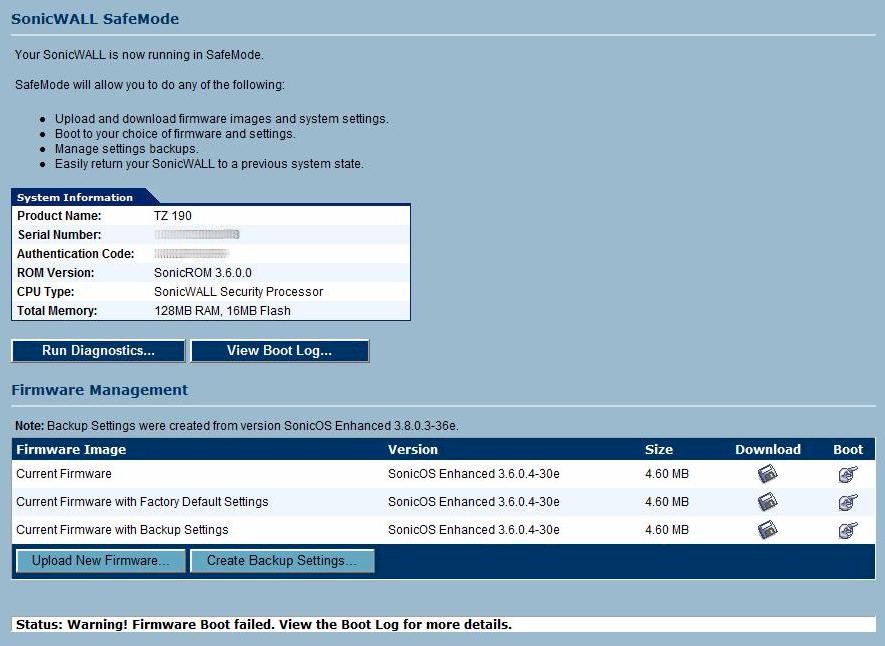
Figure 10: Safe mode
Unified Threat Management = Anti-Virus + Anti-Spyware + Intrusion
The SonicWALL TZ 190 is more than a Gateway Router with Firewall capabilities. The TZ 190 provides Unified Threat Management (UTM), a combination of Anti-Virus, Anti-Spyware, and Intrusion Prevention Services. The TZ 190 also includes Content Filtering, which enables an administrator to block access to objectionable websites. All of these UTM services are subscription-based services, but SonicWALL gives you a 30-day free trial once you’ve registered the appliance.
When you first log into the TZ 190, you are presented with a Security Dashboard reflecting SonicWALL’s global security performance, showing viruses, intrusions, spyware, and multimedia attacks that have been blocked worldwide by SonicWALL devices over the past 2 weeks (below). SonicWALL states they have over 1,000,000 devices in the field contributing to these numbers. This display can also show the performance of your specific TZ 190, and offers the option of downloading the report in PDF format for further distribution.
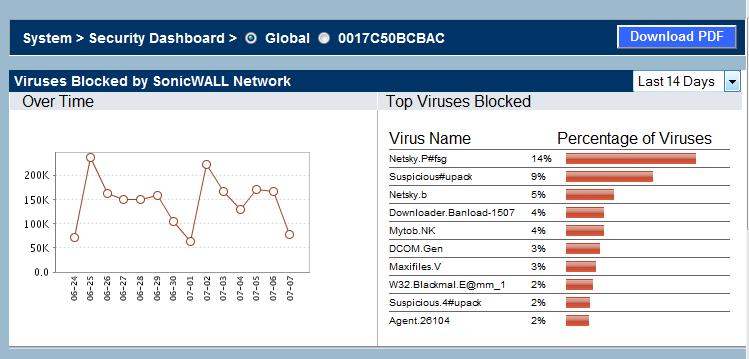
Figure 11: Global security report for all SonicWALL devices
The Anti-Virus functionality provides dual levels of protection, running at both the Gateway and the Client. The TZ 190 updates itself hourly from the SonicWALL network, ensuring it has the latest signatures and updates for both Anti-Virus and Anti-Spyware detection. SonicWALL has engineers in the US, Israel, and Russia continuously adding to their security databases to ensure they are as current and up to date as possible.
At the centralized Gateway level, my TZ 190 recognized nearly 3,000 different Anti-Virus Signatures, adding to this list daily. Further, SonicWALL provides options for filtering network email based on attachment types defined by file extensions (such as.exe files), as well as creating and managing your own Black List for defining allowed and disallowed email domains. Users on your network would receive a message stating, “The attachment to your E-mail has been disabled by the SonicWALL Virus Filter. See your network administrator for details” in the event they were sent an email with a prohibited attachment. This message can be customized as necessary.
At the Client level, the TZ 190 can be configured to force all PCs on the LAN to have the SonicWALL Anti-Virus software installed, or they’ll be blocked from accessing the Internet and given a link to download the proper AV client; see below screen shot.
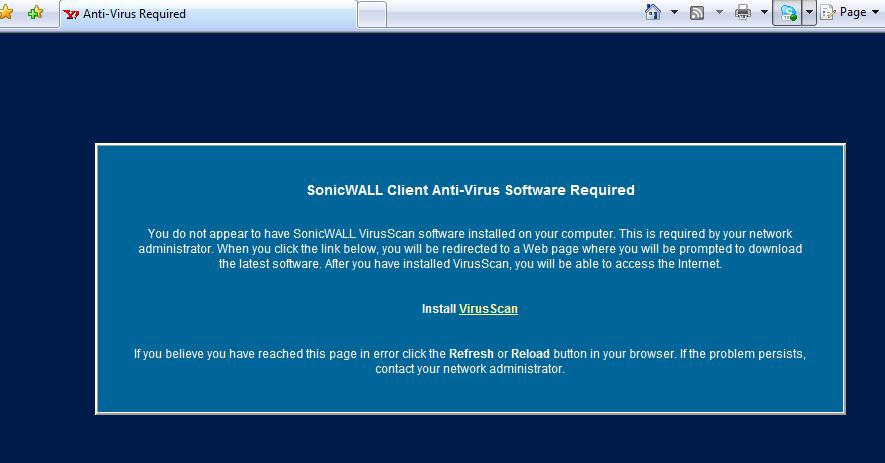
Figure 12: Anti-Virus warning message
The SonicWALL AV client is a slimmed down version of McAfee’s AV software, providing both Anti-Virus and Anti-Spyware functionality. I had no problems downloading and installing the McAfee software through the provided link. If you choose this option, internal communication will be necessary to ensure your end users delete or deactivate any other AV clients on their desktop, or they may have PC performance problems.

Figure 13: Powered by McAfee
Anti-Spyware and Intrusion Prevention are key centralized elements of SonicWALL’s Unified Threat Management functionality. My TZ 190 listed over 464 recognized Anti-Spyware signatures, as well as extensive detection for Intrusion Prevention. For example, the TZ 190 lists over 49 different types of DoS attacks it can detect and block.
With Content Filtering, you can rely on SonicWALL’s database of URLs, IP addresses and domains to prevent users from accessing inappropriate or unproductive sites. If you’re running a network for an organization such as a school or library, or want to block use of various sites in a public use web zone, this subscription-based feature is a one-click solution. It will present those trying to surf the wrong places with a subtle but effective message indicating, “This site is blocked by the SonicWALL Content Filtering Service.”
Firewall
By default, the TZ 190 locks down your network. All traffic from the Internet to the LAN is denied by the stateful packet inspection firewall unless an Access Rule is created to allow it. Opening ports on the firewall is relatively easy with the Public Server Wizard, which walks you through three simple steps for access to various services on your network. Using this wizard, I was able to easily open the firewall for SSH, VNC and Terminal Services access to servers on my network.
Once an Access Rule is added, either manually or with the wizard, a NAT policy is created. A NAT policy is the mapping of origination IP addresses and ports to destination IP addresses. The SonicWALL OS allows the creation of 512 different NAT policies. NAT policies are important to understand, as deleting a Firewall Access Rule requires you first delete the NAT policy.
The concepts of Zones and Address Objects are also key to understanding SonicWALL security. Zones are a nice way to control traffic between interfaces. Interfaces can be grouped into Zones, and then traffic types can be allowed or blocked between those Zones. For example, the default Zone configuration blocks wireless LAN clients from accessing clients or devices on the wired LAN. Enabling access from the WLAN to the LAN can be accomplished by changing the default Firewall Access Rule from Deny to Allow for traffic from the WLAN to the LAN; see below.
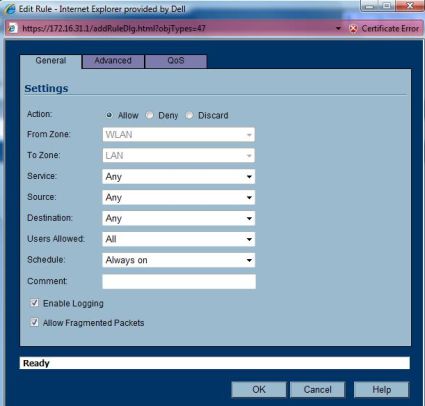
Figure 14: Zone Access Rules
Address Objects are efficient configuration tools for the network administrator, allowing you to name key devices on your network and then select them in drop-down configuration lists throughout the SonicWALL OS. I set up an Address Object naming my VoIP Server as below, making Access Rule configurations more intuitive.
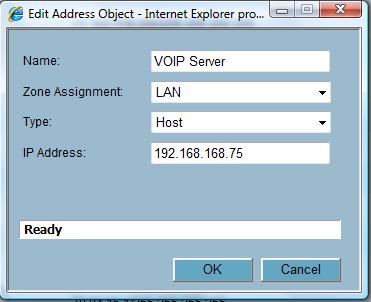
Figure 15: Address Object setup
VoIP
SonicWALL has designed their deep packet inspection firewall to detect Voice over IP traffic, simplifying firewall configurations to securely pass voice media. Recognized VoIP protocols include H.323 and SIP. You can also use MGCP and SCCP on your network, but you’ll need to create custom rules, or limit use of those protocols to internal LAN communication. My network has an Asterisk VoIP server that utilizes SIP signaling with an external VoIP provider (www.broadvoice.com) for Long Distance calling.
I used the VoIP Server Address Object I created above to build an Access Rule that forwards SIP signaling from the WAN to my VoIP server’s private IP address on the LAN.
The VoIP menu has a simple option, “Enable SIP Transformation,” which dynamically opens up the RTP/RTCP ports to pass the voice media in a SIP call. This is a more secure approach, as the RTP ports are opened per call instead of being permanently opened. The TZ 190 then monitors the status of all VoIP calls, allowing them to be logged and active calls to be displayed in the VoIP Call Status menu, as shown below.
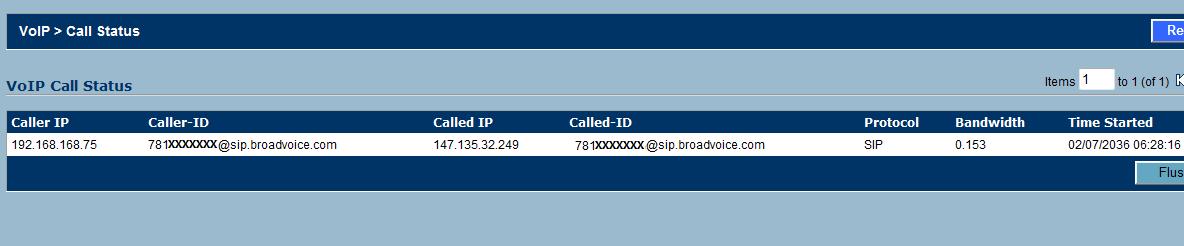
Figure 16: VoIP Call Status menu
I found it interesting that SonicWALL has included Cisco Call Manager interoperability with the TZ 190. The TZ 190 DHCP server can be configured to send the IP addresses of up to three Cisco Call Manager servers to IP Phones.
VPN
The TZ 190 offers two levels of VPN functionality: Site-to-Site and Client to Gateway VPN, both using IPSec technology. You’d set up a Site-to-Site VPN tunnel to connect the routers at two different offices. Of course, SonicWALL has a Wizard makes to make it easy to set up a VPN tunnel between two SonicWALL routers, or you can set up an IPSec tunnel between a SonicWALL and another brand of router, as long as the options on both sides match.
Client to Gateway VPN functionality is also available for remote PCs to connect to the TZ 190. This requires each client PC to load the SonicWALL Global VPN client. Of note, SonicWALL’s full release VPN client isn’t ready for Vista. Most of SonicWALL’s features and products are Vista ready; they have a matrix explaining release dates and compatibility here.
With a little hunting through SonicWALL’s Web forum, I was able to locate, download, and install SonicWALL’s Beta Global VPN Client for Vista on my laptop. The VPN Client software has a simple wizard (another wizard!) to input the home office IP address or domain, and select enable. From a remote location with a standard cable Internet connection, I was able to use the Vista VPN Client to connect to the TZ 190 and get an IP address from my LAN, which enabled me to access my servers and NAS devices securely and remotely.
I tested SonicWALL’s Client VPN throughput using a free utility from Ixia called Qcheck between my laptop and a Windows server on my LAN. TCP throughput testing, using a 1000 KByte file size, showed relatively low numbers, averaging 1.572 Mbps from Client to Server and 1.149 Mbps from Server to Client. Note that this measurement was taken using 3DES encryption for both IKE and tunnel. I didn’t test using the more secure and compute-intensive AES encryption.
As you can see from Table 1, performance was pretty consistent. While this VPN throughput is well matched to a T1 service, it’s on the low end of the range of what’s available from much less expensive products such as the NETGEAR FVS114.
| Speed in Mbps | ||||
|---|---|---|---|---|
| Test | Avg | 1 | 2 | 3 |
| Client to Server | 1.572 | 1.719 | 1.515 | 1.483 |
| Server to Client | 1.149 | 1.125 | 0.984 | 1.338 |
Table 1: VPN Client throughput
Wireless
SonicWALL adds 802.11b/g Wi-Fi functionality in the TZ 190W, allowing it to function as either an Access Point or Wireless Bridge. Firing up the Access Point was a piece of cake, again using one of the SonicOS Wizards. I had no problem connecting Intel and Linksys wireless NICs, even a Nintendo DS, to the Access Point. The Wireless status menu indicates the TZ 190W will allow up to 32 simultaneous wireless connections. I got a kick out of using the WLAN and WWAN simultaneously. Talk about complete wireless nirvana; I was able to surf the Internet without wires from my PC to the router, and without wires from the router to the world!
The TZ 190W supports full wireless security, including WEP, WPA, WPA2 encryption, as well as MAC address filtering. As mentioned previously, the default Zone security settings disable WLAN client access to the wired LAN. In addition, the TZ 190W puts wireless clients on a separate subnet. The default configuration put wired LAN clients on the 192.168.168.0 /24 network, while WLAN clients are given addresses in the 172.16.31.0/24 network. This separation enables the firewall to more effectively control traffic between the inherently less secure WLAN and the sensitive devices on your LAN.
To further enhance security, a network administrator can configure the TZ 190W to enforce use of the VPN client software over the WLAN. This feature, referred to as WiFiSec, is an additional level of protection, and is recommended by SonicWALL if using WEP encryption.
VLANs and QoS
SonicWALL includes VLAN functionality for the TZ 190 with their PortShield feature. PortShields are user-created virtual interfaces that enable control over the switch ports on the TZ 190. The TZ 190 has eight switch ports, which in default configuration are all part of a single VLAN. Separating the eight switch ports into different VLANs requires first creating a new Zone, which is as simple as going into the Network Zones menu, clicking Add, and giving your new Zone a name. With a new Zone created, a PortShield Interface can then be added in the Network Interface menu and assigned to the new Zone.
I tested the TZ 190’s VLAN functionality by creating a Zone called LAN2, and then added a PortShield Interface called VLAN2 assigned to my new LAN2 Zone. As you can see below, I gave the PortShield interface an IP address in a different subnet (192.168.5.1/24 as opposed to the LAN interface of 192.168.168.168/24) and assigned one of the eight switch ports to be a member of my VLAN2 PortShield interface. A DHCP service was automatically set up by the SonicOS to provide IP addresses to clients off this port in the 192.168.5.0/24 network. I tested this feature by then plugging my laptop into the switch port I assigned to this new VLAN, and verified I was assigned an IP address from the 192.168.5.0/24 network and was able to surf the Internet.
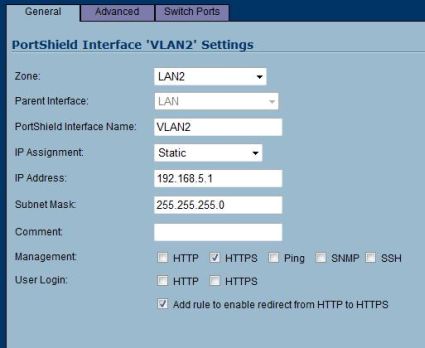
Figure 17: A VLAN PortShield
Recall from the Firewall discussion above the SonicWALL’s ability to control traffic between the wireless LAN and the wired LAN Zones. SonicWALL provides the same control with my newly added Zone. I verified I can Allow or Deny traffic between the LAN Zone and my LAN2 Zone. Further, since I’ve separated the two zones into different subnets, I have automatically protected each zone from the other’s Layer 2 broadcasts, a key value of VLANs.
The TZ 190 also allows for allocating bandwidth to different traffic types, an element of QoS. To ensure sensitive traffic flows, such as VoIP, are allocated sufficient bandwidth, the first step is to define the bandwidth of the WAN interface. I was able to do this by going into the Network Interface menu and setting the capacity (Figure 18) of my Internet service, in this case Verizon FiOS, which runs at 5 Mbps down and about 1.5 Mbps up.
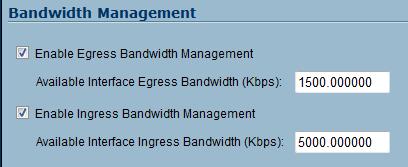
Figure 18: Bandwidth management settings
Once defined, Access Rules in the Firewall can be set up to allocate percentages of bandwidth to specific traffic types. In Figure 19, you can see that I’ve allocated a minimum or guaranteed bandwidth percentage of 10% and maximum of 15% to VoIP traffic going from my LAN subnets to the WAN interface. Another Access Rule can be set up for the WAN-to-LAN direction. Setting bandwidth allocations ensures activities like web surfing or downloading won’t affect delay-sensitive traffic flows.
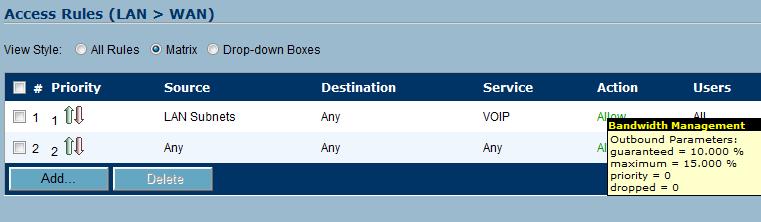
Figure 19: Assigning bandwidth to specific access rules
Troubleshooting Tools
When it comes to managing and maintaining your network, SonicWALL has included some nice tools for the network administrator to gain insight on various problems. For example, built into the Systems menu is a Packet Capture tool similar to Ethereal/Wireshark. As with Wireshark, filters can be user defined to trap packets based on IP, protocol, or port, as well as physical interfaces on the TZ 190. I set up a simple filter to capture all packets originating from my wireless IP to see this tool in action. Packet Captures can generate large files; the TZ 190 allows you to output the data directly to an FTP server. The output is organized in a line-by-line report of packets, which you can click on to see more details, as below.
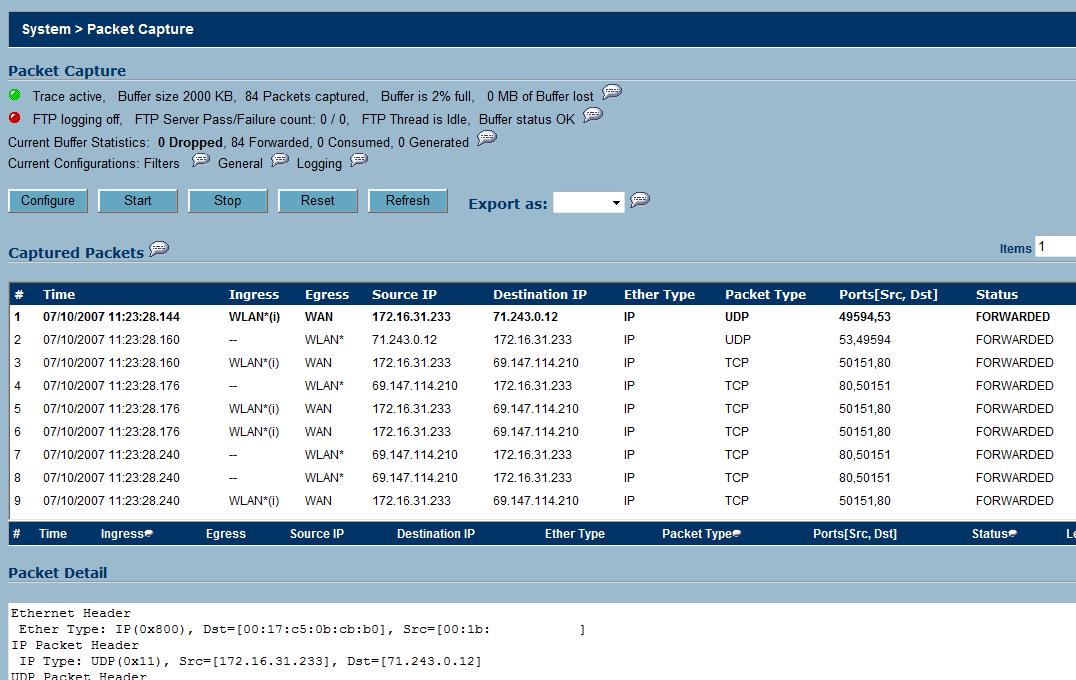
Figure 20: The Packet Capture tool
Also in the SonicWALL toolbox is a feature that allows for the creation of a Tech Support Report, which will produce a file of details from your router to assist SonicWALL technical support in helping you with problems. There are useful displays on various component performance, such as the real-time CPU utilization report (Figure 21), which can be viewed in 30 second, 30 minute, 24 hour and 30 day intervals. This can be used to determine how hard the appliance is working, and provides insight into the performance of your network.
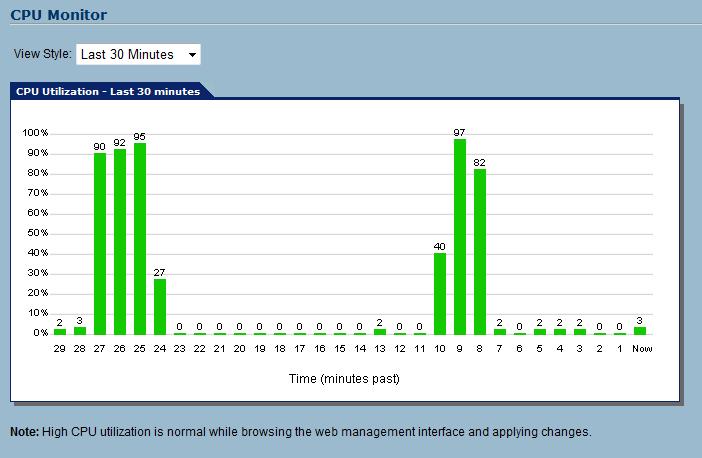
Figure 21: Report showing CPU utilization
Reports
Data collection needs to be turned on in the Log menu, and once active, the TZ 190 will collect data on various activities on your network and provide useful displays. Included with the system are reporting capabilities on Web Site Hits, Bandwidth Usage by IP, and Bandwidth Usage by Service.
The Bandwidth Usage by Service is a good report to assist in managing QoS on your network. A network administrator can use this data to see what types of traffic are most common on the network and more accurately assign prioritization and bandwidth limits. I found the Bandwidth Usage by IP report (Figure 22) interesting. It showed which clients on my LAN were generating the most traffic, below. This information can be used to understand network activity levels by client.
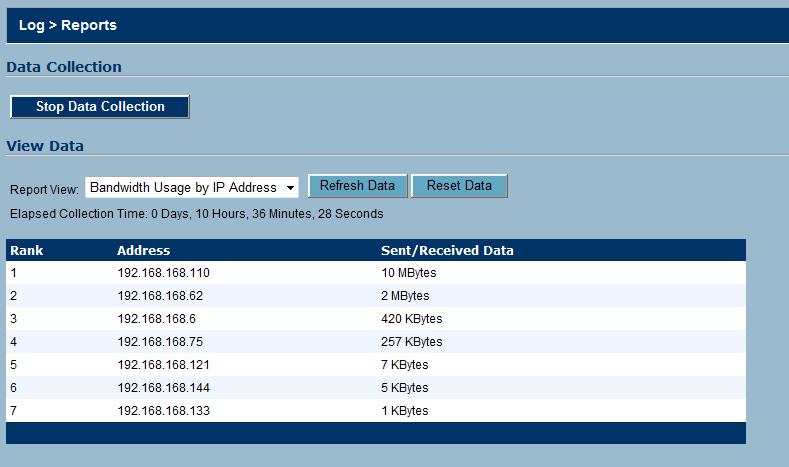
Figure 22: Report showing bandwidth usage by IP
Routing Performance
We put the TZ 190 through our suite of router tests, and the results are shown in Table 2. We weren’t able to complete the Simultaneous Throughput or Maximum Connection tests because IxChariot couldn’t return results from its WAN – LAN tests due to the 190’s formidable NAT + SPI firewall. Therefore, the WAN – LAN tests were actually done with Qcheck, which sometimes deals better with SPI+NAT firewalls.
| Test Description | Throughput — (Mbps) |
|---|---|
| WAN – LAN | 25 |
| LAN – WAN | 26 |
| Firmware Version | 3.8.0.4e |
Table 2: Routing throughput
The 25 Mbps throughput is lower than you find in many current-generation consumer routers, but is fine for the Internet speeds to which most businesses will have access. Check the Router Performance Charts to see a full ranking against 50 other routers.
Conclusion
The TZ190 / 190W’s capabilties extend far beyond what you find in typical consumer routers, and even beyond other manufacturers’ “Pro” product lines. But with great capability comes greater cost—and not just for the hardware.
List pricing for the TZ 190 is $895 and $1320 for the TZ 190W, although street pricing can be found as low as $630. Annual support costs $155/yr for 8–5 business hour support, $205/yr for 24×7 support or you have the option of just software and firmware updates at $110/yr. Note that an annual support contract is necessary as firmware updates are available only for 90 days after purchase (and after required product registration).
If you want to take advantage of the UTM services, a full Gateway Anti-Virus, Anti-Spyware, Intrusion Prevention, Content Filtering, and 24×7 support solution will cost an additional $395/yr, or $295/yr without the Content Filtering Services. Longer-term subscriptions, which decrease the annual costs, are an option.
Client-based services, such as the desktop Anti-Virus software or the VPN software are also subscription based and further increase the cost. A 5-user license for Client Anti-Virus software is $199/yr and a 10-user license for the Global VPN client is $345. When you’re adding this all up, keep in mind that the above pricing does not include your contract with your wireless provider for the WWAN service.
If you’re looking for simple WWAN functionality, there are lower-priced devices, such as the D-Link DIR-450 ($178.99 at newegg.com) or a Linksys/Sprint offering, the Linksys WRT54G3G-ST router with a Sprint WWAN card ($249.99 at CDW.com). Neither of these devices, however, offers the UTM features or Dual WAN capabilities of the SonicWALL. Zyxel has a UTM product, the Zywall 5 UTM ($604.99 at Buy.com) with integrated security features, but lacking WWAN, WLAN, and Dual WAN functionality. Clearly, the SonicWALL TZ 190/TZ 190W appliance is in a different class than these offerings from D-Link, Linksys, and Zyxel. With WWAN, WLAN, Dual WAN capability, and advanced UTM services, a fairer comparison of the SonicWALL may be with devices from Cisco, WatchGuard, Fortinet, etc.
Like most networking enthusiasts, I can usually fire up a consumer/”prosumer” device with little or no assistance from the manual. However, to get the most from the TZ 190, plan to spend some time with the manual. The SonicWALL OS is GUI driven and the wizards do get you running quickly. Nevertheless, with the 190’s extensive details and options, I found it beneficial and necessary to go through the SonicOS 3.8 Enhanced Administrator’s Guide.
Traditional business network design has been more modular, with key functions distributed over multiple devices. Lately, however, the pendulum (perhaps pushed a bit by Cisco and its ASA product line) has been swinging toward the integrated approach that has been used since virtually the beginning for consumer networking. Unified Threat Management is popular in the small business space, and SonicWALL’s TZ 190/W brings a lot to the party, even throwing in WWAN capability to sweeten the deal. Overall, I am amazed at how much this single networking device can do. The TZ 190W truly is the Swiss Army Knife of small business networking!